




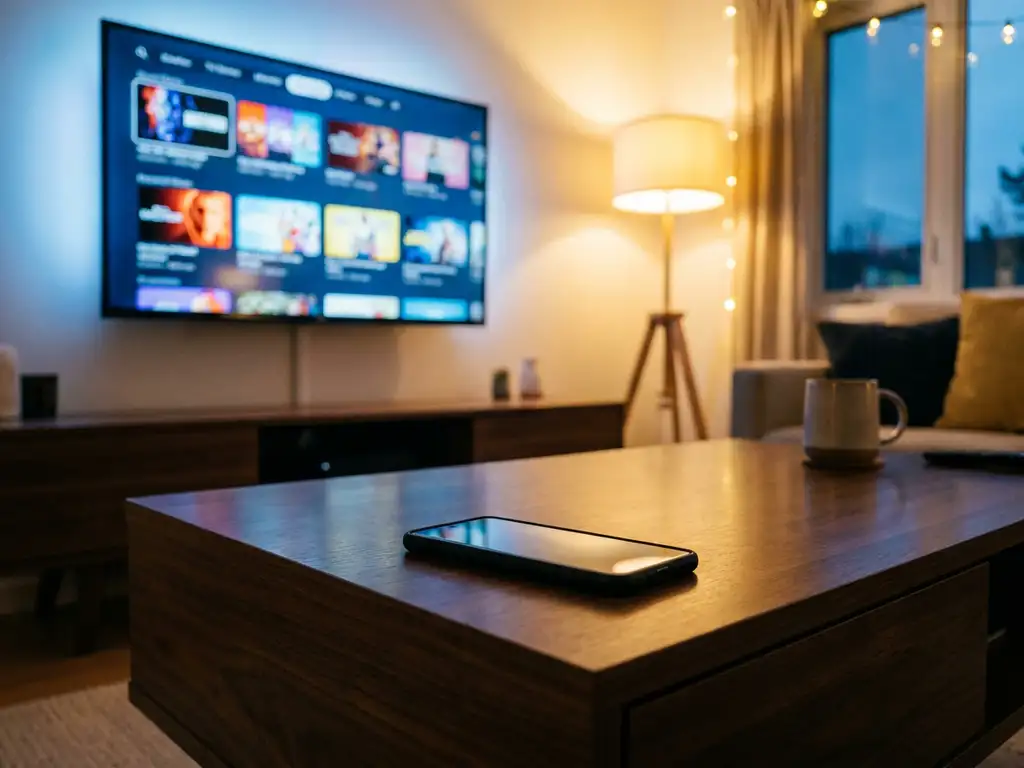
Yes, a universal TV remote app can control a TCL TV. As long as your phone and your TCL TV are connected to the same Wi-Fi network, a compatible remote app lets you adjust volume, switch inputs, change channels, and navigate menus, all from your phone. The exact features available depend on your TCL TV model and the app you use. Below, we cover everything you need to know before you download.
What can a universal TV remote app actually do on a TCL TV?
A universal TV remote app can replace your physical TCL remote almost entirely. Once connected, you can control volume, power, channel switching, input selection, and mute. Most apps also offer a touchpad or directional pad for navigating TCL’s on-screen menus, and some include a keyboard for faster text input when searching for content.
Beyond the basics, many remote apps support additional functions depending on your TCL TV’s capabilities. These often include:
- Volume and mute control with haptic feedback so you know the tap registered
- Input and source switching between HDMI, streaming apps, and built-in channels
- Directional navigation using a virtual D-pad or touchpad
- Keyboard input for searching shows or entering passwords
- Power on/off (available on most Wi-Fi-connected TCL models)
The main difference from a physical remote is convenience. Your phone is almost always within reach, the screen is easier to read, and you never have to hunt for batteries.
Does a universal remote app work with all TCL TV models?
A universal TV remote app works with most modern TCL TVs, but not every model. TCL produces TVs running different operating systems, including Roku TV, Google TV, Android TV, and their own QLED platform. Apps that support TCL generally work across these platforms, though the depth of control can vary slightly by model.
Older TCL TVs that predate smart TV technology, or models without a network connection, are not compatible with Wi-Fi-based remote apps. If your TCL TV does not connect to your home network at all, a phone app will not be able to reach it.
If you are unsure whether your TCL model is supported, check the app’s compatibility list before downloading. Most apps list supported brands and TV types clearly on their app store page.
Do you need Wi-Fi or Bluetooth to control a TCL TV with an app?
Most universal TV remote apps use Wi-Fi to connect to a TCL TV. Both your phone and your TV need to be on the same Wi-Fi network. The app communicates with the TV over that shared connection, which is why no extra hardware or pairing codes are needed.
Some apps also support infrared (IR) blasting, but this requires your phone to have a built-in IR blaster, which most modern iPhones and many Android phones no longer include. Bluetooth-based control is less common for TCL TVs and is generally not the primary connection method for remote apps.
The practical takeaway is simple: make sure your phone and TCL TV are on the same Wi-Fi network, and a compatible app will connect without any extra steps.
Which remote apps are compatible with TCL TVs?
Several remote apps support TCL TVs. The right choice depends on whether you use an iPhone, iPad, or Android device, and how many different devices you want to control from one place.
Common options include:
- TCL’s own remote app, available for some Roku and Android TV models
- Roku’s official app, which works if your TCL TV runs Roku TV
- Google Home, which supports TCL TVs running Google TV
- Third-party universal apps, which often support TCL alongside Samsung, LG, Sony, and other brands in a single app
Third-party universal remote apps tend to be the most flexible option if you have multiple TV brands at home or want to control streaming devices like Roku or Amazon Fire TV from the same interface.
Why won’t my remote app connect to my TCL TV?
The most common reason a universal TV remote app fails to connect to a TCL TV is a network mismatch. If your phone is on a different Wi-Fi network or a guest network, the app cannot find the TV. Check that both devices are on the exact same network before anything else.
Other frequent causes include:
- The TV’s network settings are off: Some TCL models have a setting that blocks device discovery. Check the TV’s network or remote control settings menu.
- The app needs a restart: Close the app fully and reopen it after confirming both devices are on the same Wi-Fi.
- The TV needs a restart: Unplug your TCL TV for 30 seconds, then power it back on and try again.
- Your TCL model is not supported: Double-check the app’s compatibility list to confirm your specific model is included.
- Firewall or router settings: Some routers block device-to-device communication on the local network. This is less common but worth checking if nothing else works.
Working through this list in order resolves the connection issue for most users. The fix is almost always a network setting rather than a problem with the TV or the app itself.
How AirBeamTV Helps with Controlling Your TCL TV
We built the AirBeamTV Universal TV Remote App to make controlling your TCL TV as straightforward as possible, with no setup codes, no extra hardware, and no frustrating pairing process.
Here is what you get with our app:
- TCL support out of the box: The app works with TCL alongside other major brands like Samsung, LG, Sony, and Roku, so one app handles everything in your home.
- Full remote functions: Volume, mute, power, channel switching, source selection, and directional navigation are all included.
- Touchpad and keyboard input: Navigate menus with a touchpad or type directly using your phone’s keyboard, much faster than clicking through letters on screen.
- Haptic feedback: Every tap confirms your action immediately, so you always know the command went through.
- Works on iPhone, iPad, and Android: Whatever device you use, the app is available for you.
- No extra hardware: Just connect your phone and TCL TV to the same Wi-Fi network, select your TV model, and you are ready to go.
Download the AirBeamTV Universal TV Remote App, open it on your phone, select your TCL TV, and start controlling. That is all it takes.
