




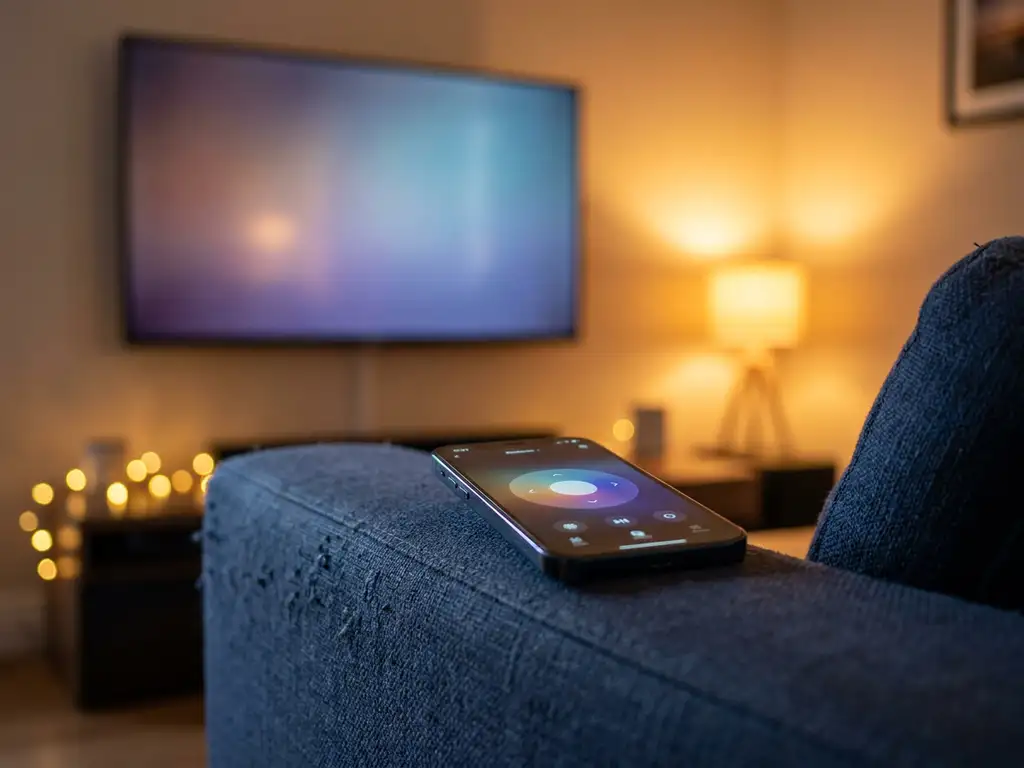
Yes, a universal TV remote app can switch channels just like a physical remote. These apps send the same infrared or Wi-Fi signals your original remote uses, so changing channels, adjusting volume, and navigating menus all work the same way. Below, we cover the most common questions people have before downloading one.
What can a universal TV remote app actually control?
A universal TV remote app can control most of the core functions on your TV: channel switching, volume, input selection, power on and off, mute, and menu navigation. Many apps also give you a touchpad and on-screen keyboard, which makes searching for shows or typing in streaming apps much easier than pecking through letters with arrow buttons.
Beyond your TV, a lot of remote apps extend to streaming devices too. You can often control a Roku stick, Amazon Fire TV, or Android TV box from the same app, so you are not juggling three different remotes for one screen. The range of control depends on the app and your specific devices, but for everyday TV use, a remote app covers everything most people need.
How does a TV remote app switch channels without physical buttons?
A TV remote app switches channels by replicating the signals your original remote sends, either through your home Wi-Fi network or through your phone’s infrared blaster. When you tap a channel button in the app, it sends the same command to your TV that a physical button press would. The TV receives the signal and responds exactly as it would with a hardware remote.
Most modern smart TVs connect over Wi-Fi, which means the app and your TV just need to be on the same network. Older TVs or certain models may rely on infrared, which requires your phone to have an IR blaster built in. If your phone does not have one, a Wi-Fi-connected smart TV is the more practical route. Either way, the channel switching experience feels instant and responsive.
Are there things a physical remote does that a remote app can’t?
In most everyday situations, a remote app matches what a physical remote does. That said, there are a few edge cases where a physical remote has a small advantage. If your Wi-Fi goes down, a Wi-Fi-based app will stop working, while an infrared remote keeps functioning. Some TV-specific shortcut buttons, like a dedicated button for a single streaming service, may not be replicated in every app.
On the flip side, a remote app often does things a physical remote cannot. An on-screen keyboard makes text entry far faster. A touchpad lets you scroll more naturally. And because the app lives on your phone, you always know where it is, which is more than most people can say for their physical remote.
Does a universal remote app work with all TV brands?
Most universal TV remote apps support all major TV brands, including Samsung, LG, Sony, TCL, Hisense, Philips, and Panasonic. Coverage across popular brands is generally very good. Where you might run into limits is with older or less common TV models, particularly those that predate smart TV technology or use proprietary connection methods.
Before downloading, it is worth checking that the app lists your specific TV brand and model. Good apps make this easy by letting you search by brand during setup. If your TV connects over Wi-Fi and is from a well-known manufacturer, compatibility is rarely an issue in 2026.
What’s the difference between a remote app and a screen mirroring app?
A remote app controls your TV, while a screen mirroring app sends your phone or laptop’s screen to your TV. They solve different problems. A remote app replaces your physical remote and lets you change channels, adjust volume, and navigate menus. A screen mirroring app lets you display what is on your device, such as a video, a presentation, or a photo, on the big screen.
Some people need one, some need the other, and some need both. If you want to browse Netflix using your phone as a remote, a remote app is the right tool. If you want to watch a video that is only on your phone or show a presentation from your laptop on the TV, screen mirroring is what you need. The two functions are complementary, not interchangeable.
How AirBeamTV Helps with TV Remote and Screen Mirroring Control
We built the AirBeamTV Universal TV Remote App to cover both sides of this: controlling your TV and, separately, mirroring your screen to it. Here is what the remote app gives you specifically:
- Channel switching and full remote control — volume, mute, source selection, power, and navigation all work from your phone
- Touchpad and on-screen keyboard — makes typing in search bars and scrolling through menus much faster than using arrow buttons
- Haptic feedback — your phone vibrates slightly when you tap a button, so you always know the action registered
- Support for all major TV brands — Samsung, LG, Sony, TCL, Roku, Amazon Fire TV, and more, all from one app
- No setup codes or extra hardware — connect your phone and TV to the same Wi-Fi, pick your TV model, and you are ready to go
Setup takes under a minute. No manuals, no pairing codes, no frustration. If you also want to mirror your screen to the TV, we have separate apps for that too, so you can mix and match based on what you actually need.
Ready to turn your phone into a proper TV remote? Download the AirBeamTV Universal TV Remote App and start controlling your TV in seconds.
