




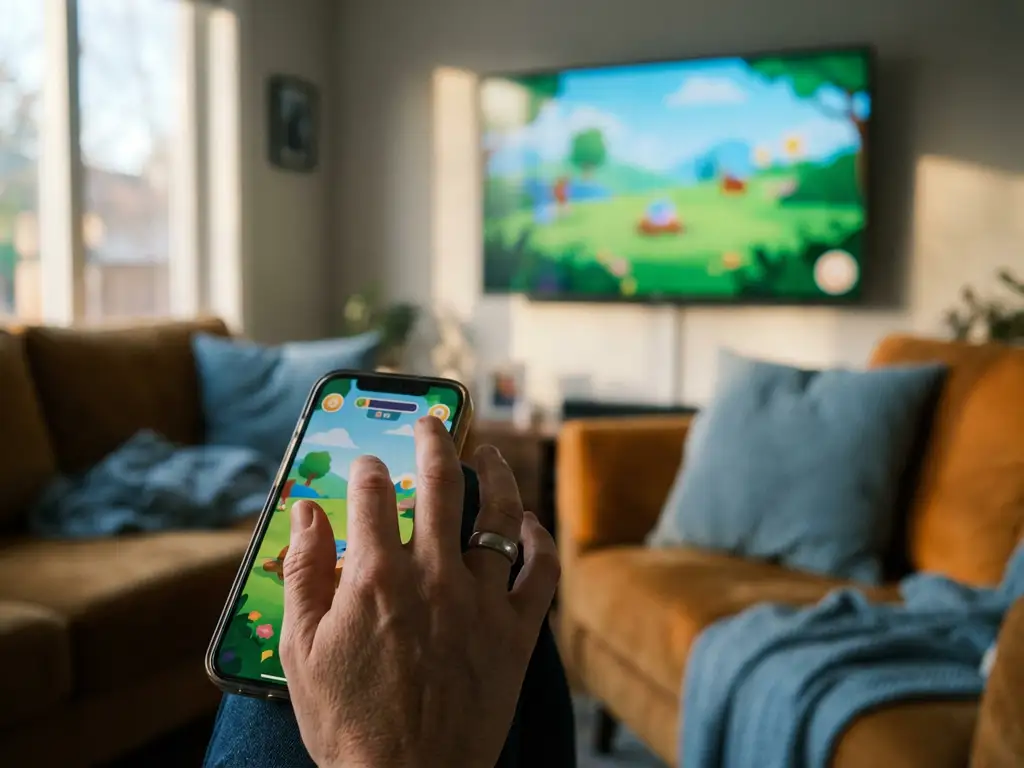
Parents today face new challenges in managing their children’s screen time and device usage. With iPhone screen mirroring becoming increasingly popular for sharing content on larger displays, many wonder whether these features can circumvent the parental controls they have carefully set up. Understanding how screen mirroring interacts with built-in restrictions is crucial for maintaining effective digital boundaries in your household.
Screen mirroring technology allows users to wirelessly display iPhone content on TVs and other devices, but this capability raises important questions about parental oversight. Let’s explore how these features work within Apple’s parental control framework and what parents need to know to maintain appropriate digital supervision.
What Are Parental Control Restrictions on iPhone Screen Mirroring?
iPhone parental controls can restrict screen mirroring through Screen Time settings, specifically by disabling AirPlay and screen recording in the Content & Privacy Restrictions menu. When these restrictions are enabled, children cannot use built-in mirroring functions like AirPlay to cast content to Apple TV or other compatible devices.
Apple’s Screen Time feature provides several layers of control over mirroring capabilities. Parents can disable AirPlay entirely, preventing kids from casting their iPhone screens to televisions or other displays. Additionally, the screen recording restriction blocks the ability to capture or share screen content, which some mirroring apps rely on to function properly.
These restrictions work by limiting access to specific iOS functions at the system level. When AirPlay is disabled, the Control Center option disappears, and apps cannot access the underlying mirroring protocols. Similarly, blocking screen recording prevents apps from capturing the display output needed for wireless casting to non-Apple devices.
Can Third-Party Screen Mirroring Apps Bypass iPhone Parental Controls?
Third-party screen mirroring apps cannot completely bypass iPhone parental controls, but they may work differently from Apple’s built-in AirPlay, depending on which specific restrictions are enabled. Apps that rely on screen recording will be blocked if that permission is restricted, while those using alternative methods might still function partially.
The effectiveness of parental controls against third-party apps depends on how those apps access iPhone mirroring capabilities. Some screen mirroring applications work by capturing the device screen and transmitting it over Wi-Fi networks, which requires screen recording permissions. If parents have disabled screen recording in Screen Time settings, these apps will not function.
However, certain mirroring apps might use different technical approaches that do not rely on the same restricted functions. For example, some apps focus on specific content types like photos or videos rather than full-screen mirroring. These might still work even when broader mirroring restrictions are in place, though their functionality would be limited compared to unrestricted use.
How Do Screen Time Restrictions Affect Screen Mirroring Functions?
Screen Time restrictions directly impact screen mirroring by blocking access to essential iPhone functions like AirPlay, screen recording, and app installation. When these controls are active, most mirroring capabilities become unavailable, including both Apple’s native features and third-party applications that depend on the same underlying technologies.
The most significant impact comes from disabling AirPlay in the Content & Privacy Restrictions menu. This prevents the iPhone from connecting to Apple TV devices and compatible displays and other AirPlay-compatible displays. The AirPlay icon disappears from Control Center, and apps cannot invoke mirroring functions through Apple’s standard protocols.
Screen recording restrictions create another barrier for third-party mirroring apps. Many of these applications require permission to capture the iPhone display, which becomes impossible when screen recording is disabled. Even if the app is already installed, it cannot access the screen content needed to transmit to external displays.
App installation restrictions add an additional layer of protection by preventing children from downloading new mirroring apps without parental approval. This helps ensure that parents maintain control over which screen-sharing tools are available on their child’s device.
What Should Parents Know About Managing Screen Mirroring Permissions?
Parents should regularly review their Screen Time settings to ensure screen mirroring restrictions align with their family’s digital boundaries. They should check both AirPlay and screen recording permissions while considering age-appropriate flexibility as children demonstrate responsible device usage.
Effective management starts with understanding the different types of mirroring restrictions available. The AirPlay setting controls Apple’s native casting features, while screen recording permissions affect many third-party apps. Parents should consider which restrictions make sense for their child’s age and maturity level, as completely blocking all mirroring might be overly restrictive for older children.
Communication plays a crucial role in successful screen mirroring management. Explain to children why certain restrictions exist and under what circumstances they might be relaxed. This helps build trust and understanding rather than simply imposing technical barriers. Consider creating family media agreements that outline when and how screen mirroring is appropriate.
Regular monitoring and adjustment of these settings ensures they remain effective as children grow and technology evolves. What works for a 10-year-old may be too restrictive for a 15-year-old who has demonstrated responsible device usage. Parents should also stay informed about new apps and features that might affect their existing control strategies.
