




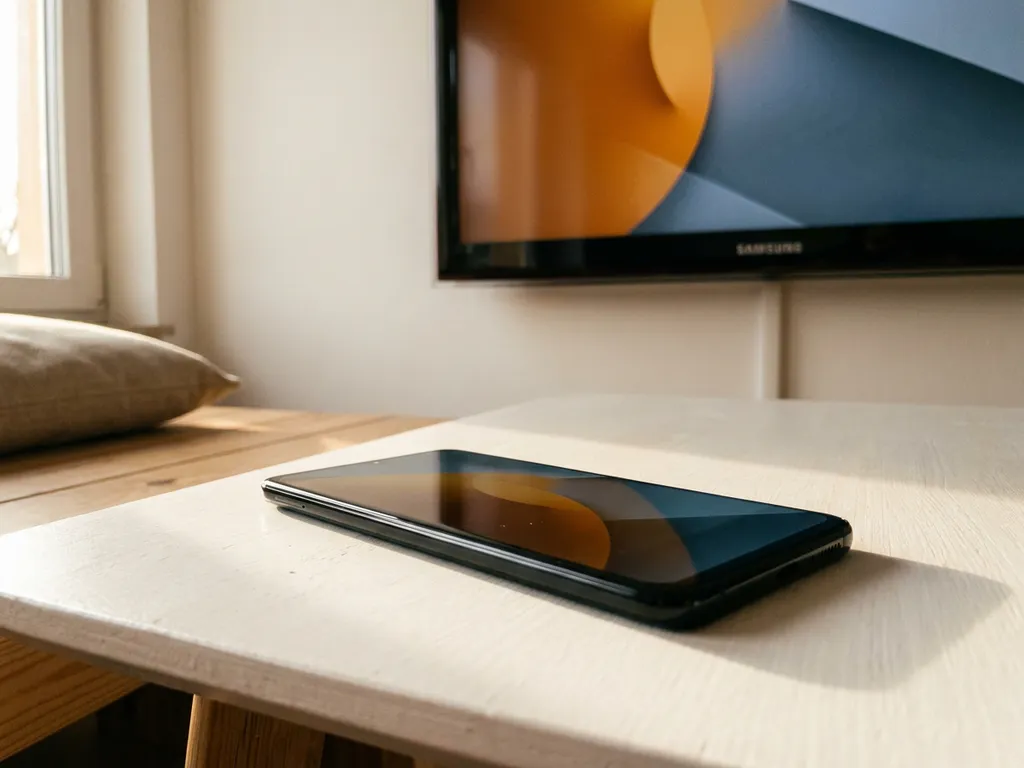
Yes, you can mirror your Android screen to a Samsung TV without internet. Most people assume you need a home Wi-Fi network to get started, but there is actually a way to connect your devices directly to each other. This guide walks you through exactly how to do it, step by step, in plain English.
What you need before mirroring without internet
Before you start, it helps to know what you are working with. Mirroring without internet relies on a direct wireless connection between your Android phone and your Samsung TV. No router needed. No Wi-Fi password required. Just the two devices talking to each other.
Make sure you have the following ready before you begin:
- An Android phone or tablet (Android 5.0 or later works best)
- A Samsung Smart TV from around 2016 or newer
- Both devices charged or plugged in
- Screen Mirroring or Cast enabled on your Samsung TV
You do not need a Wi-Fi router, a cable, or any extra hardware. The connection method you will use is called Wi-Fi Direct, which lets your phone and TV create their own private wireless link. Think of it as two devices creating their own mini network.
Set up a direct Wi-Fi connection between devices
Wi-Fi Direct is the technology that makes this work. It lets your Android phone connect straight to your Samsung TV without going through a router. Setting it up takes just a few minutes.
Start on your Samsung TV:
- Press the Home button on your Samsung remote
- Go to Settings, then Network
- Select Wi-Fi Direct and make sure it is turned on
- Leave this screen open so your TV is ready to receive a connection
Now set up Wi-Fi Direct on your Android phone:
- Open your phone’s Settings
- Tap Connections or Network and Internet (the label varies by phone brand)
- Tap Wi-Fi, then look for Wi-Fi Direct in the menu (sometimes under the three-dot menu at the top right)
- Your phone will scan for nearby devices. Your Samsung TV should appear in the list
- Tap the TV name to connect. Accept the connection prompt on your TV if one appears
Once the connection is accepted, your phone and TV are linked directly. You should see a confirmation on both screens. With this direct link established, you are ready to start mirroring.
Mirror your Android screen to Samsung TV
With the Wi-Fi Direct connection in place, you can now cast your Android screen to the Samsung TV. Samsung calls this feature Smart View or Screen Mirroring depending on your TV model. Both do the same thing.
- Swipe down from the top of your Android screen to open the Quick Settings panel
- Look for a tile labelled Smart View, Screen Cast, or Mirror Screen
- Tap it and wait for your phone to search for available screens
- Select your Samsung TV from the list
- Your phone screen will appear on the TV within a few seconds
You should see your phone’s home screen displayed on the TV. Everything you do on your phone, including opening apps, browsing photos, or playing a video, will show up on the big screen in real time. If the tile is not visible in your Quick Settings panel, try searching “Cast” or “Mirror” in your phone’s Settings search bar.
Fix common connection issues without internet
Things do not always connect perfectly on the first try. Here are the most common problems people run into and how to fix them quickly.
Your TV does not appear in the device list
If your Samsung TV is not showing up when your phone scans for devices, try these steps:
- Make sure Wi-Fi Direct is still active on the TV. It can time out if left idle
- Move your phone closer to the TV. Wi-Fi Direct has a shorter range than regular Wi-Fi
- Restart both devices and try again from the beginning
The connection drops during mirroring
A dropping connection is usually a distance or interference issue. Keep your phone within a few metres of the TV while mirroring. Other wireless devices nearby can sometimes disrupt the signal, so turning off Bluetooth temporarily can help.
There is a noticeable lag on screen
Some lag is normal with Wi-Fi Direct mirroring, especially for fast-moving content. Closing background apps on your phone frees up processing power and often smooths things out significantly.
How AirBeamTV helps with mirroring Android to Samsung TV
Wi-Fi Direct works, but it has limits. The setup can be fiddly, the connection sometimes drops, and the picture quality is not always consistent. If you want a more reliable and straightforward way to mirror your Android screen to a Samsung TV, our app makes the whole process much simpler.
Here is what you get with our Screen Mirroring for Samsung TV app:
- No extra hardware needed. No cables, no adapters, no Apple TV equivalent required
- Works on all major Samsung Smart TV models, including newer and older ones
- Stable HD mirroring with audio, so you get the full experience on your big screen
- Simple three-step setup: download the app, open your device, start mirroring
We have helped over 20 million people get their screens onto the big screen without the headaches. You can also use a universal remote control TV app to manage your Samsung TV directly from your phone. If you want to skip the troubleshooting and just get it working, download our app and you can be up and running in minutes.
