




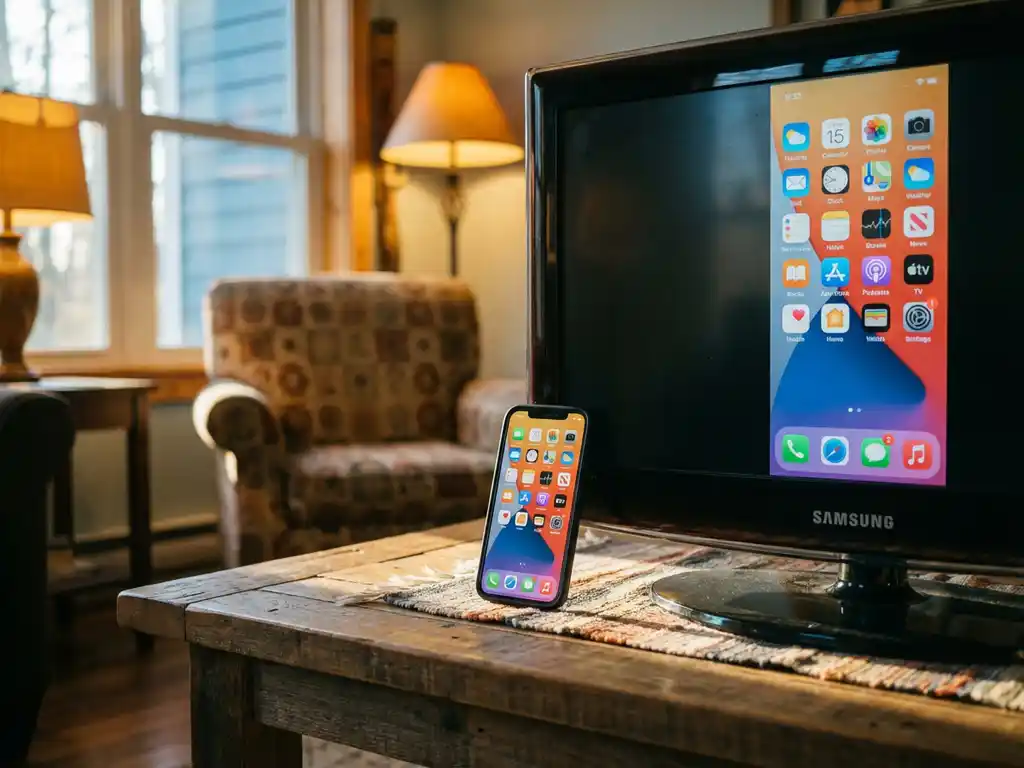
Wondering whether your trusty iPhone can connect to that older TV sitting in your living room? Many people assume that screen mirroring works only with the latest smart TVs, but that’s not necessarily true. While newer TVs offer more built-in connectivity options, there are still ways to display your iPhone’s content on older television models, including those manufactured in 2015.
The key is understanding what your older TV supports and choosing the right mirroring solution. Whether you want to share photos with family, stream videos, or display presentations, getting your iPhone screen onto an older TV is more achievable than you might think.
Can you mirror iPhone to TVs made in 2015?
Yes, you can mirror your iPhone to many TVs made in 2015, but compatibility depends on whether your TV has smart features and Wi-Fi connectivity. Most smart TVs from 2015 support wireless screen mirroring through third-party apps, while non-smart TVs require additional hardware.
The year 2015 marked a significant transition in the TV industry, with many manufacturers introducing smart TV capabilities and built-in Wi-Fi. Popular brands like Samsung, LG, Sony, and Panasonic released smart TV models that year with internet connectivity and app support. These TVs can typically run screen mirroring applications that bridge the gap between your iPhone and the television.
However, not every 2015 TV model included smart features. Basic LED or LCD TVs from that year without internet connectivity will need external devices, such as streaming sticks or media players, to enable iPhone screen mirroring. The good news is that even these older models can work with the right setup.
What are the requirements for mirroring iPhone to older TVs?
To mirror your iPhone to older TVs, you need three essential components: a stable Wi-Fi network that both devices can access, compatible software or hardware for your specific TV model, and an iPhone running iOS 9 or later for optimal compatibility.
The Wi-Fi requirement is absolutely critical because screen mirroring relies on both devices communicating over the same network. Your iPhone and TV must connect to the same Wi-Fi network to establish the wireless connection that enables data transfer. Without this shared network connection, wireless mirroring simply won’t work.
For smart TVs from 2015, you’ll typically need to download a screen mirroring app directly to the television or use a companion receiver app. The specific requirements vary by manufacturer, but most support third-party mirroring solutions. Non-smart TVs require external hardware, such as streaming devices, HDMI adapters, or media players, that can bridge the connection between your iPhone and the older display.
Your iPhone should be running a relatively recent version of iOS to ensure compatibility with modern mirroring apps. Most solutions work best with iOS 9 or newer, though some apps may support older versions with limited functionality.
How do you mirror iPhone to 2015 smart TVs wirelessly?
To mirror your iPhone to 2015 smart TVs wirelessly, download a compatible screen mirroring app on both your iPhone and your TV, connect both devices to the same Wi-Fi network, then select your TV from the app’s menu and tap “Start Mirroring” to begin casting your screen.
The process begins with finding the right mirroring app for your specific TV brand. Different manufacturers may require different applications, so you’ll want to identify your TV model first. Once you’ve downloaded the appropriate app on your iPhone, you may also need to install a receiver app directly on your smart TV through its app store.
After installation, open the universal remote and mirroring app on your iPhone and let it scan for available TVs on your network. Your 2015 smart TV should appear in the list of detected devices. Select your television from the drop-down menu, then tap the “Start Mirroring” button. The app will prompt you to begin broadcasting, and within seconds, your iPhone screen should appear on your TV.
This wireless connection enables you to stream videos, share photos, display presentations, or mirror any content from your iPhone directly to the big screen. The setup process typically takes just a few minutes, and once configured, you can reconnect quickly whenever you want to mirror content.
What’s the difference between AirPlay and third-party mirroring apps for older TVs?
AirPlay is Apple’s proprietary wireless streaming protocol that requires compatible Apple devices or Apple TV hardware, while third-party mirroring apps work with a broader range of TV brands and don’t require Apple-specific hardware, making them ideal for older TVs that lack native AirPlay support.
AirPlay was designed to work seamlessly within Apple’s ecosystem, providing excellent quality and minimal lag when connecting to Apple TV devices or AirPlay-compatible smart TVs. However, most 2015 TV models don’t include built-in AirPlay support, which limits your options if you want to stick with Apple’s native solution. You’d need to purchase an Apple TV device to use AirPlay with older televisions.
Third-party mirroring apps fill this gap by creating their own wireless connection protocols that work with virtually any smart TV brand. These apps essentially bypass the need for AirPlay by establishing direct communication between your iPhone and the television over your Wi-Fi network. They’re specifically designed to work with older TV models and provide compatibility across multiple manufacturers.
The main advantage of third-party solutions is their universal compatibility and cost-effectiveness. Instead of purchasing additional hardware, you simply download an app and start mirroring. While connection quality may vary compared to AirPlay’s optimized performance, most third-party apps provide smooth, high-definition streaming that’s perfectly suitable for everyday use.
