




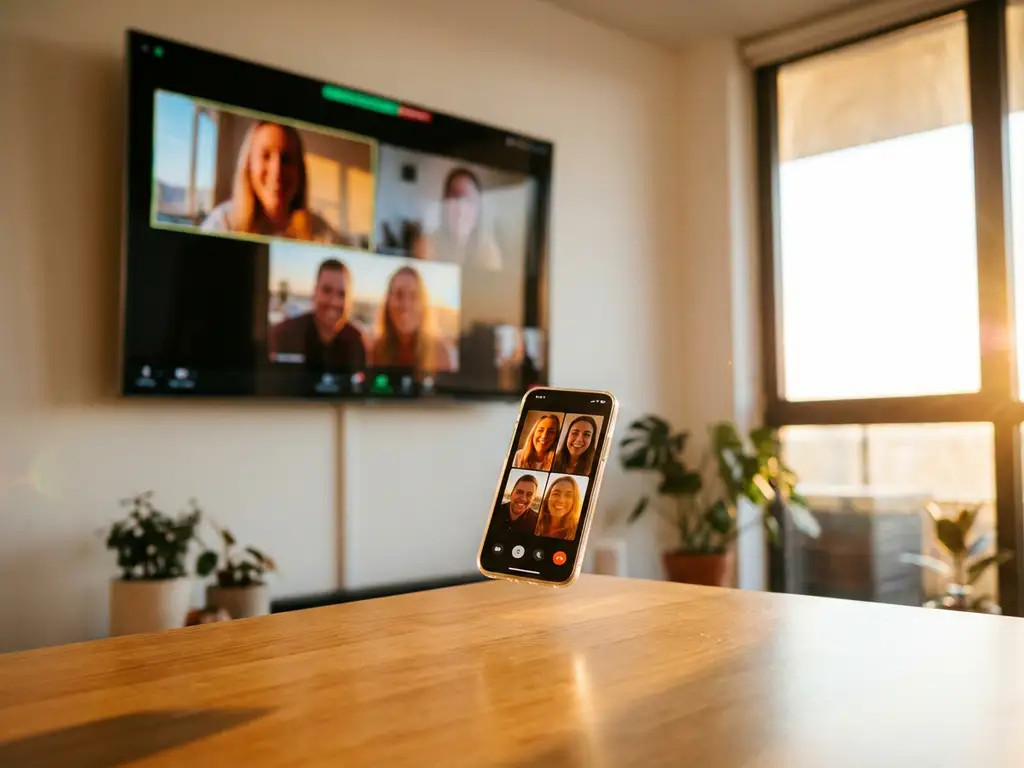
Many iPhone users wonder whether they can mirror their screen while using mobile hotspot data instead of traditional Wi‑Fi. Whether you’re traveling, in a location without Wi‑Fi, or dealing with poor internet connectivity, understanding how iPhone screen mirroring works with mobile hotspot connections can help you stay connected and share content on a bigger screen.
The short answer is yes: you can mirror your iPhone screen while using mobile hotspot data, but there are important considerations regarding data usage, connection quality, and setup requirements that can affect the mirroring experience.
Can you mirror iPhone screen while using mobile hotspot data?
Yes, you can mirror your iPhone screen while using mobile hotspot data, but both your iPhone and the receiving device (such as a smart TV or streaming device) must connect to the same Wi‑Fi network created by the mobile hotspot. Screen mirroring requires a local network connection between devices, which a mobile hotspot can provide.
The process works by creating a Wi‑Fi network through your mobile hotspot that both your iPhone and the target display device can join. Your iPhone acts as both the content source and the internet provider, while your smart TV or streaming device connects to this hotspot network to receive the mirrored content. This setup maintains the local network connection that screen mirroring apps like AirBeamTV require to function properly.
However, this approach requires your receiving device to have Wi‑Fi capabilities and the ability to connect to mobile hotspot networks. Most modern smart TVs, Fire TV devices, and Android TV boxes support this type of connection, making mobile hotspot screen mirroring a viable option when traditional Wi‑Fi isn’t available.
What are the limitations of screen mirroring over mobile hotspot?
Screen mirroring over a mobile hotspot has several key limitations, including higher data consumption, potential lag or reduced quality, faster battery drain, and possible carrier restrictions on hotspot usage. These factors can significantly affect your mirroring experience compared to traditional Wi‑Fi connections.
Data consumption becomes the primary concern when mirroring over a mobile hotspot. Video content, especially high-definition streams, can quickly consume large amounts of mobile data. A single hour of HD video mirroring might use 1–3 GB of data, depending on the content quality and compression. This rapid data usage can lead to overage charges or throttled speeds if you exceed your plan’s hotspot allowance.
Connection stability and quality often suffer with mobile hotspot mirroring. Mobile data speeds can fluctuate based on tower distance, network congestion, and signal strength, leading to buffering, reduced video quality, or connection drops during mirroring sessions. The additional network hop through the mobile hotspot can also introduce latency, making real-time interactions less responsive than with a direct Wi‑Fi connection.
Battery life on your iPhone depletes much faster when providing hotspot service while simultaneously running screen mirroring apps. The combination of mobile data transmission, Wi‑Fi hotspot broadcasting, and screen mirroring processing creates significant power demands that can drain your battery in a few hours rather than lasting all day.
How does AirBeamTV work with mobile hotspot connections?
AirBeamTV works with mobile hotspot connections by treating the hotspot as a standard Wi‑Fi network. Users activate their iPhone’s mobile hotspot, connect their smart TV to this hotspot network, then launch the AirBeamTV app to mirror their screen as they would with any Wi‑Fi connection.
The setup process remains essentially unchanged from standard Wi‑Fi mirroring. First, enable your iPhone’s Personal Hotspot feature in Settings and note the network name and password. Next, connect your smart TV or streaming device to this hotspot network through its Wi‑Fi settings menu. Once both devices share the same network connection, open the AirBeamTV app on your iPhone, select your TV from the available devices, and tap “Start Mirroring” to begin casting your screen.
AirBeamTV automatically detects TVs on the local network, whether that network is traditional Wi‑Fi or a mobile hotspot. The app’s compatibility with major smart TV brands remote control app, including Samsung, LG, Sony, and others, extends to hotspot connections, maintaining the same ease of use that makes AirBeamTV popular for wireless screen mirroring.
However, the app’s performance over a mobile hotspot depends heavily on your cellular signal strength and data speeds. AirBeamTV will attempt to maintain the best possible streaming quality within your connection’s limitations, but users may experience reduced resolution or frame rates compared to high-speed Wi‑Fi connections.
What’s the difference between WiFi and mobile hotspot for screen mirroring?
The main differences between Wi‑Fi and a mobile hotspot for screen mirroring include data costs, connection speed and stability, battery impact, and setup complexity. Wi‑Fi typically provides faster, more stable connections without data limitations, while a mobile hotspot offers portability at the cost of data usage and reduced performance.
Speed and stability are the most noticeable differences. Home Wi‑Fi networks typically offer consistent speeds ranging from 25–100+ Mbps with low latency, providing smooth HD screen mirroring with minimal buffering. Mobile hotspot speeds vary widely based on cellular coverage, often ranging from 5–50 Mbps with higher latency, which can cause quality reductions or connection interruptions during mirroring sessions.
Cost considerations heavily favor Wi‑Fi connections. Most home internet plans include unlimited data usage, making extended screen mirroring sessions cost-free. Mobile hotspot usage counts against your cellular data plan, with HD video mirroring potentially consuming several gigabytes per hour. Many carriers also impose separate hotspot data limits or charge additional fees for tethering.
Setup complexity differs between the two options. Wi‑Fi screen mirroring simply requires both devices to connect to your existing home network. Mobile hotspot mirroring requires enabling hotspot functionality, connecting your TV to the iPhone’s network, and managing the additional battery drain and heat generated by running multiple intensive processes simultaneously.
How much mobile data does iPhone screen mirroring use?
iPhone screen mirroring typically uses 150–500 MB per hour for standard content, but HD video streaming can consume 1–3 GB per hour, depending on video quality, resolution, and content type. Static content such as presentations or photos uses significantly less data than dynamic video content.
Data consumption varies dramatically based on what you’re mirroring. Simple tasks like displaying photos, documents, or static presentations might use only 50–100 MB per hour because they involve minimal data transfer. However, streaming video content, gaming, or mirroring high-motion apps can quickly increase data usage to 2–4 GB per hour for high-definition content.
Video quality settings directly affect data consumption. Standard-definition content typically uses 300–700 MB per hour, while HD content ranges from 1–3 GB per hour. Some streaming apps automatically adjust quality based on connection speed, potentially reducing data usage on slower mobile connections but also decreasing visual quality.
To manage data usage during mobile hotspot screen mirroring, consider lowering video quality settings when possible, avoiding HD content for extended periods, and monitoring your data usage through your iPhone’s cellular settings. Many users find that mobile hotspot screen mirroring works best for shorter sessions or for displaying less data-intensive content rather than for extended video streaming.
