




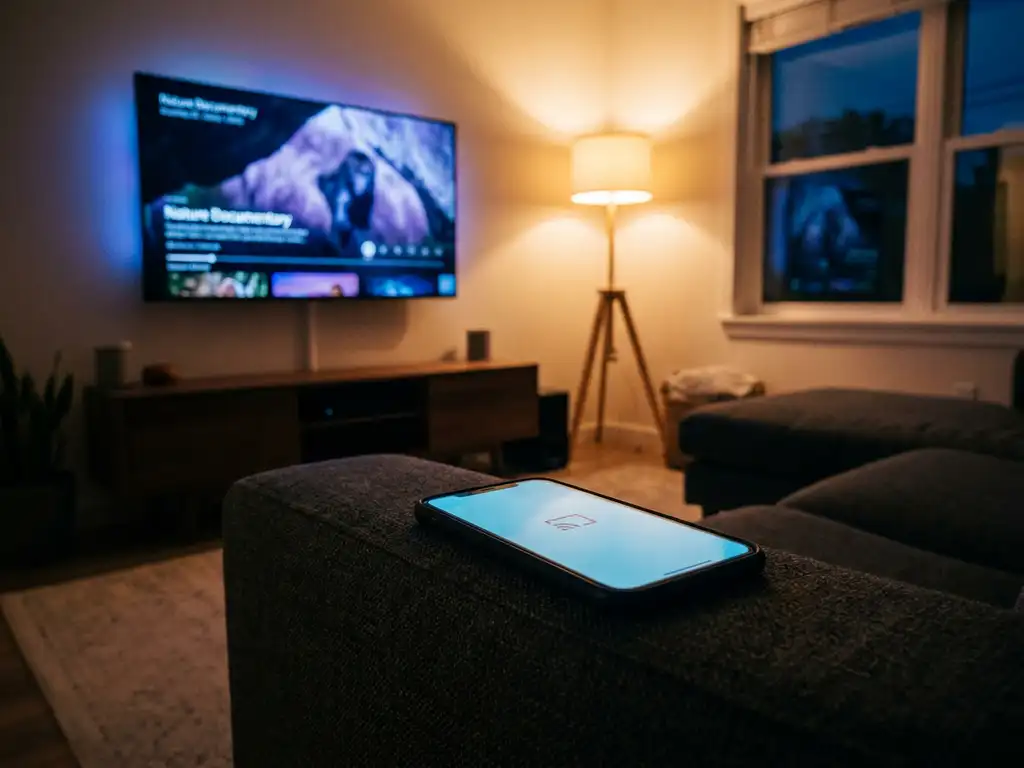
No, a universal TV remote app does not require any extra hardware. As long as your phone and your TV are connected to the same Wi-Fi network, the app communicates with your TV wirelessly — no physical dongle, IR blaster, or additional device needed. Below, we answer the most common questions people have before downloading a TV remote app.
What does a universal TV remote app actually do?
A universal TV remote app turns your smartphone into a fully functional remote control for your TV and streaming devices. It replicates the buttons on your physical remote — volume, channels, source selection, and more — directly on your phone screen, and often adds useful extras like a touchpad and keyboard input that a standard remote cannot offer.
Most universal remote apps work over your home Wi-Fi connection. When you open the app, it detects compatible TVs and streaming devices on the same network and connects to them automatically. From that point, you control your TV just as you would with a physical remote, but with the added convenience of always having it in your pocket.
Beyond basic button functions, many apps also support haptic feedback, which gives you a small vibration every time you press a button so you know the action registered. Some apps let you control multiple devices from one interface, which is useful if you have a TV and a streaming stick like a Roku or Amazon Fire TV in the same room.
Do you need any extra hardware to use a TV remote app?
No extra hardware is required to use a Wi-Fi-based universal TV remote app. You do not need an IR blaster, a hub, a dongle, or any physical accessory. The only requirement is that your phone and your TV are connected to the same Wi-Fi network.
This is worth emphasizing because older universal remote solutions did require hardware. Traditional IR-based remotes needed a line-of-sight connection and a compatible blaster. Modern smart TV remote apps have moved past that entirely. Your router does all the work, acting as the invisible bridge between your phone and your TV.
The practical result is that setup takes under a minute. You download the app, make sure both devices are on the same Wi-Fi, select your TV model from the list, and you are ready to go. No pairing codes, no cables, no waiting for hardware to arrive in the mail.
Which TVs are compatible with Wi-Fi-based remote apps?
Most modern smart TVs are compatible with Wi-Fi-based remote apps. The key requirement is that the TV must be a smart TV with a network connection. Brands that are widely supported include Samsung, LG, Sony, TCL, Hisense, Philips, Panasonic, and Roku TVs, as well as streaming devices like Amazon Fire TV and Roku sticks.
Older non-smart TVs are generally not compatible, because they have no network connection for the app to communicate with. If your TV was made in the last five to seven years and connects to your Wi-Fi for streaming, it almost certainly works with a universal remote app.
Here is a quick overview of compatibility by device type:
- Samsung Smart TVs — fully supported across most recent model years
- LG Smart TVs — fully supported, including webOS models
- Sony Smart TVs — supported on Android TV and Google TV models
- TCL and Hisense — supported on Roku TV and Android TV variants
- Roku streaming sticks and boxes — supported
- Amazon Fire TV sticks — supported
- Older non-smart TVs — not compatible without additional hardware
What’s the difference between a remote app and a screen mirroring app?
A remote app controls your TV — it replaces your physical remote. A screen mirroring app sends your phone or tablet’s screen to your TV, so whatever is on your device appears on the big screen. They solve different problems and are often used together for the best experience.
Think of it this way. A remote app is for navigating your TV’s built-in apps, adjusting volume, or switching inputs — all the things you would normally reach for a remote to do. A screen mirroring app is for when you want to show something from your phone directly on the TV, such as a video, a photo album, a presentation, or a website that is not available as a TV app.
The two can complement each other well. You might use a screen mirroring app to cast a video from your phone to your TV, and then use a remote app to adjust the TV’s volume or switch inputs without getting up from the sofa.
How do you set up a TV remote app on your phone?
Setting up a universal TV remote app takes only a few steps and usually under two minutes. The process is the same whether you are on an iPhone, iPad, or Android device.
- Connect both devices to the same Wi-Fi network. Your phone and your TV must be on the same network. This is the only technical requirement.
- Download the remote app from the App Store or Google Play.
- Open the app and allow it to search for devices on your network.
- Select your TV from the list of detected devices. Most apps detect your TV automatically.
- Start controlling. The remote interface appears on your phone and is ready to use immediately.
You do not need to enter setup codes or go through a lengthy pairing process. If the app does not detect your TV automatically, make sure both devices are on the same Wi-Fi band (2.4 GHz or 5 GHz) and that your TV’s network connection is active.
How AirBeamTV Helps with Universal TV Remote Control
We built the AirBeamTV Universal TV Remote App to make controlling your TV as simple as possible — no hardware, no setup codes, no frustration. Here is what it gives you:
- Works with all major TV brands including Samsung, LG, Sony, TCL, Roku, and Amazon Fire TV
- Full remote control functions — volume, channel switching, source selection, mute, and more
- Touchpad and keyboard input for easier navigation and text entry
- Haptic feedback so you know every button press has registered
- No extra hardware required — just your phone and your Wi-Fi
- Available for iPhone, iPad, and Android
- Control multiple devices from one app, including Roku and Fire TV sticks
The setup takes less than a minute. Download the app, connect to your Wi-Fi, select your TV, and you are in control. If you also want to cast your phone screen to the TV, our screen mirroring apps handle that too — making it a complete solution for your home entertainment setup. Download the AirBeamTV Universal TV Remote App today and put your phone to work.
