




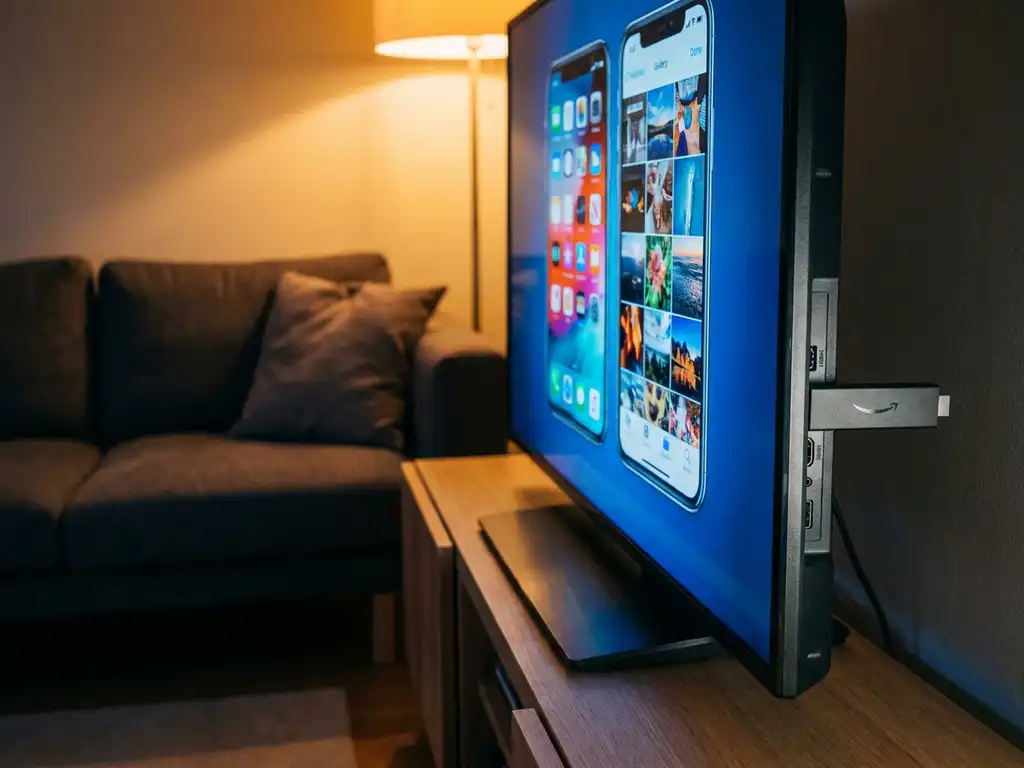
Yes, a universal TV remote app can work with Amazon Fire TV. Most universal remote apps connect to Fire TV over your home Wi-Fi network, letting you control playback, navigate menus, adjust volume, and type with your phone’s keyboard. The experience varies depending on which app you use and how your network is set up. Below, we answer the most common questions people have before downloading.
What can a universal TV remote app actually control on Fire TV?
A universal TV remote app can control most of the core functions you would use a physical remote for on Amazon Fire TV. That includes navigating the home screen, launching apps, playing and pausing content, adjusting volume, and switching between inputs. Many apps also give you a touchpad for easier scrolling and a keyboard for faster searching.
Here is a breakdown of what you can typically control:
- Playback controls: Play, pause, rewind, fast forward
- Navigation: Directional pad, home button, back button, menu
- Volume: Volume up and down, mute
- Text input: On-screen keyboard via your phone, which is far faster than the Fire TV remote’s letter-by-letter search
- App launching: Open Netflix, Prime Video, Disney+, and other installed apps directly
One area where remote apps vary is voice control. Some apps include a microphone button that triggers Alexa on your Fire TV, while others skip that feature entirely. If you rely on Alexa for searches, check whether the app you are considering supports it before downloading.
How does a universal remote app connect to Amazon Fire TV?
A universal remote app connects to Amazon Fire TV over your home Wi-Fi network using a protocol called HDMI-CEC or, more commonly for Fire TV, the Fire TV’s built-in network discovery. Both your phone and your Fire TV need to be on the same Wi-Fi network. Once they are, the app finds the device automatically and pairs without any codes or extra hardware.
The setup process is straightforward:
- Connect your phone and Fire TV to the same Wi-Fi network
- Download a compatible remote app on your phone
- Open the app and let it scan for devices
- Select your Fire TV from the list
- Accept the pairing prompt that appears on your TV screen
That pairing prompt on the TV is important. Amazon requires you to approve the connection the first time, which is a security measure. After that initial approval, the app reconnects automatically whenever your phone and Fire TV are on the same network.
Are universal TV remote apps the same as screen mirroring apps for Fire TV?
No, universal TV remote apps and screen mirroring apps are different tools that do different things. A universal TV remote app controls your Fire TV, meaning it replaces your physical remote. A screen mirroring app does the opposite: it sends your phone or laptop’s screen to the TV so you can view your content on the bigger display.
Think of it this way:
- Remote app: You use your phone to control what plays on the TV. The content still comes from the Fire TV itself.
- Screen mirroring app: You use your phone or computer as the source, and the TV shows exactly what is on your device’s screen.
Both are useful, but for different situations. If you want to browse Prime Video from your couch without hunting for the remote, a remote app is what you need. If you want to show a presentation, share photos, or stream something from your phone directly onto the big screen, a screen mirroring app is the right tool.
Which universal remote apps are compatible with Amazon Fire TV?
Several universal remote apps work with Amazon Fire TV in 2026. The most widely used options include the official Amazon Fire TV app, which Amazon provides for free, as well as third-party apps that offer broader compatibility across multiple TV brands and streaming devices.
Here is a quick comparison of common options:
- Amazon Fire TV App (official): Free, reliable, includes Alexa voice support, but only controls Fire TV devices
- AirBeamTV Universal TV Remote App: Controls Fire TV alongside other major TV brands like Samsung, LG, and Roku from one app, with touchpad input and haptic feedback
- Unified Remote: Broad device support, but requires more setup
- SURE Universal Remote: Works across many brands, includes IR blaster support for older TVs
If you only ever use Fire TV, the official Amazon app is a solid free choice. If you have multiple devices in your home from different brands, a third-party app that handles everything from one interface saves you from switching between apps every time you pick up a different remote.
Why won’t my universal remote app work with my Fire TV?
The most common reason a universal remote app fails to connect to Fire TV is a Wi-Fi network mismatch. If your phone is on a guest network or a different band (2.4 GHz versus 5 GHz) from your Fire TV, the app cannot find the device. Both need to be on the same network for discovery to work.
Other common causes include:
- Pairing not approved: The first connection requires you to accept a prompt on the TV. If you missed it, the app cannot connect.
- Fire TV software out of date: Older Fire TV firmware can cause connectivity issues. Check for updates in your Fire TV settings.
- App permissions: Some remote apps need local network access permissions on your phone. If you denied that permission during setup, the app cannot scan for devices.
- VPN active on your phone: A VPN routes your traffic differently and can block local network discovery entirely. Turn it off while using a remote app.
- Firewall or router settings: Some routers block device-to-device communication on the local network. This is less common but worth checking if nothing else works.
If you have checked all of the above and the app still will not connect, try restarting both your Fire TV and your phone, then open the app again. Most connection issues clear up after a restart.
How AirBeamTV Helps with Controlling Your Fire TV
We built the AirBeamTV Universal TV Remote App to make controlling your Fire TV and other smart devices as simple as possible. No setup codes, no extra hardware, no fiddling with complicated menus. Just connect your phone and TV to the same Wi-Fi network and you are ready to go.
Here is what the app gives you:
- Full remote control for Fire TV: Navigate, play, pause, adjust volume, and switch inputs directly from your phone
- Touchpad and keyboard input: Scroll smoothly with a touchpad and type searches with your phone’s full keyboard instead of the Fire TV’s slow letter picker
- Multi-device support: Control Samsung, LG, TCL, Roku, Sony, and more from the same app, so you are not juggling multiple remote apps
- Haptic feedback: Your phone vibrates slightly with each button press so you know the action registered, even without looking at the screen
- No extra hardware required: Works entirely over Wi-Fi, nothing to plug in or set up
Whether you have lost your Fire TV remote, want a more comfortable way to control your TV from the sofa, or just prefer typing on your phone’s keyboard, the app handles it. Download the AirBeamTV Universal TV Remote App, open it, select your Fire TV, and start controlling it in seconds.
