




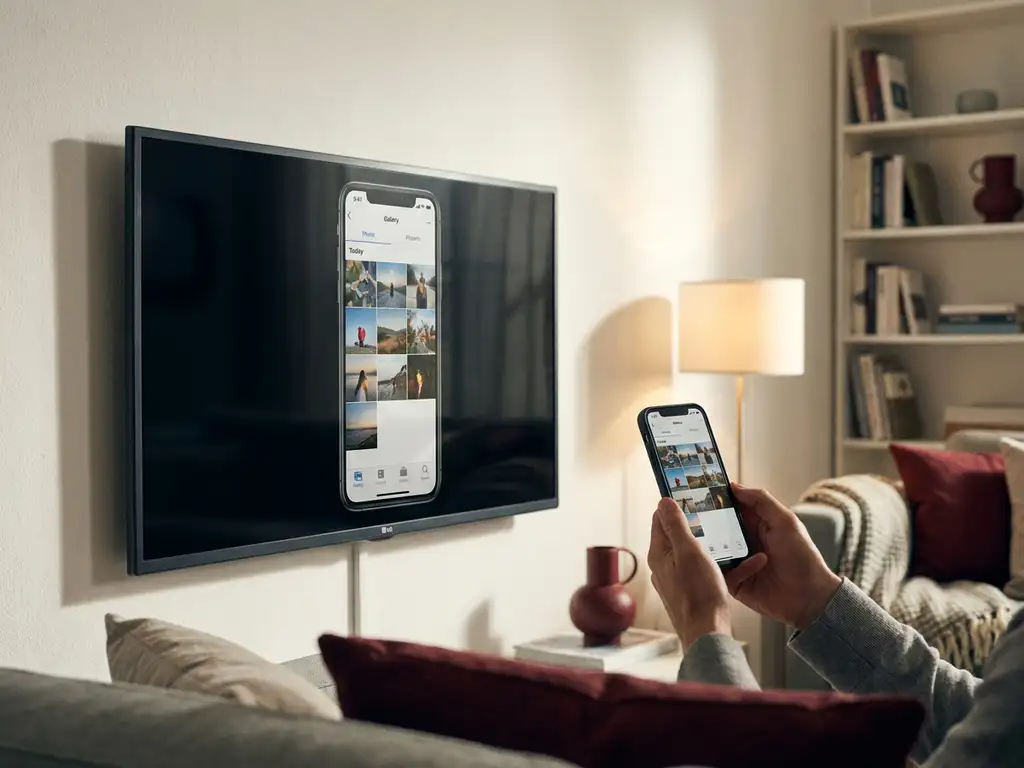
If you have a 2018 LG TV and want to mirror your phone or Mac to the big screen, you are in the right place. Older LG models can absolutely support screen mirroring, but the setup is a little different from newer TVs. This guide walks you through everything step by step, in plain English, so you can get your screen up on the TV without any guesswork.
Before you start, make sure your phone, tablet, or Mac is nearby and connected to your home Wi-Fi. You will need that in just a moment.
Check if your 2018 LG TV supports screen mirroring
Not every 2018 LG TV is set up the same way, so the first thing to do is confirm what your TV actually supports. Most 2018 LG Smart TVs run WebOS and are compatible with screen mirroring, but it helps to double-check before you spend time on the setup.
- Press the Home button on your LG remote to open the main menu.
- Go to Settings, then select All Settings.
- Navigate to Network and look for Screen Share or Miracast in the list.
- If you see either of those options, your TV supports screen mirroring.
If you do not see a Screen Share option, your TV may be a non-smart model or may have a firmware version that needs updating. Check the LG support site for your specific model number, which you can usually find on a sticker at the back of the TV. Once you have confirmed your TV supports screen mirroring, move on to the next step.
Connect your phone or Mac to the same Wi-Fi network
Screen mirroring works over your local Wi-Fi network, so your TV and your device need to be on the same network. This is one of the most common reasons mirroring fails, and it is easy to miss.
- On your TV, go to Settings, then Network, and check which Wi-Fi network it is connected to. Write it down if you need to.
- On your phone, open Settings and tap Wi-Fi. Make sure you are connected to the exact same network name as your TV.
- On a Mac, click the Wi-Fi icon in the top menu bar and confirm the network name matches your TV.
One thing to watch out for: many routers broadcast two separate networks, one at 2.4 GHz and one at 5 GHz. They often have slightly different names, like “HomeNetwork” and “HomeNetwork_5G”. If your TV is on one and your phone is on the other, mirroring will not work. Put them both on the same one. With both devices on the same network, you are ready to set up the TV side of things.
Set up screen mirroring on your 2018 LG TV
Now you need to tell your LG TV to look for an incoming screen mirroring connection. This step activates the TV’s mirroring mode so it is ready to receive your device’s screen.
- Press the Home button on your remote control app for LG TV and open the main menu.
- Go to Settings, then All Settings, then Network.
- Select Screen Share and make sure it is turned On.
- Your TV will now display a message saying it is ready to connect or is waiting for a device.
Some 2018 LG models also have a Screen Share shortcut directly in the input source list. You can press the Input button on your remote and scroll through the options to find it there, which is often quicker. Once Screen Share is active on the TV, keep it on that screen and move to your device.
Mirror your device screen to the LG TV
With the TV ready and waiting, it is time to start mirroring from your phone or Mac. The exact steps vary slightly depending on which device you are using.
From an Android phone or tablet
- Swipe down from the top of your screen to open the quick settings panel.
- Look for Screen Cast, Smart View, or Wireless Display and tap it.
- Your phone will scan for nearby devices. Select your LG TV from the list.
- Accept any connection prompt that appears on the TV screen.
From an iPhone or iPad
iPhones use AirPlay for built-in screen mirroring, but AirPlay is not natively compatible with LG TVs from 2018. You will need a dedicated mirroring app to bridge that gap. More on that in the final section below.
From a Mac
Like iPhones, Macs use AirPlay, which 2018 LG TVs do not support out of the box. A screen mirroring app is the practical solution here too.
If you are on Android and your TV appeared in the list, your screen should now be visible on the TV. You should see everything your phone displays, including apps, videos, and your home screen, reflected on the big screen in real time.
Fix common mirroring issues on older LG TVs
If something is not working, do not worry. There are a handful of issues that come up regularly with older LG models, and most of them have a straightforward fix.
- TV not showing up as a device: Double-check that both your TV and phone are on the same Wi-Fi network (see Step 2). This fixes the problem more often than anything else.
- Connection keeps dropping: Move your router closer to the TV or your phone, or reduce the number of devices using the network at the same time. A weak Wi-Fi signal is the most common cause of an unstable mirror.
- Screen Share option is greyed out: Your TV may need a firmware update. Go to Settings, then All Settings, then General, and look for About This TV to check for updates.
- Image is laggy or choppy: Try switching both devices to the 5 GHz Wi-Fi band if your router supports it. It is faster and less congested than 2.4 GHz.
- iPhone or Mac not connecting: Built-in AirPlay will not work on a 2018 LG TV. You need a third-party mirroring app designed for this purpose.
If none of these steps resolve the issue, restarting both your TV and your device often clears temporary glitches. Hold the power button on your TV remote for a few seconds to do a soft restart, then turn it back on and try again.
How AirBeamTV helps with LG screen mirroring
If you are trying to mirror an iPhone, iPad, or Mac to a 2018 LG TV, the built-in options simply will not get you there. That is where we come in. Our LG screen mirroring app is built specifically to connect Apple and Android devices to LG Smart TVs, including older models, without any extra hardware, cables, or AirPlay.
Here is what you get with our app:
- Works with 2018 LG WebOS TVs and other older LG Smart TV models
- Mirrors iPhone, iPad, Mac, and Android devices wirelessly
- No Apple TV, no AirPlay, no HDMI adapters needed
- HD quality mirroring for videos, photos, apps, and more
- Simple three-step setup: download the app, open it, start mirroring
Getting started takes about two minutes. Download the AirBeamTV app for your device, make sure your TV and phone are on the same Wi-Fi network, and follow the in-app instructions to connect. Your screen will appear on the TV almost immediately.
Ready to try it? Download the AirBeamTV app and get your screen on the big screen today.
