




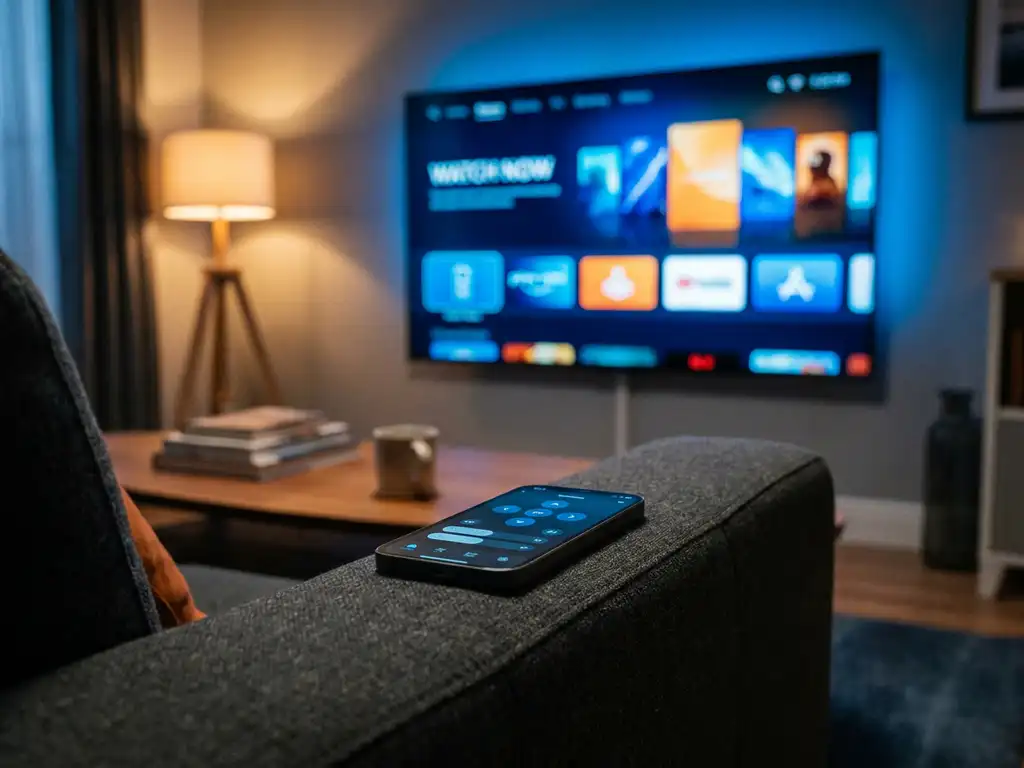
To connect a universal TV remote app to your TV, download the app on your phone, make sure both your phone and TV are on the same Wi-Fi network, open the app, and select your TV model. The whole process takes under a minute and requires no extra hardware or setup codes.
Most universal TV remote apps work over your home Wi-Fi connection rather than infrared, which means compatibility depends on your TV being a Smart TV. The sections below walk through everything you need to know, from setup to troubleshooting.
What does a universal TV remote app actually do?
A universal TV remote app turns your smartphone or tablet into a remote control for your TV. Instead of using a physical remote, you control your TV directly from your phone screen, changing channels, adjusting volume, switching inputs, and navigating menus, all over your Wi-Fi network.
Most modern remote apps go further than a basic remote. They typically include a touchpad for easier navigation, a keyboard for typing on your TV (useful when searching on streaming apps), and support for multiple TV brands from a single app. Some also let you control streaming devices like Roku or Amazon Fire TV alongside your Smart TV, so you are not juggling several remotes or apps at once.
The main advantage over a physical remote is convenience. Your phone is almost always within reach, it does not need batteries replaced, and you cannot lose it behind the sofa cushions. For households with multiple TVs or streaming devices, a universal app can manage everything from one place.
What do you need before connecting a remote app to your TV?
Before you connect a TV remote app to your TV, you need three things: a Smart TV, a smartphone or tablet with the app installed, and a Wi-Fi network that both devices are connected to. That is it. No cables, no setup codes, and no extra hardware required.
Here is a quick checklist to make sure you are ready:
- A Smart TV from a supported brand (Samsung, LG, Sony, TCL, Roku TV, and most other popular models are widely supported)
- Your phone or tablet running iOS or Android
- The same Wi-Fi network on both your TV and your phone, this is the most important step and the most common reason setup fails
- The remote app downloaded from the App Store or Google Play
One thing worth checking before you start: some Smart TVs need to have network or remote access enabled in their settings. If your TV has a setting called “IP Control,” “Mobile App Control,” or similar, make sure it is switched on. You will usually find this under the TV’s network or general settings menu.
How do you connect a TV remote app to your TV step by step?
Connecting a TV remote app to your TV is a straightforward process. Open the app, make sure your phone and TV share the same Wi-Fi network, select your TV brand and model from the app’s list, and the app connects automatically. You are ready to start controlling your TV in under a minute.
Here is the full step-by-step process:
- Download the app on your iPhone, iPad, or Android device from the App Store or Google Play.
- Connect your TV and phone to the same Wi-Fi network. Open your TV’s network settings and confirm the Wi-Fi name matches your phone’s connection.
- Open the app and follow the on-screen setup prompt.
- Select your TV brand from the list provided in the app.
- Choose your TV model if prompted, or let the app detect it automatically.
- Start controlling your TV using the on-screen remote, touchpad, or keyboard.
The entire process usually takes less than 60 seconds. If the app does not detect your TV automatically, try restarting both your TV and your phone’s Wi-Fi connection, then open the app again.
Why won’t my remote app connect to my TV?
The most common reason a TV remote app will not connect to your TV is that the phone and TV are on different Wi-Fi networks. This is easy to miss in homes where both a 2.4GHz and 5GHz network are available under different names. Check that both devices show the exact same network name in their Wi-Fi settings.
If the network is not the issue, here are other things to check:
- TV network or IP control is disabled. Go into your TV’s settings and look for an option related to mobile app control or network remote access. Enable it.
- The TV is in standby mode. Some TVs do not respond to app commands when they are in deep sleep. Try turning the TV on manually first.
- Your router is blocking device communication. Some routers have a setting called “AP Isolation” or “Client Isolation” that prevents devices on the same network from talking to each other. Check your router settings and disable it if it is on.
- The app needs a refresh. Close the app fully, restart your phone, and open it again.
- Your TV model is not supported. Check the app’s supported device list to confirm your specific TV is compatible.
Working through this list in order solves the problem for the vast majority of users. The Wi-Fi network mismatch alone accounts for most connection issues.
What’s the difference between a TV remote app and a screen mirroring app?
A TV remote app controls your TV, it replaces your physical remote and lets you change channels, adjust volume, and navigate menus. A screen mirroring app does something different: it displays your phone or tablet’s screen on your TV, so you can watch videos, browse photos, or share content from your device on the big screen.
Think of it this way. A remote app is about controlling the TV. A screen mirroring app is about putting your device’s content onto the TV. They solve different problems, and many people end up using both.
- TV remote app: Replaces your physical remote. Controls TV functions like volume, channels, and input selection. Works over Wi-Fi.
- Screen mirroring app: Streams your phone or tablet’s screen to your TV. Useful for watching videos, sharing photos, or presenting from your device. Also works over Wi-Fi.
Some households need one, some need the other, and some find both useful for different situations. If you want to watch a video from your phone on a bigger screen, that is screen mirroring. If you just want to stop searching for the remote, that is where a remote app helps.
How AirBeamTV Helps with TV Remote and Screen Mirroring
We built the AirBeamTV Universal TV Remote App to make controlling your TV as simple as possible. No setup codes, no extra hardware, no frustration. Here is what you get:
- Works with all major TV brands including Samsung, LG, Sony, TCL, and Roku
- Controls streaming devices too — including Roku and Amazon Fire TV — from the same app
- Touchpad and full keyboard input so typing on your TV is no longer a chore
- Full remote functions including volume, mute, channel switching, and source selection
- Haptic feedback so you feel every button press, just like a physical remote
- Works for any age — no technical knowledge needed
And if you also want to mirror your phone, tablet, or Mac screen to your TV, we have dedicated screen mirroring apps for that too. No Apple TV, no cables, no complicated setup.
Download the AirBeamTV Universal TV Remote App today and start controlling your TV from your phone in under a minute.
