




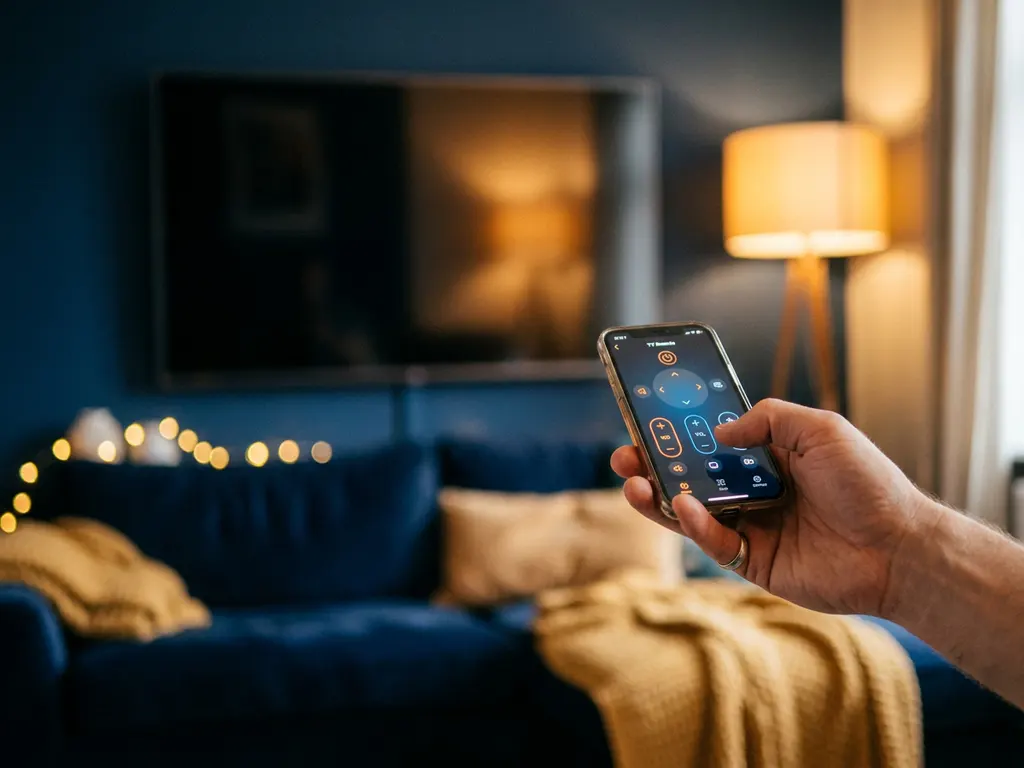
To use a universal TV remote app for the first time, download the app on your phone, connect both your phone and TV to the same Wi-Fi network, open the app, and select your TV model. Within seconds, your phone becomes a fully functional remote. Below, we answer the most common questions people have before and after that first setup.
What can a universal TV remote app actually do?
A universal TV remote app turns your smartphone into a remote control for your TV and streaming devices. It handles the basics like volume, channel switching, and mute, but it also gives you extras that physical remotes often lack, such as a touchpad for navigation, a full keyboard for typing on screen, and the ability to switch inputs or sources without hunting for the right button.
Most apps support multiple devices from one place, so you can control your smart TV, a Roku, or an Amazon Fire TV stick all from the same app. That means fewer remotes on the couch and less frustration when one goes missing. Haptic feedback is another feature worth mentioning: when you tap a button, your phone vibrates briefly to confirm the action, which makes the experience feel more natural and responsive.
How do you connect a TV remote app to your TV for the first time?
Connecting a TV remote app to your TV for the first time takes less than a minute. The process works over your home Wi-Fi network, so no Bluetooth pairing or setup codes are needed. Here is how it works step by step:
- Download the app on your iPhone, iPad, or Android device.
- Make sure both devices are on the same Wi-Fi network. Your phone and your TV need to be connected to the same router.
- Open the app and allow any permissions it requests, such as access to your local network.
- Select your TV brand or model from the list provided in the app.
- Start controlling. The app will detect your TV automatically, and the remote interface will appear on your screen.
If your TV does not appear automatically, you can also enter its IP address manually. You can find this in your TV’s network settings menu. Once connected, the app remembers your TV so you do not have to repeat the setup next time.
Which TV brands work with universal remote apps?
Most modern smart TV brands work with universal remote apps, including Samsung, LG, Sony, TCL, Hisense, Philips, and Panasonic. Streaming devices like Roku and Amazon Fire TV are also widely supported. If your TV was manufactured in the last five to eight years and connects to Wi-Fi, there is a very good chance it is compatible.
Older TVs without smart features or Wi-Fi connectivity are generally not supported, since these apps communicate over your home network rather than through an infrared signal. If you have an older TV, a dedicated infrared blaster accessory paired with certain apps can sometimes fill that gap, though this varies by app and device.
Why won’t my TV remote app find my TV?
The most common reason a TV remote app cannot find your TV is that the two devices are not on the same Wi-Fi network. This happens more often than you might think, especially in homes where the router broadcasts both a 2.4 GHz and a 5 GHz network under different names. Your phone might be on one band while your TV is on the other.
Here are the other reasons this happens and how to fix them:
- TV is in standby mode. Some TVs do not respond to network commands when fully off or in deep sleep. Turn the TV on first, then open the app.
- Wi-Fi is disabled on the TV. Check your TV’s network settings to confirm it is actually connected to Wi-Fi, not just powered on.
- Firewall or router settings are blocking communication. Some routers block device-to-device communication on the same network. Disabling AP isolation in your router settings usually resolves this.
- The app needs local network permission. On iPhones especially, the app needs explicit permission to access your local network. Go to your phone’s settings, find the app, and make sure local network access is turned on.
A quick restart of both your phone and your TV resolves the issue in many cases. If the problem persists, manually entering your TV’s IP address inside the app is a reliable workaround.
Is a universal TV remote app the same as a screen mirroring app?
No, a universal TV remote app and a screen mirroring app are two different tools that serve different purposes. A remote app controls your TV, letting you adjust settings, change channels, and navigate menus. A screen mirroring app sends what is on your phone or laptop screen directly to your TV, so you can watch content from your device on the big screen.
Think of it this way: a remote app replaces the physical controller in your hand, while a screen mirroring app replaces the cable connecting your device to the TV. They solve different problems, and many people end up using both. You might use a screen mirroring app to cast a video from your phone, and then use a remote app to adjust the volume or switch inputs without getting up.
How AirBeamTV Helps with TV Remote and Screen Mirroring
We built the AirBeamTV Universal TV Remote App to make controlling your TV as simple as possible, whether you are on an iPhone, iPad, or Android device. No setup codes, no extra hardware, and no complicated pairing process. Here is what you get:
- Full remote control functions including volume, mute, channel switching, and source selection
- Touchpad and keyboard input so typing on your smart TV is no longer painful
- Support for all major brands including Samsung, LG, Sony, TCL, Roku, and Amazon Fire TV
- Haptic feedback so every button tap feels immediate and responsive
- One app for all your devices, so you can manage your TV and streaming sticks from a single place
And if you also want to put your phone or laptop screen on the TV, our screen mirroring apps handle that side of things too, with no Apple TV, AirPlay, or cables required.
Ready to stop searching for the remote? Download the AirBeamTV Universal TV Remote App and start controlling your TV from your phone today.
