




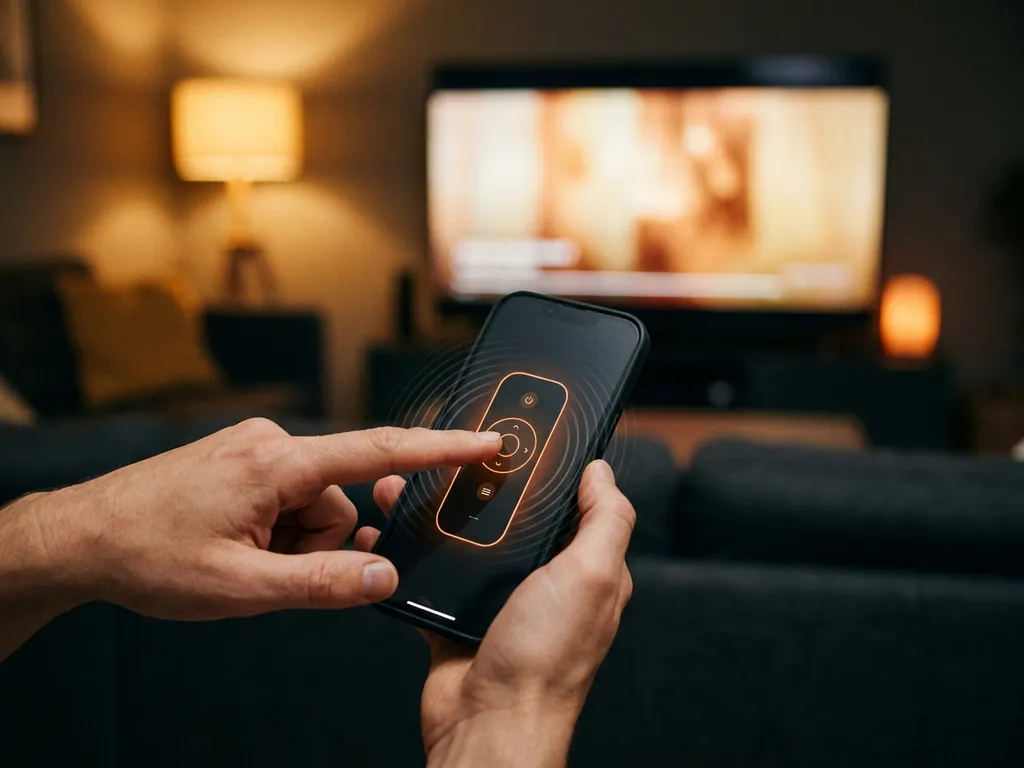
Haptic feedback improves a universal TV remote app experience by giving you a small physical tap or vibration every time you press a button, so you know your action registered without having to look at the screen. This instant physical confirmation makes controlling your TV feel more natural and precise, much closer to pressing a real button than tapping a flat piece of glass. Below, we answer the most common questions people have about haptic feedback in remote apps.
What does haptic feedback actually do in a remote control app?
Haptic feedback in a remote control app triggers a brief, subtle vibration from your phone’s motor the moment you tap a button on screen. That tiny pulse tells your fingers the tap was registered, so you get immediate confirmation without needing to watch the TV to see if the volume changed or the channel switched.
Without haptic feedback, tapping a virtual button on a touchscreen feels hollow. You press, and nothing happens in your hand. You then look up at the TV to check whether your command went through. With haptic feedback switched on, the loop closes instantly. Your finger feels the response, your brain processes it as a successful press, and you move on. It is a small detail, but it removes a surprising amount of friction from everyday TV control.
The vibration itself is engineered to feel purposeful rather than annoying. Modern smartphones can produce very short, sharp pulses that mimic the tactile click of a physical button. This is different from the long buzz your phone gives you for a call. In a well-built universal TV remote app, each button type can even produce a slightly different pulse, so a volume tap feels distinct from a channel change.
Why does haptic feedback make TV navigation feel more accurate?
Haptic feedback improves accuracy in TV navigation because it closes the sensory feedback loop that physical buttons naturally provide. When you press a real remote button, your fingertip feels resistance and a click. A touchscreen offers neither, so haptic feedback fills that gap and reduces accidental double-taps or missed presses.
Think about how often you accidentally press a button twice on a touchscreen remote because you were not sure the first tap worked. That hesitation leads to overshooting a volume level or skipping past the channel you wanted. Haptic confirmation removes the doubt. You felt the tap, so you stop pressing and move on.
This benefit becomes even more noticeable when you are navigating without looking at your phone. If you are watching a film and want to nudge the volume down, you want to keep your eyes on the screen. Haptic feedback lets you do that confidently, because your hand knows each press landed.
What’s the difference between haptic feedback and simple vibration in remote apps?
Simple vibration is a single, uniform buzz that your phone produces for all events, like a notification or an incoming call. Haptic feedback is a precisely controlled, short pulse that is designed to feel like a physical action. In a remote app, the difference matters because haptic feedback is tailored to button presses, while generic vibration can feel clunky and imprecise.
Older Android phones and some budget devices rely on a basic vibration motor that can only produce one type of buzz. Newer phones, and most iPhones, include more advanced haptic engines capable of producing sharp, nuanced taps. When a remote app is built to take advantage of this hardware, button presses feel crisp and intentional rather than like a phone shaking in your hand.
The practical result is that haptic feedback feels like confirmation, while simple vibration feels like an alert. One grounds you in the action you just performed. The other distracts you from it. If you have ever used a remote app that buzzed loudly every time you tapped something, that was likely a simple vibration implementation rather than a true haptic one.
Does haptic feedback drain your phone battery faster?
Haptic feedback has a very small impact on battery life. Each individual pulse uses a negligible amount of power, and because remote control sessions are typically short, the cumulative drain is minimal. You are unlikely to notice any meaningful difference in your battery percentage from using haptic feedback in a remote app.
Battery consumption depends far more on your screen brightness, Wi-Fi activity, and how long your phone stays awake during a session than on haptic pulses. A single haptic tap uses a tiny fraction of the energy that keeping your screen on for one extra minute would consume.
That said, if your battery is already critically low and you need every percentage point to last through a long evening, turning haptic feedback off is a simple way to shave off a small amount of consumption. Most remote apps let you toggle it in settings within seconds. But under normal circumstances, leaving haptic feedback on is not a meaningful trade-off.
Should you turn haptic feedback on or off in your TV remote app?
For most people, haptic feedback should stay on. It makes button presses feel more responsive, reduces missed or double taps, and lets you control your TV without constantly glancing at your phone. The only reasons to turn it off are personal preference, sensitivity to vibrations, or a very low battery situation.
Some people find any vibration from their phone distracting, especially in a quiet room or late at night when they are watching something with others. If you fall into that group, switching haptic feedback off is a perfectly reasonable choice and does not affect how the app functions.
For everyone else, the on position is the better default. The feedback is subtle enough that it does not interrupt your viewing experience, but present enough that it genuinely improves how confident and accurate your button presses feel over a full evening of use.
How AirBeamTV Helps with Haptic Feedback in TV Control
Our Universal TV Remote App includes haptic feedback built in, so every button tap on your iPhone, iPad, or Android device gives you that satisfying physical confirmation. There is no setup required and no settings to dig through to get it working.
Here is what you get with the app:
- Haptic confirmation on every button press, so you always know your tap registered
- Full remote control functions including volume, channel switching, source selection, and mute
- Touchpad and keyboard input for smart TV navigation
- Support for all major TV brands including Samsung, LG, Sony, TCL, and Roku
- Control of streaming devices like Roku and Amazon Fire TV from the same app
- No extra hardware, setup codes, or cables needed
Getting started takes less than a minute. Connect your phone and TV to the same Wi-Fi network, open the app, select your TV model, and you are in control. Download the AirBeamTV Universal TV Remote App today and feel the difference a well-built remote experience makes.
