




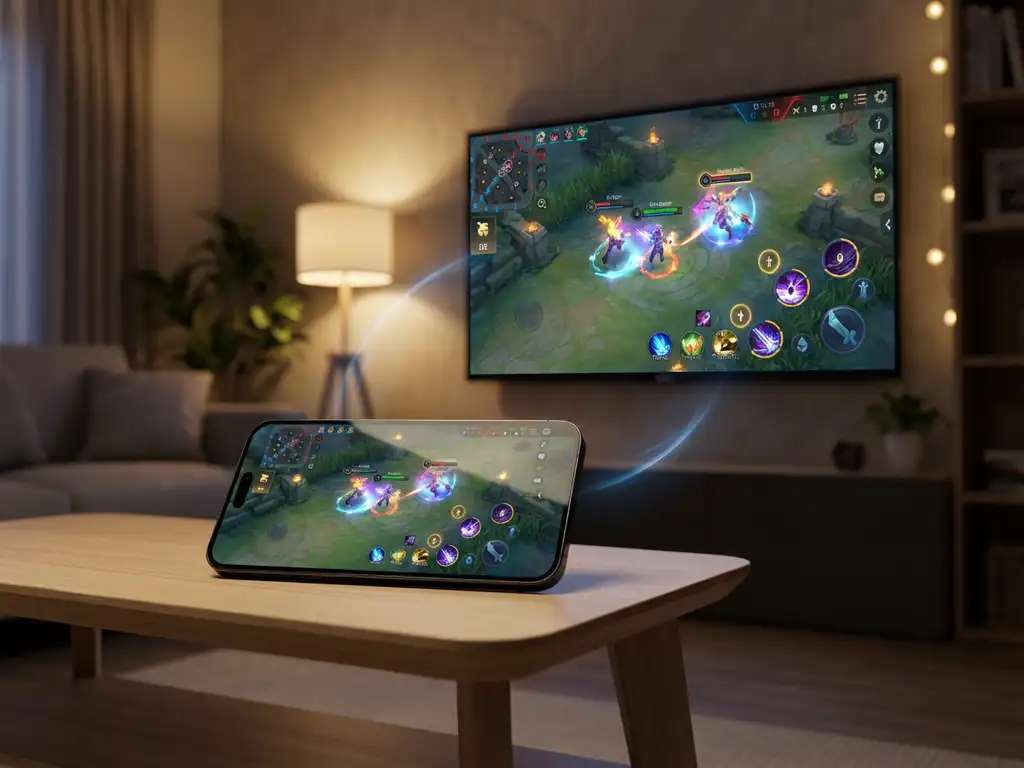
Mirroring Android games to your TV wirelessly transforms mobile gaming into a big-screen experience. Modern Android screen-mirroring technology allows you to cast your favourite games directly to smart TVs without cables or additional hardware. Simply download a screen-mirroring app, connect both devices to the same Wi-Fi network, and start broadcasting. This guide covers the essential questions about setting up, optimising, and troubleshooting Android game mirroring for the best gaming experience.

What is Android game mirroring, and why should gamers care?
Android game mirroring is a wireless technology that displays your mobile device’s screen and audio on a television in real time. It uses your Wi-Fi network to transmit everything happening on your Android phone or tablet directly to compatible smart TVs without requiring cables, a Chromecast, or other hardware.
The benefits for gamers are substantial. Playing on a larger screen improves visibility in detailed games and reduces eye strain during extended gaming sessions. Multiplayer gaming becomes more social when everyone can see the action clearly, rather than huddling around a small phone screen.
Racing games, strategy titles, and action-adventure games particularly benefit from the enhanced visual experience. The bigger display makes it easier to spot enemies, read in-game text, and appreciate detailed graphics that mobile screens often compress. Many gamers find their reaction times improve when they’re not squinting at a small display.
Battery life can also improve, since your TV handles the display while your Android device focuses on processing the game. This can mean longer gaming sessions without worrying about your phone overheating or running out of power mid-game.
What are the best methods to mirror Android games to a TV in 2026?
Dedicated screen-mirroring apps often offer the most reliable gaming performance for Android devices. These apps connect directly through your Wi-Fi network and are optimised for real-time content streaming. Popular options work with major TV brands, including Samsung, LG, Sony, and Panasonic, as well as streaming devices like Fire TV and Roku.
Built-in casting features vary by device manufacturer. Samsung phones often include Smart View, while other Android devices may have Cast Screen or similar functions. However, these built-in options sometimes introduce more latency than dedicated, gaming-focused apps.
Wireless casting apps typically provide the lowest latency for gaming because they’re specifically designed for real-time screen transmission. The setup process involves downloading the app from the Google Play Store, ensuring both devices are connected to the same Wi-Fi network, and selecting your TV from the available options.
Hardware solutions like wireless HDMI transmitters exist, but they require additional purchases and add setup complexity. For most gamers, app-based solutions offer the best balance of performance, convenience, and cost-effectiveness.
How do you set up wireless Android game casting step by step?
Download a screen-mirroring app from the Google Play Store and install it on your Android device. Ensure your TV and Android device are connected to the same Wi-Fi network, as this connection enables data transfer between devices. Open the mirroring app, which will automatically scan for available TVs on your local network.
Select your television from the drop-down menu within the app. Depending on your TV brand, you might need to download a companion receiver app on your television. Most modern smart TVs support a direct connection without additional software.
Tap “Start Mirroring,” then select “Mirror,” followed by “Start Broadcast.” Your Android screen appears instantly on the TV display, showing everything, including games, menus, and notifications. The connection maintains both video and audio transmission.
Launch your chosen game on the Android device. The gameplay will mirror in real time to your TV screen. You’ll still use your phone or tablet for controls, but the visuals will display on the larger screen.
For optimal gaming performance, close unnecessary background apps on your Android device before starting the mirroring session. This ensures maximum processing power goes to your game and the mirroring connection.
Why do some Android games lag when mirrored to a TV?
Network latency causes the most common lag issues in mirrored gaming. When your Wi-Fi connection is slow or unstable, data transfer between your Android device and TV can create delays. Games that require quick reactions suffer most from network-induced lag, making precise timing difficult.
Device processing power significantly impacts mirroring performance. Older Android phones and tablets may struggle to run demanding games while simultaneously encoding and transmitting screen data. Resource-intensive games compound this problem by using most of the device’s CPU and GPU capacity.
TV compatibility varies between manufacturers and models. Some smart TVs process incoming mirrored content more efficiently than others. Older TV models, or those with limited processing power, may introduce additional display delays.
Background applications consume bandwidth and processing resources that could otherwise support smooth mirroring. Social media apps, streaming services, and automatic updates running simultaneously with your game create competition for system resources.
Distance from your Wi-Fi router affects connection quality. Weak signal strength increases packet loss and transmission delays, directly impacting the gaming experience. Walls, interference from other devices, and network congestion can worsen these issues.
Which Android games work best with TV mirroring?
Turn-based strategy games perform excellently with TV mirroring because they don’t require split-second timing. Games like chess, card games, and puzzle titles benefit from the larger screen without suffering from minor latency issues. The enhanced visibility helps players analyse complex game boards and detailed graphics.
Racing games and platformers work well when the mirroring setup has minimal lag. Racing games, in particular, shine on big screens, offering immersive experiences that mobile displays can’t match. However, these genres require stable connections to maintain responsive controls.
Role-playing games (RPGs) and adventure titles suit TV mirroring perfectly. The storytelling elements, detailed environments, and character interactions have more impact on larger displays. Reading dialogue and exploring game worlds becomes more comfortable and engaging.
Multiplayer party games designed for group play naturally work better on TVs. Games meant for multiple people benefit when everyone can see the action clearly, making the social gaming experience more inclusive and enjoyable.
Fast-paced action games and competitive multiplayer titles may struggle with mirroring lag. Fighting games, first-person shooters, and rhythm games that require precise timing often perform better on the native mobile screen, where input delay is minimal.
How do you troubleshoot Android game mirroring connection problems?
Connection failures typically stem from Wi-Fi network issues. Ensure both your Android device and TV are connected to the same network name and frequency band. Some routers broadcast separate 2.4 GHz and 5 GHz networks, which can prevent devices from finding each other even when they seem to be on the same Wi-Fi.
Restart both devices when mirroring apps fail to detect your TV. Power-cycle your television and fully close the mirroring app on your Android device before reopening it. This refresh often resolves temporary connection glitches and app conflicts.
Audio sync problems usually indicate bandwidth limitations or processing delays. Move closer to your Wi-Fi router, disconnect other devices that are heavily using the network, or switch to a less congested Wi-Fi channel through your router settings.
Display quality issues often improve by adjusting the mirroring app’s resolution settings. Lower resolution reduces the data load on your network and device processor, potentially eliminating stuttering or pixelation during gameplay.
Update both your mirroring app and TV firmware when compatibility problems persist. Manufacturers regularly release updates that improve connection stability and add support for newer device models. Check your TV’s settings menu for available system updates.
Network interference from neighbouring Wi-Fi networks can disrupt mirroring performance. Use Wi-Fi analyser apps to identify less crowded channels and adjust your router accordingly. Alternatively, try mirroring at different times when network traffic is lighter.
How AirBeamTV helps with Android game mirroring
AirBeamTV provides the complete solution for seamless Android game mirroring to your TV. Our dedicated screen-mirroring technology addresses the key challenges gamers face when casting mobile games to larger screens:
• Ultra-low latency streaming: Optimised specifically for real-time gaming with minimal input delay
• Universal TV compatibility: Works with Samsung, LG, Sony, Fire TV, Roku, and all major smart TV brands
• One-tap connection: Simple setup process that automatically detects your TV on the same Wi-Fi network
• High-quality video transmission: Maintains crisp graphics and smooth audio sync during gameplay
• Stable connection management: Advanced algorithms prevent disconnections and maintain consistent performance
Transform your mobile gaming experience today with crystal-clear, lag-free Android game mirroring. Download AirBeamTV from the Google Play Store and start enjoying your favourite games on the big screen in minutes.
