




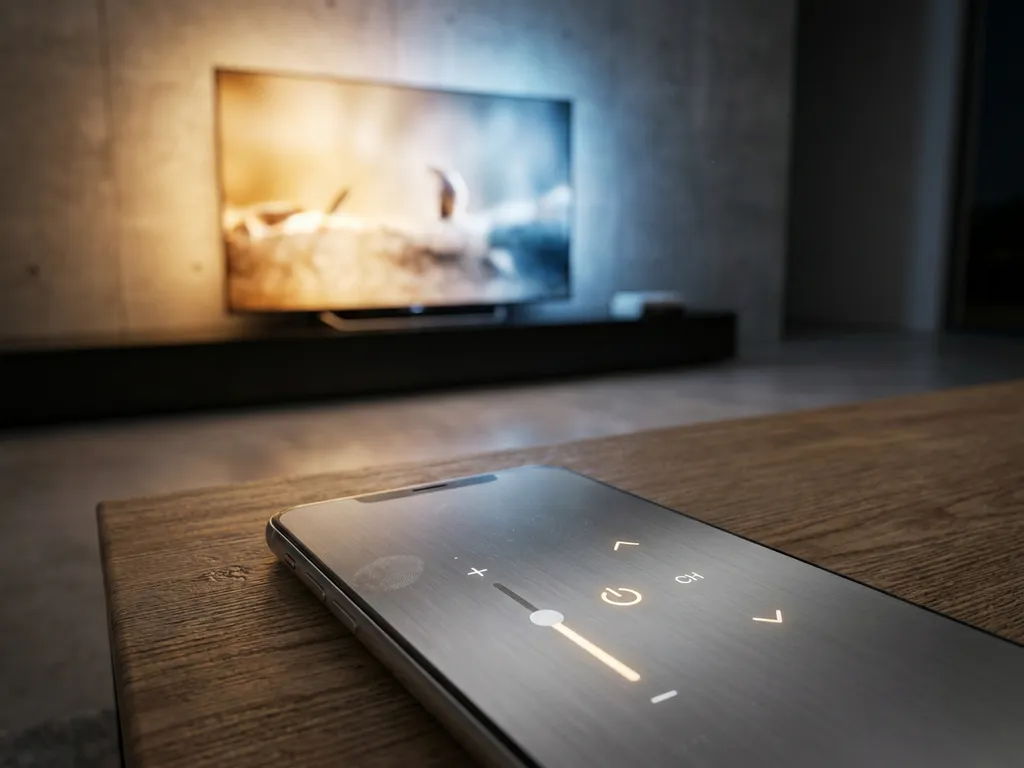
A universal TV remote app is generally more convenient than a built-in physical remote in most everyday situations. It turns your smartphone into a single controller for multiple TVs and streaming devices, so you stop hunting for lost remotes or juggling several at once. The sections below answer the most common questions people have before switching.
What can a universal TV remote app do that a built-in remote can’t?
A universal TV remote app can control multiple devices from one screen, offer a touchpad or full keyboard for text entry, and work even when you can’t find the physical remote. Because it runs on your smartphone, it also gives you features that no standard remote includes out of the box.
Here are some things a TV remote app does that a built-in remote typically cannot:
- Type quickly on screen — searching for a show with a physical remote is painfully slow. A keyboard on your phone makes it instant.
- Control multiple devices — one app can switch between your smart TV, Roku, or Fire TV without picking up a different remote each time.
- Work from any room — as long as you’re on the same Wi-Fi network, distance isn’t a problem.
- Provide haptic feedback — a small vibration confirms each tap, so you know the command registered without looking up at the screen.
- Replace a lost or broken remote — if the physical remote stops working, your phone keeps you in control immediately.
These advantages make a remote app especially useful for households with several streaming devices or anyone who regularly searches for content by title.
What are the drawbacks of using a TV remote app?
The main drawbacks of a TV remote app are that it requires your phone to be charged and connected to Wi-Fi, and there can be a brief setup step the first time you use it. Unlike a physical remote, your phone can also run out of battery or be distracted by notifications mid-use.
Other limitations worth knowing:
- Wi-Fi dependency — if your network drops, the app loses connection to the TV.
- Phone availability — if someone else in the house is using the phone, you lose control of the TV.
- Initial pairing — you need to select your TV brand and model the first time, which takes a minute or two.
- Screen-on requirement — your phone screen needs to be active to use the app, which can drain battery faster during long sessions.
None of these drawbacks are deal-breakers for most people, but they’re worth keeping in mind if you’re the only person in the house with a smartphone or if your Wi-Fi connection is unreliable.
Do TV remote apps work with all smart TV brands?
Most well-built universal TV remote apps support all major smart TV brands, including Samsung, LG, Sony, TCL, Hisense, and Roku. They also work with popular streaming devices like Amazon Fire TV. However, coverage varies between apps, so it’s worth checking the specific brand list before you download.
Compatibility usually depends on whether your TV connects to Wi-Fi and supports standard control protocols. Older TVs that are not “smart” may not respond to app-based control at all, since they lack the network connection the app needs to communicate. If your TV was made in the last five or six years and connects to the internet, there’s a strong chance a good universal remote app will support it.
When should you use a TV remote app instead of the built-in remote?
You should use a TV remote app when you need to type text on screen, when you’re managing more than one streaming device, or when your physical remote is lost, broken, or out of batteries. It’s also the smarter choice if you want one solution that works across all the screens in your home.
Practical situations where the app wins:
- Searching for a movie or show by title
- Switching between a smart TV and a Fire TV or Roku stick
- Controlling the TV from another room over Wi-Fi
- Setting up a TV for a guest who doesn’t know where the remote is
- Replacing a remote that stopped working
The physical remote still has its place for simple actions like adjusting volume during a film when your phone is across the room. Both tools can coexist without any conflict.
Are universal TV remote apps free or do they cost money?
Universal TV remote apps are available in both free and paid versions. Free versions usually cover basic functions like volume, channel switching, and power. Paid versions or premium tiers typically unlock advanced features such as keyboard input, multi-device control, and touchpad navigation.
Pricing is generally modest, and many apps offer a one-time purchase rather than a subscription. The value depends on how often you use it and how many devices you want to control. If you only need occasional basic control, a free version may be enough. If you want a reliable, full-featured experience across multiple TVs and streaming devices, a paid option is usually worth it.
How AirBeamTV Helps with TV Remote Control
We built the AirBeamTV Universal TV Remote App to solve exactly the problems described above. It turns your iPhone, iPad, or Android device into a single remote for all your smart TVs and streaming devices, with no extra hardware or setup codes required.
Here’s what you get with our app:
- Full remote control functions — volume, channel switching, source selection, mute, and power, all from one screen
- Touchpad and keyboard input — type search terms instantly instead of clicking through letters one by one
- Multi-device support — control Samsung, LG, TCL, Sony, Roku, Amazon Fire TV, and more from the same app
- Haptic feedback — feel a confirmation tap every time your command goes through
- No setup codes or extra hardware — connect your phone and TV to the same Wi-Fi network, select your TV model, and you’re ready to go
Setup takes under a minute, and the app is designed to be straightforward for anyone to use regardless of tech experience. Download the AirBeamTV Universal TV Remote App and start controlling your TV from your phone today.
