




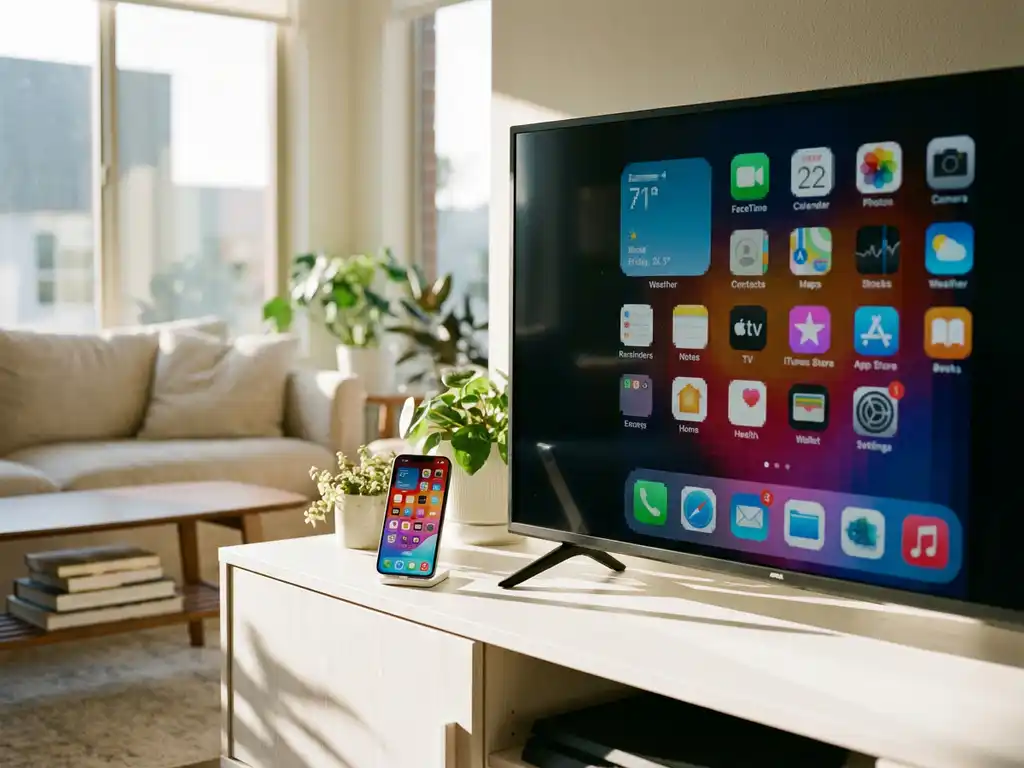
Nothing is more frustrating than trying to share your iPhone screen with friends or family, only to have the image appear pixelated or blurry on your TV. iPhone screen mirroring should deliver crisp, clear content that looks great on the big screen, but several factors can interfere with the experience.
Understanding what causes poor mirroring quality helps you troubleshoot issues and enjoy smooth wireless casting. From Wi-Fi speeds to app differences, multiple elements affect how your iPhone content appears on your television screen.
What causes iPhone screen mirroring to show pixelated or blurry content?
iPhone screen mirroring appears pixelated or blurry primarily due to insufficient Wi-Fi bandwidth, network congestion, or the compression algorithms used by mirroring apps. When your wireless connection cannot handle the data transfer required for high-quality video streaming, the content is compressed and loses visual clarity.
Several technical factors contribute to poor mirroring quality. Your Wi-Fi router’s processing power affects how smoothly data flows between devices. Older routers, or those handling multiple connected devices, may struggle to maintain consistent streaming quality. Distance from your router also matters, as signal strength decreases the farther your iPhone and TV are from the wireless access point.
The mirroring method itself influences quality. Different apps use varying compression techniques to transmit your screen content. Some prioritize speed over quality, resulting in lower-resolution output. Hardware limitations on either your iPhone or TV can also create bottlenecks that reduce image clarity during wireless casting.
How does Wi-Fi speed affect iPhone screen mirroring quality?
Wi-Fi speed directly affects iPhone screen mirroring quality, with faster connections supporting higher resolution and smoother playback. Most mirroring apps require at least 10–15 Mbps for standard-definition content and 25+ Mbps for high-definition streaming without pixelation or lag.
Your internet connection’s upload and download speeds both matter for mirroring performance. While download speed affects how quickly content loads on your iPhone, upload speed determines how efficiently your device can transmit screen data to your TV. Many users focus only on download speeds but overlook upload capacity, which is crucial for smooth mirroring.
Network latency also impacts your mirroring experience. Even with adequate bandwidth, high ping times can cause delays between your iPhone actions and what appears on screen. This creates a frustrating disconnect where taps and swipes do not immediately reflect on your TV display.
What’s the difference between AirPlay and third-party mirroring apps for quality?
AirPlay typically delivers superior quality compared to third-party mirroring apps because it is built into Apple’s ecosystem and optimized for iOS devices. AirPlay uses Apple’s proprietary protocols designed specifically for seamless integration between iPhones, iPads, and Apple TV devices, resulting in higher resolution and lower latency.
Third-party mirroring apps like AirBeamTV work differently by creating wireless connections through your Wi-Fi network without requiring Apple TV hardware. While these apps offer broader TV compatibility and eliminate the need for additional devices, they may use different compression methods that can affect image quality. However, quality differences have narrowed significantly as these apps have improved their streaming algorithms.
The main advantage of third-party apps is universal compatibility. You can mirror your iPhone to Samsung, LG, Sony, and other smart TV brands without purchasing an Apple TV. These apps often provide more flexibility in terms of supported content and streaming options, though they may require slight quality trade-offs depending on your network conditions.
How can you improve pixelated iPhone screen mirroring quality?
Improve pixelated iPhone screen mirroring by upgrading your Wi-Fi connection, positioning devices closer to your router, and closing unnecessary apps running in the background. Ensure both your iPhone and TV connect to the same 5 GHz network band for optimal performance and reduced interference.
Start by testing your Wi-Fi speed using built-in iPhone tools or speed-testing apps. If speeds fall below 25 Mbps, consider upgrading your internet plan or router. Position your iPhone and TV within direct line of sight of your router when possible, avoiding walls and electronic devices that can interfere with wireless signals.
Optimize your iPhone’s performance before mirroring. Close apps you are not actively using, ensure your device has adequate storage space, and restart both your iPhone and TV if you experience persistent quality issues. Some mirroring apps also offer quality settings within their interfaces, allowing you to prioritize resolution over speed, or vice versa, based on your network capabilities.
Check for app updates regularly, as developers frequently improve compression algorithms and streaming quality. If you are using a third-party mirroring app for smart TV, ensure you have downloaded any required receiver apps on your smart TV for the best possible connection quality.
Why does iPhone screen mirroring quality vary between different TV brands?
iPhone screen mirroring quality varies between TV brands due to differences in processing power, wireless capabilities, and built-in software optimization. Premium TV manufacturers often include more powerful processors and better Wi-Fi modules that can handle high-resolution streaming more effectively than budget models.
Each TV brand implements wireless connectivity differently. Samsung, LG, and Sony TVs may have varying levels of compatibility with mirroring protocols, affecting how smoothly they receive and display content from your iPhone. Some manufacturers prioritize certain streaming standards over others, creating performance differences when using the same mirroring app.
The age of your TV also influences mirroring quality. Newer smart TVs typically support faster Wi-Fi standards like 802.11ac or Wi-Fi 6, while older models may be limited to slower protocols. This hardware limitation can create bottlenecks regardless of your iPhone’s capabilities or internet speed. Additionally, some TV brands receive more frequent software updates that improve mirroring performance, while others may have limited ongoing support for wireless casting features.
