




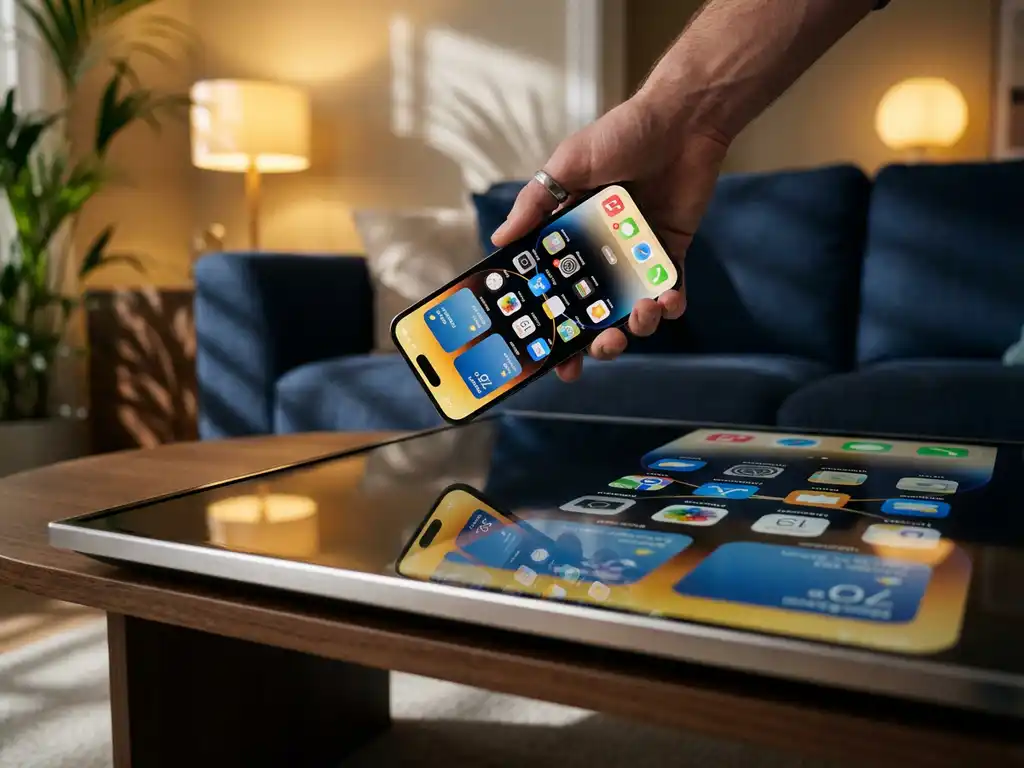
Nothing is more frustrating than setting up iPhone screen mirroring only to find your display flipped upside down on your TV. This disorienting issue can turn a simple streaming session into a headache, but understanding the causes and solutions makes it straightforward to fix.
Screen orientation problems during iPhone screen mirroring typically stem from device settings, app configurations, or how your iPhone interprets its physical position. The good news is that most upside-down display issues can be resolved with a few simple adjustments to your device settings or mirroring approach.
What causes iPhone screen mirroring to display upside down?
iPhone screen mirroring displays upside down when your device’s orientation lock is enabled while the phone is physically inverted, or when the accelerometer misreads the device’s position during the mirroring connection. The iPhone’s built-in sensors determine screen orientation, and conflicts between these readings and your mirroring app can result in an inverted display.
Several specific factors contribute to this issue. Portrait Orientation Lock is the most common culprit. When you enable this setting while holding your iPhone upside down, screen mirroring maintains that inverted orientation even when you rotate the device to its normal position. Your iPhone essentially “remembers” the wrong orientation and broadcasts it to your TV.
App-specific orientation settings can also interfere with proper mirroring. Some apps force landscape or portrait modes regardless of how you hold your device, creating conflicts between what the app displays and what the mirroring software expects. Additionally, timing matters. If you start screen mirroring while your iPhone is in an unusual position, the initial orientation reading may persist throughout your mirroring session.
How does screen orientation affect wireless mirroring quality?
Screen orientation directly impacts wireless mirroring quality by determining resolution mapping, aspect ratio compatibility, and processing efficiency between your iPhone and TV. When orientation conflicts occur, your device may struggle to scale content properly, resulting in distorted images, black bars, or reduced video quality during the mirroring process.
Proper orientation alignment ensures optimal bandwidth usage and smoother streaming. When your iPhone and TV display orientations match, the mirroring software can efficiently compress and transmit video data without additional rotation processing. This reduces lag and maintains higher frame rates, which is especially important when mirroring videos or interactive content.
Mismatched orientations force your device to perform real-time rotation calculations, consuming additional processing power and potentially causing dropped frames or stuttering playback. The impact becomes more noticeable with high-definition content or when multiple apps are running simultaneously. Maintaining consistent orientation throughout your mirroring session helps preserve both video quality and battery life.
Which iPhone settings control screen mirroring orientation?
The primary iPhone settings that control screen mirroring orientation are Portrait Orientation Lock in Control Center, individual app rotation preferences, and AssistiveTouch orientation controls. These settings work together to determine how your screen appears when wirelessly casting to your TV, with Portrait Orientation Lock being the most influential for mirroring behavior.
Portrait Orientation Lock, accessible through Control Center by swiping down from the top-right corner of your screen, prevents automatic rotation across all apps. When enabled during mirroring, this setting maintains your current orientation regardless of how you physically move your device. You’ll see a lock icon with a circular arrow when this feature is active.
Individual app settings also play a crucial role. Apps like YouTube, Netflix, or games may have their own rotation preferences that override system settings. These app-specific controls can be found in Settings > Display & Brightness > View, where you can set Display Zoom and other display preferences that affect how content appears during mirroring.
For users with accessibility needs, AssistiveTouch provides additional orientation controls through Settings > Accessibility > Touch > AssistiveTouch. This feature includes a virtual rotation lock that can override standard orientation behavior, potentially affecting how content mirrors to external displays.
How do you fix upside down screen mirroring on iPhone?
To fix upside-down screen mirroring on iPhone, first disable Portrait Orientation Lock in Control Center, then restart your mirroring connection while holding your device in the correct upright position. This simple reset typically resolves orientation conflicts and establishes proper screen alignment between your iPhone and your TV.
Follow these steps for a complete fix. Start by stopping your current mirroring session completely. Open Control Center by swiping down from the top-right corner and tap the Portrait Orientation Lock icon to disable it if it is currently enabled. Hold your iPhone in the normal upright position and wait a few seconds for the accelerometer to register the correct orientation.
Next, restart your screen mirroring app and establish a fresh connection to your TV. Whether you’re using AirPlay or a dedicated mirroring app, starting the connection while your device is properly oriented usually resolves the upside-down display issue. If problems persist, try rotating your iPhone to landscape and back to portrait mode before starting mirroring to reset the orientation sensors.
For stubborn cases, restart your iPhone completely while holding it upright. This clears any cached orientation data and ensures your device’s sensors provide accurate readings to your mirroring software. Also, check that your TV’s display settings are not set to rotate or flip incoming signals, as some smart TVs include orientation adjustment features that might interfere with proper mirroring.
