




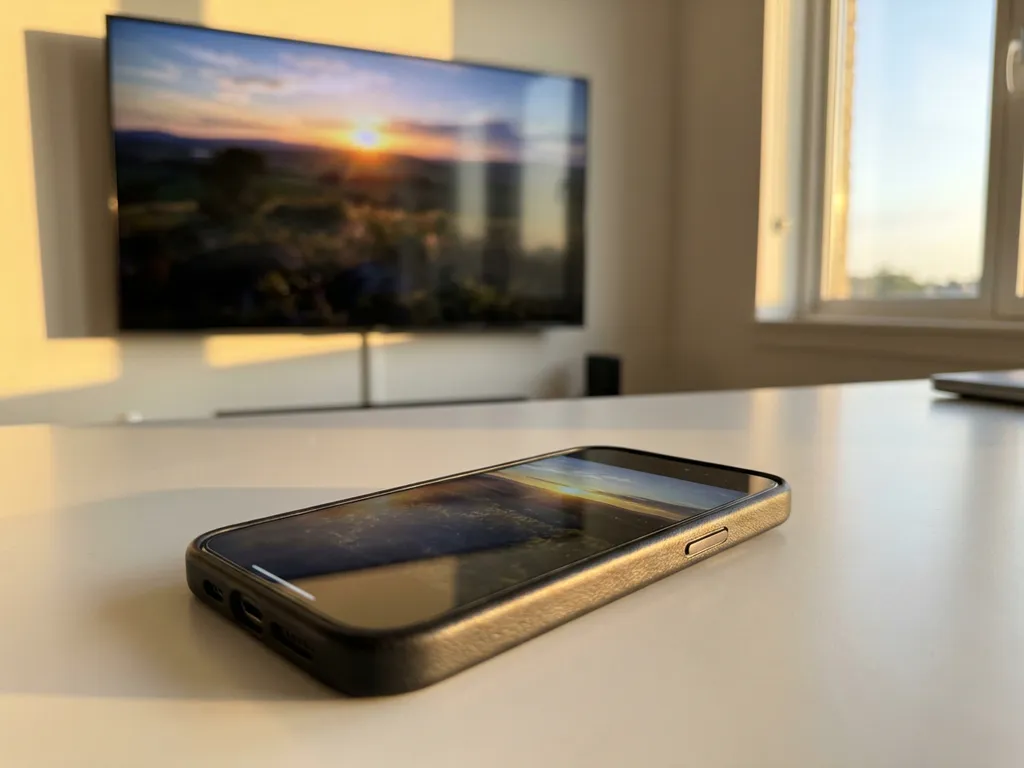
Getting the best picture quality when mirroring your iPhone to your TV means understanding which devices support 4K resolution. As we move into 2026, more iPhone models than ever can deliver stunning ultra-high-definition content to your big screen wirelessly.
Whether you’re streaming movies, sharing photos, or presenting work content, knowing your iPhone’s 4K capabilities helps you make the most of your viewing experience. Let’s explore which models support this premium feature and how to get the sharpest picture possible.
What iPhone models support 4K screen mirroring in 2026?
All iPhone models from the iPhone 12 series onward support 4K screen mirroring, including the iPhone 12, 12 mini, 12 Pro, 12 Pro Max, the iPhone 13 series, the iPhone 14 series, the iPhone 15 series, and the latest iPhone 16 models. These devices can wirelessly transmit 4K-resolution content to compatible displays.
The iPhone 11 and iPhone 11 Pro also support 4K mirroring, though with some limitations compared with newer models. Earlier iPhones, such as the iPhone X, XS, and XR, can mirror content but are typically limited to 1080p resolution for wireless transmission.
The difference comes down to the processing power and wireless capabilities built into each device. Newer iPhones have faster chips and improved Wi-Fi standards that can handle the demanding data requirements of 4K streaming. The A14 Bionic chip and later processors, in particular, include enhanced video encoding that makes 4K mirroring smoother and more reliable.
How does 4K screen mirroring work on modern iPhones?
4K screen mirroring on iPhones works by encoding your device’s display into ultra-high-definition video data and transmitting it wirelessly over your Wi-Fi network to a compatible receiver. The iPhone’s processor compresses the 4K signal in real time while maintaining picture quality.
Your iPhone captures everything on its screen at 3840 x 2160 pixel resolution, then uses hardware acceleration to encode it into a video stream. This happens dozens of times per second to create smooth motion. The encoded data travels through your Wi-Fi router to your TV or streaming device, where it is decoded and displayed.
The process requires significant processing power, which is why only newer iPhone models handle 4K mirroring effectively. Your Wi-Fi network also plays a crucial role. A strong, stable connection ensures the large amount of data needed for 4K can flow without interruption, preventing lag or quality drops.
What’s the difference between AirPlay and third-party screen mirroring apps for 4K?
AirPlay requires an Apple TV or an AirPlay 2-compatible device and offers seamless integration with iOS, while third-party screen mirroring apps work directly with smart TVs and streaming devices without additional hardware. Both can deliver 4K quality, but they use different connection methods.
AirPlay provides the most reliable 4K experience because it’s built into iOS and optimized for Apple’s ecosystem. When you use AirPlay with an Apple TV 4K, you get consistent performance and automatic quality adjustment based on your network conditions.
Third-party apps offer more flexibility by working with virtually any smart TV brand. Apps like AirBeamTV eliminate the need for Apple TV hardware and can mirror your iPhone screen directly to Samsung, LG, Sony, and other popular TV brands. Setup is simple: download the app, open it on your iPhone, then start mirroring. Your iPhone’s screen appears instantly on the TV.
The main trade-off is that third-party apps may require slightly more setup depending on your TV brand, and performance can vary based on your specific TV model and network conditions. However, they provide an affordable way to get 4K mirroring without buying additional hardware.
Why won’t my iPhone mirror in 4K to my smart TV?
The most common reasons your iPhone won’t mirror in 4K include an incompatible iPhone model, insufficient Wi-Fi bandwidth, TV resolution limitations, or incorrect app settings. Your network must support at least 25 Mbps for stable 4K streaming.
First, check whether your iPhone model supports 4K mirroring. If you have an iPhone 11 or older, you may be limited to 1080p resolution. Even compatible iPhones need a strong Wi-Fi connection to handle 4K data streams effectively.
Your TV also needs to support 4K resolution and have enough processing power to decode the incoming stream. Older smart TVs might accept 4K input but struggle with wireless 4K mirroring due to limited hardware capabilities.
Network congestion often causes the biggest problems. If multiple devices are using your Wi-Fi simultaneously, or if you’re far from your router, the connection might automatically downgrade to 1080p to maintain stability. Try moving closer to your router or reducing other network activity during mirroring sessions.
Which smart TVs are compatible with iPhone 4K screen mirroring?
Most modern smart TVs from major brands, including Samsung, LG, Sony, Philips, Panasonic, and TCL, support iPhone 4K screen mirroring through various apps and protocols. The TV must have 4K resolution capability and sufficient processing power to decode wireless video streams.
Samsung smart TVs running Tizen OS from 2018 onward generally support 4K mirroring, as do LG TVs with webOS 3.0 or later. Sony Android TVs and Philips Android TVs typically offer excellent compatibility with iPhone mirroring apps.
Streaming devices also expand your options significantly. Apple TV 4K provides native AirPlay support, while devices like Roku Ultra, Amazon Fire TV Stick 4K Max, and Chromecast with Google TV can run compatible mirroring apps.
The key requirement is that both your iPhone and TV must connect to the same Wi-Fi network. Some TVs may require downloading a universal remote control TV app, but the process remains straightforward. Most screen mirroring apps automatically detect compatible TVs on your network, making setup quick and simple.
