




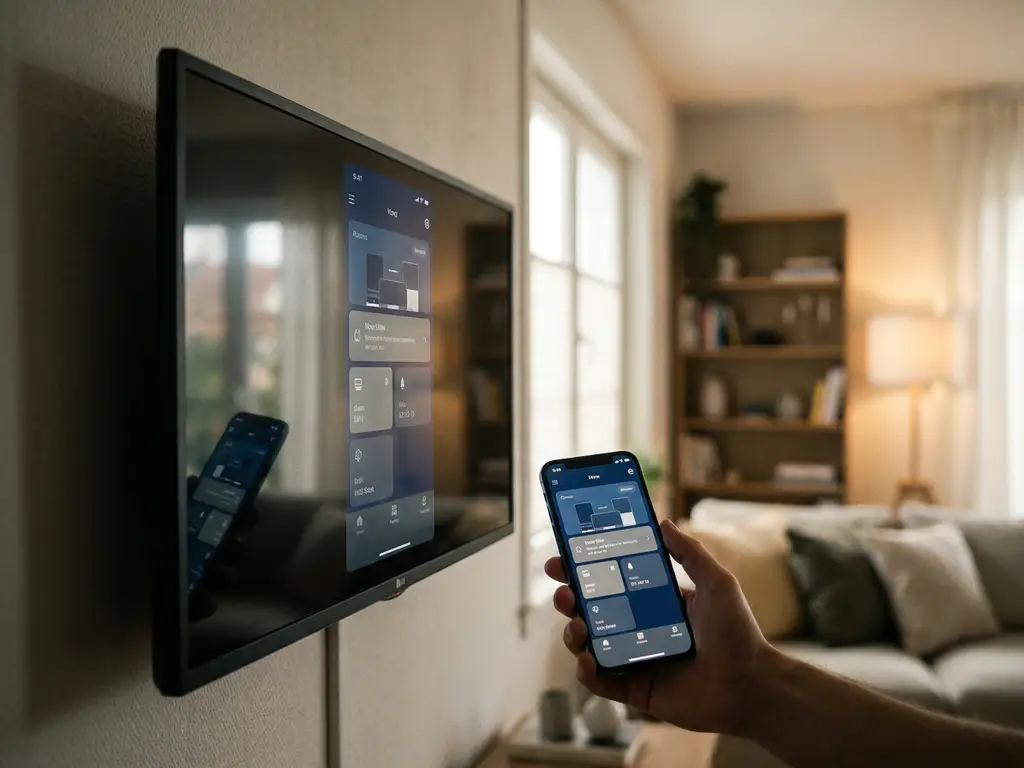
If you’ve just bought an LG TV and want to mirror your phone or laptop screen to it, you’re in the right place. LG screen mirroring works well once you know which features your model supports and how to connect your specific device. This guide walks you through everything: checking your TV’s compatibility, matching it to your device, setting it up, and fixing the most common problems.
Check which LG TV models support screen mirroring
Most LG Smart TVs released from 2016 onwards support some form of screen mirroring. The exact method available to you depends on which operating system your TV runs. LG uses two main platforms: webOS (found on most LG Smart TVs from 2014 onwards) and ThinQ AI (a branding layer on top of webOS for newer models). Both support wireless screen mirroring, but the specific features vary by year.
Here is a quick overview of LG TV generations and what they support:
- LG OLED, QNED, NanoCell, and UHD TVs (2019 to 2026): Full support for Miracast (Screen Share), AirPlay 2, and third-party mirroring apps
- LG Smart TVs (2016 to 2018): Support for Miracast and some third-party apps; no built-in AirPlay 2
- LG Smart TVs (2014 to 2015): Limited Miracast support; third-party app support may be restricted
- Older LG TVs (pre-2014): No built-in wireless mirroring; a streaming stick like a Fire TV or Chromecast is needed
To check your specific model, press the Settings button on your LG remote, go to All Settings, then General, and look for Screen Share or AirPlay in the menu. If either option appears, your TV supports wireless mirroring. If neither shows up, your model likely predates built-in support.
Match your device to the right mirroring method
Not every device mirrors to LG TVs the same way. The method that works best for you depends on what you are casting from. Using the wrong method is one of the most common reasons mirroring fails or feels unreliable, so it is worth taking a moment to match things up correctly before you start.
Use the table below to find the right approach for your device:
- iPhone or iPad (iOS 12 and above): Use AirPlay 2 on LG TVs from 2019 onwards, or a third-party mirroring app on older models
- Android phone or tablet: Use Miracast via the Screen Share feature, or a third-party mirroring app for broader compatibility
- Mac (macOS): Use AirPlay 2 on compatible LG TVs, or a third-party app if your TV does not support AirPlay
- Windows PC or laptop: Use Miracast (built into Windows 10 and 11) via the Screen Share feature on your LG TV
The most important thing to confirm before moving on: your phone or laptop and your LG TV must be connected to the same Wi-Fi network. If they are on different networks, mirroring will not work regardless of the method you choose.
Set up screen mirroring on your LG TV step by step
With your device matched to the right method, you are ready to connect. The steps below cover the two most common setups: AirPlay 2 for Apple devices and Screen Share (Miracast) for Android and Windows.
Using AirPlay 2 (iPhone, iPad, or Mac)
- On your LG TV, press Settings, go to All Settings, then General, and select AirPlay. Make sure AirPlay is turned on.
- On your iPhone or iPad, swipe down from the top-right corner to open Control Center. On a Mac, click the Control Center icon in the menu bar.
- Tap or click Screen Mirroring.
- Select your LG TV from the list of available devices.
- If prompted, enter the AirPlay code that appears on your TV screen.
After entering the code, your device screen should appear on the TV within a few seconds. You will see a blue indicator on your iPhone or iPad confirming the connection is active.
Using Screen Share (Android or Windows)
- On your LG TV, press the Home button, go to Settings, then All Settings, then General, and select Screen Share. Enable it.
- On an Android phone: open Settings, search for Smart View, Cast, or Screen Mirroring (the name varies by brand), and select your LG TV.
- On a Windows PC: press Windows + K to open the Cast panel, then select your LG TV from the list.
Once connected, your screen will appear on the TV. If your LG TV does not appear in the device list, go back and confirm both devices are on the same Wi-Fi network, then try again.
Fix screen mirroring issues on LG TVs
If something is not working, do not worry. Most LG screen mirroring problems come down to a handful of common causes, and they are straightforward to fix.
Work through these steps in order:
- Restart everything. Turn off your TV, your phone or laptop, and your Wi-Fi router. Wait 30 seconds, then turn them back on. This clears temporary connection errors and fixes the majority of issues.
- Check the Wi-Fi network. Go into the Wi-Fi settings on both your TV and your device and confirm they are on the same network. A common mistake is having one device on a 2.4GHz network and the other on 5GHz, which can prevent discovery.
- Re-enable Screen Share or AirPlay on the TV. Go into your LG TV settings, turn the relevant feature off, wait a few seconds, and turn it back on.
- Forget and reconnect. On your phone or laptop, remove the TV from your saved or paired devices, then search for it again fresh.
- Update your TV firmware. Go to Settings, then All Settings, then General, then About This TV, and run any available software updates. Outdated firmware is a common cause of dropped connections.
If the connection keeps dropping mid-session, the most likely culprit is Wi-Fi signal strength. Try moving your router closer to the TV or connecting both devices to a 5GHz band if your router supports it. Walls and other electronics between the router and TV can also cause interference.
How AirBeamTV helps with LG screen mirroring
If your LG TV is an older model without AirPlay 2, or if the built-in Screen Share feature is unreliable with your device, we have a straightforward solution. Our screen mirroring app works with all major LG TV models and does not require Apple TV, cables, or any extra hardware.
Here is what you get with our app:
- Works with iPhone, iPad, Mac, Android phones, and Android tablets
- Compatible with LG Smart TVs that do not support AirPlay 2 natively
- HD mirroring with audio, so you can stream videos, shows, and anything else on the big screen
- Simple three-step setup: download the app, open your device, start mirroring
- No need to dig through TV settings or troubleshoot Miracast compatibility; you can also use a universal remote control TV app to manage your LG TV directly from your phone
We have helped over 20 million people get their screens onto the big screen without the frustration of complicated setups. If the built-in options are giving you trouble, try our LG screen mirroring app and you will be up and running in minutes.
