




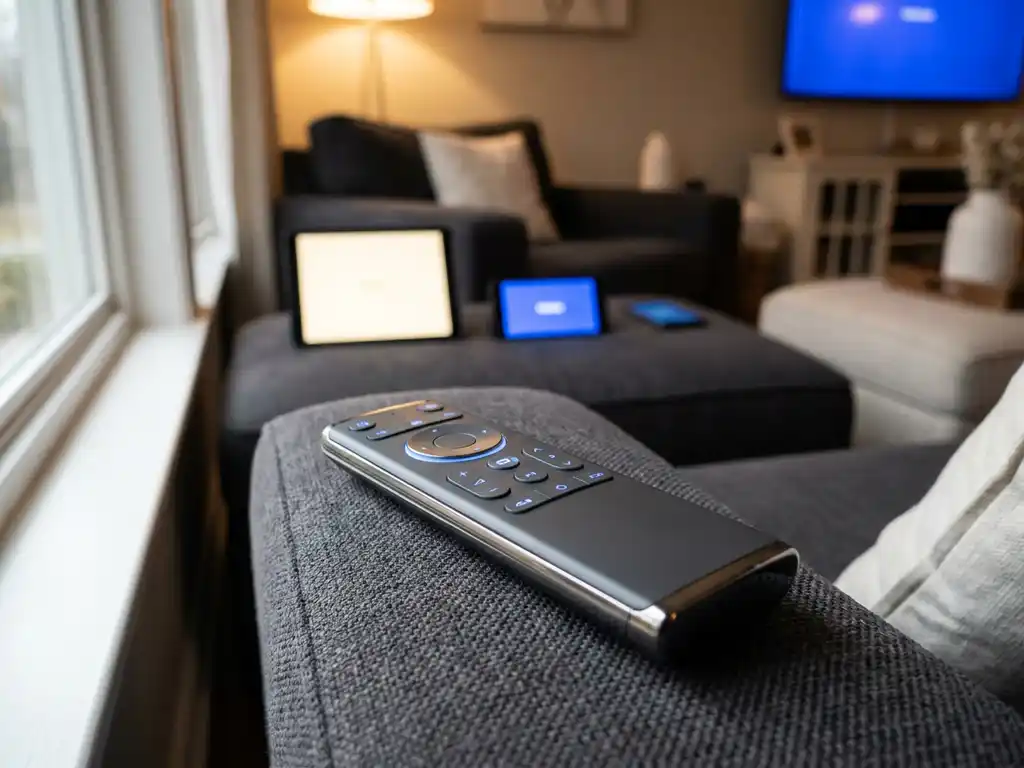
A universal TV remote app is truly universal when it controls multiple TV brands, streaming devices, and input sources from a single interface, without requiring separate remotes or setup codes. The best apps work over your home Wi-Fi network, meaning your phone connects directly to your TV without any extra hardware. Below, we answer the most common questions people ask before choosing one.
How does a universal TV remote app actually work?
A universal TV remote app works by connecting your smartphone or tablet to your TV over the same Wi-Fi network. Once connected, your phone sends commands to the TV just like a physical remote would, controlling volume, channels, inputs, and more. No infrared blaster or extra hardware is required for most modern smart TVs.
Most smart TVs have a built-in feature that lets them receive commands from apps on the same network. When you open a universal remote app, it scans your Wi-Fi for compatible devices, finds your TV, and establishes a connection. From that point on, tapping buttons in the app sends real-time instructions to your TV.
The better apps go beyond basic button replication. They add touchpad controls, on-screen keyboards for search, and quick-access shortcuts for things like switching inputs or adjusting picture settings. Some also support streaming devices like Roku or Amazon Fire TV, so you can control everything from one place instead of juggling multiple remotes.
What devices and TV brands should a universal remote app support?
A genuinely universal TV remote app should support all major smart TV brands, including Samsung, LG, Sony, TCL, Hisense, and Roku TVs, as well as popular streaming devices like Amazon Fire TV and Roku sticks. If an app only works with one or two brands, it is not truly universal, no matter what the name suggests.
When you are evaluating an app, check the supported device list carefully before downloading. Some apps market themselves as universal but quietly limit full functionality to a handful of models. A reliable app will tell you upfront which brands and devices it covers.
Here is what a well-rounded universal remote app should support:
- Smart TV brands: Samsung, LG, Sony, TCL, Hisense, Philips, Panasonic
- Streaming devices: Roku, Amazon Fire TV, Android TV
- Input types: Wi-Fi-based control (no IR blaster needed for smart TVs)
- Phone platforms: Both Android and iPhone/iPad
Broad compatibility matters because most households have more than one screen. You might have a Samsung TV in the living room and a Roku stick in the bedroom. An app that handles both saves you from switching between two separate remotes or apps.
What’s the difference between a universal remote app and a built-in TV remote feature?
The built-in TV remote feature on your phone, such as the one inside Samsung SmartThings or Apple’s Control Center, only works with specific brands or ecosystems. A universal remote app is designed to work across multiple brands and devices from a single interface, giving you broader control without being locked into one manufacturer’s system.
Built-in features are convenient if you own devices within the same brand family. If your TV, phone, and streaming device are all from Samsung, SmartThings works well. But the moment you mix brands, those built-in tools start to show their limits.
A universal remote app fills that gap. It is not tied to one ecosystem, so it can control a Sony TV and an Amazon Fire TV Stick from the same screen. It also tends to offer more control options, like a full keyboard for typing search queries, a touchpad for navigation, and shortcuts for common actions.
The tradeoff is that built-in features require zero setup and no download. If your setup is simple and single-brand, they may be enough. But if you want flexibility and a cleaner experience across different devices, a dedicated universal remote app is the more practical choice.
Why do some universal remote apps stop working after a TV update?
TV software updates sometimes change the internal communication protocols that remote apps rely on. When a manufacturer updates the firmware on your TV, it can alter how the TV accepts commands over Wi-Fi, which breaks the connection between the app and the TV until the app is updated to match.
This is one of the less-talked-about frustrations with remote apps. Your TV updates overnight, and the next morning your remote app no longer connects. It feels random, but there is usually a straightforward explanation.
Here is why it happens and what you can do about it:
- Protocol changes: TV brands update the communication standards their devices use. Apps built on older standards need to catch up.
- Security patches: Some firmware updates restrict which apps can connect to the TV, requiring re-authorization.
- App updates lag behind: Developers need time to test and release a fix after a TV firmware change.
The best way to avoid long disruptions is to choose an app from a developer who updates regularly and responds quickly to firmware changes. Check the app’s update history in the app store before downloading. Frequent, recent updates are a good sign the developer actively maintains compatibility.
Should you use a free or paid universal TV remote app?
Free universal remote apps are fine for basic use, but they often come with limitations like ads, restricted features, or support for fewer TV brands. A paid app, or a free app with an optional upgrade, typically gives you a cleaner experience, broader device compatibility, and access to features like keyboard input and touchpad controls.
The honest answer depends on what you need. If you just want to change the volume when you cannot find the physical remote, a free app will do the job. But if you use your phone as your main remote every day, the ad interruptions and feature gaps in free versions quickly become annoying.
A few things worth considering when deciding:
- How often will you use it? Daily users benefit more from a paid, ad-free experience.
- How many devices do you need to control? Paid apps tend to support more brands and streaming devices.
- Do you need extras like a keyboard or touchpad? These are usually locked behind a paid tier in free apps.
- Is there a free trial? Many good apps let you test full features before committing.
In most cases, the cost of a quality remote app is small compared to the convenience it adds. The key is reading reviews carefully and checking that the app actively supports your specific TV model before you pay.
How AirBeamTV Helps with Universal TV Remote Control
We built the AirBeamTV Universal TV Remote App to solve exactly the problems described above: too many remotes, limited brand support, and apps that feel like they were designed for engineers rather than everyday people.
Here is what you get with our app:
- Works with all major TV brands, including Samsung, LG, Sony, TCL, Hisense, and Roku TVs
- Controls streaming devices like Amazon Fire TV and Roku from the same app
- Full remote functions: volume, channel switching, source selection, mute, and more
- Touchpad and keyboard input so you can navigate and search without hunting for letters on a tiny on-screen keyboard
- Haptic feedback that confirms every tap, so you know the command went through
- No setup codes or extra hardware: just connect your phone and TV to the same Wi-Fi, select your TV model, and you are in control
Available for both iPhone and Android, our app is designed to be easy for anyone to use, regardless of how tech-savvy you are. Setup takes less than a minute, and you will not need to dig through a manual to figure it out.
Ready to replace the pile of remotes on your coffee table? Download the AirBeamTV Universal TV Remote App and start controlling your TV from your phone today.
