




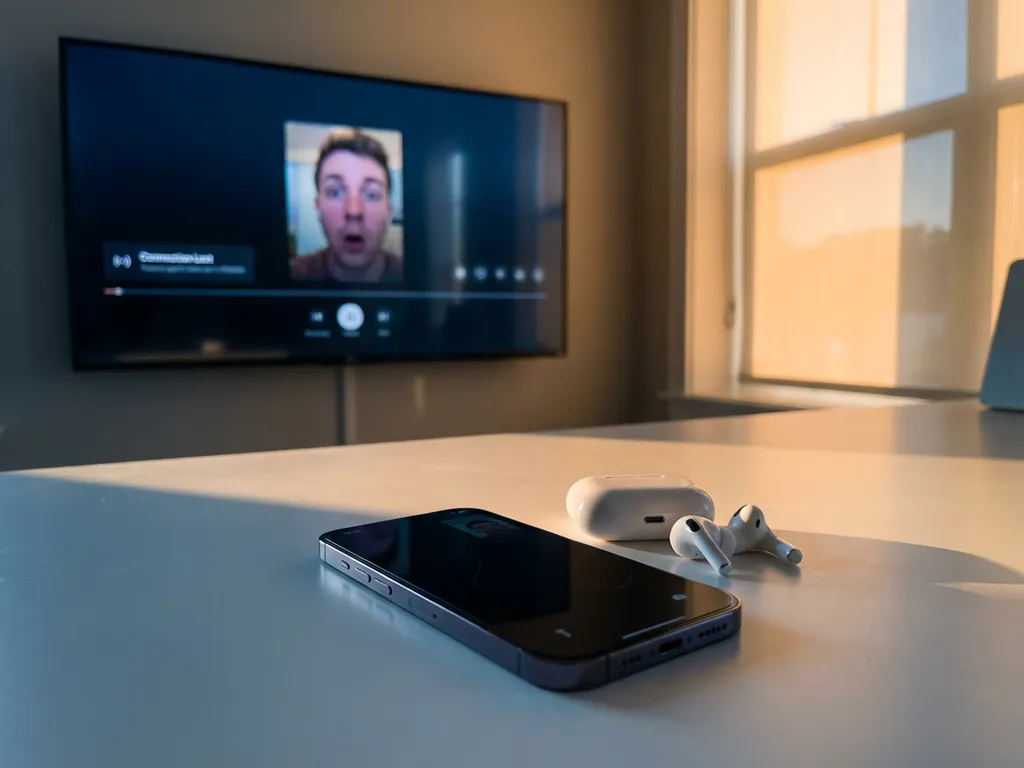
iPhone screen mirroring offers a fantastic way to share your device’s display on a big screen, but many users experience frustrating disconnections during FaceTime calls. This common issue stems from how your iPhone manages network resources and processing power when running multiple demanding applications simultaneously.
Understanding why these disconnections happen—and how to prevent them—can help you maintain smooth screen mirroring while staying connected with friends and family through video calls.
Why does iPhone screen mirroring stop working during FaceTime calls?
iPhone screen mirroring disconnects during FaceTime calls because both functions compete for the same network bandwidth and processing resources. Your iPhone prioritizes the FaceTime call, automatically reducing or stopping screen mirroring to maintain call quality and prevent dropped connections.
When you start a FaceTime call while screen mirroring, your iPhone’s system management kicks into high gear. FaceTime requires significant bandwidth for video and audio transmission, especially when using high-definition video. Screen mirroring simultaneously streams your entire display to your TV, creating a bandwidth bottleneck that your iPhone resolves by prioritizing the more critical communication function.
iOS also manages processor allocation carefully. Both FaceTime and screen mirroring are resource-intensive processes that require substantial CPU power. Video encoding for FaceTime, combined with the continuous screen capture and transmission required for mirroring, can overwhelm your device’s capabilities. To prevent system crashes or severe performance degradation, iOS automatically terminates or reduces the screen mirroring connection.
Additionally, thermal management plays a role in these disconnections. Running both functions simultaneously generates significant heat, and your iPhone may throttle performance or shut down nonessential processes to prevent overheating damage.
What happens to your network when you mirror and FaceTime simultaneously?
Running iPhone screen mirroring and FaceTime simultaneously creates substantial network congestion, with both functions competing for upload bandwidth. Your router must handle two video streams, which can exceed your internet connection’s capacity and cause quality degradation or disconnections in one or both services.
Screen mirroring typically requires 5–25 Mbps of upload bandwidth, depending on your display resolution and content type. FaceTime simultaneously demands 1–3 Mbps for standard calls or up to 8 Mbps for group video calls with multiple participants. Most home internet connections have significantly lower upload speeds than download speeds, creating an immediate bottleneck.
Your Wi-Fi network also experiences increased congestion. Both functions transmit large amounts of data continuously, and if other devices in your home are using the same network, the competition intensifies. This congestion manifests as increased latency, packet loss, and unstable connections that force your iPhone to drop the screen mirroring session.
Packet prioritization becomes critical during simultaneous use. Your iPhone and router attempt to manage traffic, but without proper Quality of Service settings, neither function receives the consistent bandwidth it needs for optimal performance. The result is choppy video, audio delays, and frequent disconnections.
How can you prevent screen mirroring from disconnecting during calls?
To prevent screen mirroring disconnections during calls, close unnecessary apps, move your iPhone closer to your Wi-Fi router, and reduce screen mirroring quality settings, if available. Also, make sure no other devices are consuming significant bandwidth during your mirroring session.
Start by optimizing your network environment. Move your iPhone within 10–15 feet of your router and remove physical obstacles, such as walls or furniture, that might interfere with signal strength. A stronger Wi-Fi connection provides more stable data transmission for both functions.
Manage your bandwidth usage strategically. Pause downloads, streaming services, and other bandwidth-intensive activities on all devices connected to your network. Ask family members to temporarily avoid heavy internet use during your mirroring sessions.
Consider using a 5 GHz Wi-Fi network instead of 2.4 GHz, if your router supports dual-band connectivity. The 5 GHz band typically offers less congestion and higher speeds, though with shorter range. This can provide the additional bandwidth needed for smooth simultaneous operation.
Reduce the quality settings in your screen mirroring app, if possible. Lower-resolution streaming requires less bandwidth, leaving more capacity for your FaceTime call. While this compromises visual quality, it often enables both functions to run simultaneously without disconnections.
Which screen mirroring apps work best with FaceTime calls?
AirBeamTV screen mirroring apps can perform better during FaceTime calls due to optimized bandwidth management and efficient encoding technology. These apps are designed to handle network congestion more effectively than many alternatives, maintaining more stable connections when system resources are divided.
AirBeamTV’s wireless screen mirroring technology includes intelligent bandwidth adaptation that automatically adjusts streaming quality based on available network resources. When you start a FaceTime call, the app can detect the increased network demand and reduce its own bandwidth consumption without completely disconnecting. This dynamic adjustment helps maintain both services simultaneously.
The app’s compatibility with major TV brands, including Samsung, LG, Sony, and others, helps ensure consistent performance across different hardware configurations. Unlike some screen mirroring solutions that struggle with resource management, AirBeamTV’s streamlined approach minimizes processor overhead, leaving more system resources available for FaceTime.
Built-in connection stability features help AirBeamTV maintain mirroring sessions even when network conditions fluctuate. The app includes automatic reconnection capabilities for screen mirroring that can restore your mirroring session if temporary disconnections occur, rather than requiring you to restart the entire process manually.
For optimal results with any screen mirroring app during FaceTime calls, choose an app that offers quality adjustment settings, efficient compression algorithms, and robust connection management. These features become essential when your iPhone must balance multiple demanding network activities simultaneously.
