




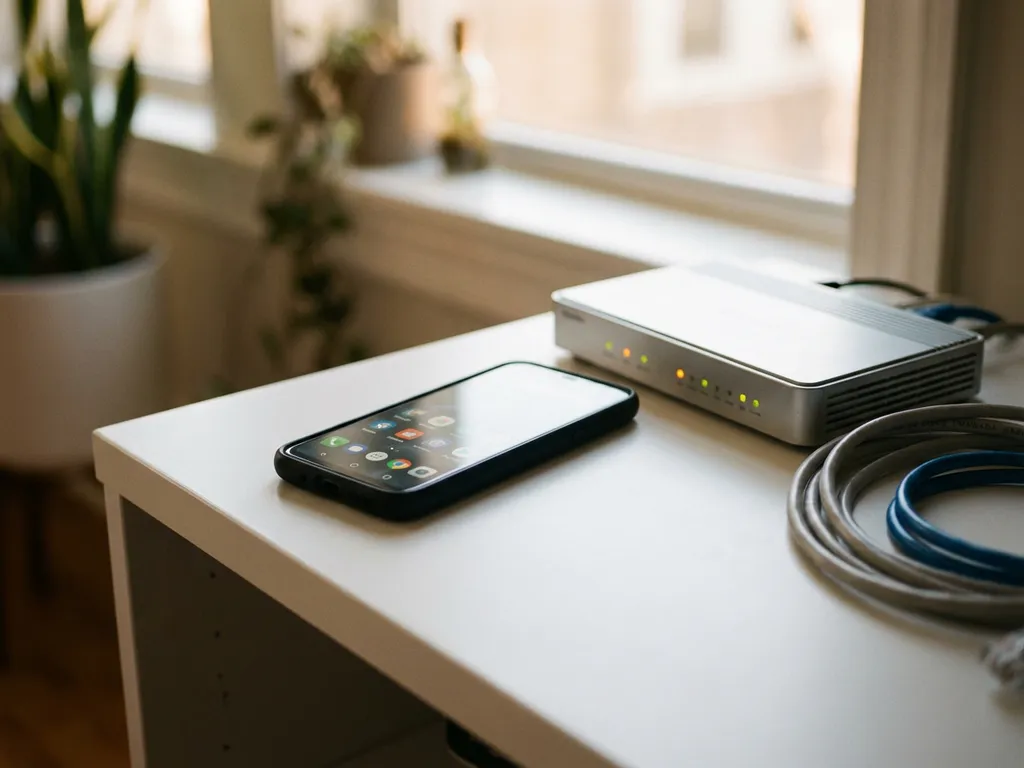
Nothing is more frustrating than trying to mirror your iPhone to your TV, only to have the connection fail repeatedly. While iPhone screen mirroring should work seamlessly across different Wi-Fi networks, certain routers can cause persistent connection problems that leave you staring at error messages instead of enjoying your content on the big screen.
The good news is that most router-related mirroring issues stem from specific network configurations you can identify and fix. Understanding why your Wi-Fi router might be blocking your mirroring attempts is the first step toward getting back to streaming your favorite shows, videos, and apps wirelessly.
What causes iPhone screen mirroring to fail on specific Wi-Fi networks?
iPhone screen mirroring fails on certain Wi-Fi networks primarily due to network isolation features, bandwidth limitations, and incompatible router configurations that prevent devices on the same network from communicating with each other.
Network isolation is the most common culprit. Many routers, especially those in public spaces or enterprise environments, enable client isolation or AP isolation by default. This security feature prevents connected devices from seeing or communicating with each other, even when they are on the same network. When your iPhone cannot discover your TV or streaming device, mirroring becomes impossible.
Bandwidth constraints also play a significant role. Screen mirroring requires substantial data transfer rates to maintain smooth video quality. Older routers operating on the 2.4 GHz band, or networks with heavy traffic, can struggle to provide the consistent throughput needed for reliable mirroring. This results in choppy video, frequent disconnections, or a complete failure to establish a connection.
Firewall restrictions and port blocking can also interfere with the communication protocols that screen mirroring relies on. Some routers block specific ports or protocols used by AirPlay and other mirroring technologies, preventing the handshake between your iPhone and the target device from completing successfully.
How do router security settings affect screen mirroring performance?
Router security settings directly affect screen mirroring by controlling device-to-device communication, blocking necessary network protocols, and limiting the data exchange required for wireless casting to function properly.
Guest network isolation is one of the most restrictive settings for mirroring. When enabled, this feature treats each connected device as completely separate, preventing your iPhone from discovering smart TVs or streaming devices on the same network. Even if both devices show as connected to Wi-Fi, they exist in isolated bubbles that cannot communicate.
MAC address filtering creates another barrier when it is overly restrictive. If your router allows only preapproved devices to communicate with each other, your iPhone might connect to Wi-Fi but remain unable to reach your TV remote control app for iPhone unless both devices are specifically whitelisted for inter-device communication.
WPA3 security protocols, while excellent for overall network protection, can sometimes cause compatibility issues with older smart TVs or streaming devices that do not fully support the latest encryption standards. This mismatch can prevent the secure handshake required for mirroring to begin.
Quality of Service (QoS) settings that prioritize certain types of traffic over others can also throttle the bandwidth available for screen mirroring, resulting in poor performance even when a connection is established.
Which Wi-Fi router brands have known screen mirroring compatibility issues?
Several router manufacturers have documented compatibility challenges with iPhone screen mirroring, particularly older Netgear models, certain Linksys routers with aggressive security defaults, and some enterprise-grade Cisco equipment that prioritizes security over device communication.
Netgear routers, especially models from 2018 and earlier, often ship with client isolation enabled by default. The Nighthawk series has been particularly problematic for users attempting to mirror content, with many requiring manual configuration changes to allow device-to-device communication.
Linksys Velop mesh systems have shown inconsistent behavior with screen mirroring, particularly when devices connect to different nodes in the mesh network. The system’s band steering and device management features can sometimes interfere with the consistent connection required for smooth mirroring performance.
Older TP-Link models, particularly those running firmware versions prior to 2019, have exhibited issues with multicast traffic handling, which is essential for device discovery in screen mirroring protocols. Users often report that their iPhone can see the network but fails to detect compatible TVs or streaming devices.
Enterprise routers from Ubiquiti and Cisco, while excellent for business environments, often have security configurations that block the peer-to-peer communication necessary for consumer screen mirroring applications. These routers prioritize network segmentation over the open communication that mirroring requires.
How can you fix iPhone mirroring problems caused by your router?
To fix router-related iPhone mirroring issues, disable client isolation, ensure both devices are connected to the same network band, update router firmware, and adjust firewall settings to allow the necessary communication protocols.
Start by accessing your router’s admin panel through its web interface. Look for settings labeled “Client Isolation,” “AP Isolation,” or “Device Isolation,” and disable these features. This allows devices on your network to communicate with each other, which is essential for screen mirroring discovery and connection.
Check your network bands and ensure both your iPhone and the target device are connected to the same frequency. Many dual-band routers separate 2.4 GHz and 5 GHz into different network names. Connect both devices to the 5 GHz band when possible, as it typically offers better performance for high-bandwidth activities like screen mirroring.
Update your router’s firmware to the latest version available from the manufacturer. Newer firmware often includes improved compatibility with modern devices and screen mirroring protocols. Many routers can check for updates automatically through their admin interface.
Configure your firewall to allow multicast traffic and the specific ports used by screen mirroring protocols. Enable UPnP (Universal Plug and Play) if it is disabled, as this helps devices automatically configure the network connections they need for mirroring.
If you are using a mesh network system, try connecting both devices to the main router node rather than allowing them to connect to different access points. Some mesh systems struggle to maintain consistent communication between devices on different nodes.
For persistent issues, consider creating a dedicated network specifically for media streaming. Many modern routers allow you to set up a secondary network with different security settings optimized for device communication and media streaming.
