




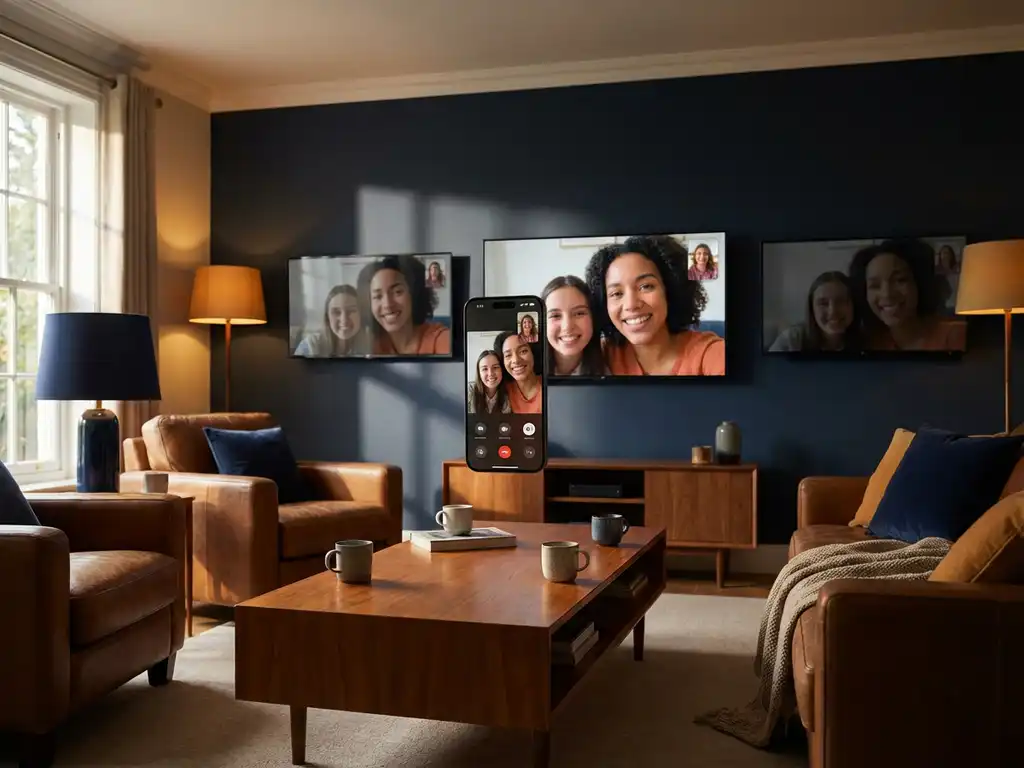
When you’re trying to mirror your iPhone screen to different TVs, you might notice that some displays respond almost instantly while others lag behind by several seconds. This frustrating inconsistency isn’t just in your head—iPhone screen mirroring latency genuinely varies between different television models and setups.
Understanding why these delays happen can help you choose the right TV for seamless mirroring and troubleshoot performance issues when they arise. Let’s explore the technical factors that influence mirroring speed and what you can do about them.
What causes latency in iPhone screen mirroring?
iPhone screen mirroring latency occurs due to the complex process of encoding video data on your device, transmitting it over Wi-Fi, and decoding it on your TV. Your iPhone must compress the screen content into a video stream and send it wirelessly to your television, where the TV’s processor then decompresses and displays the image.
Several technical factors contribute to this delay. First, your iPhone’s processor needs time to encode the screen content into a format suitable for wireless transmission. This encoding process varies depending on your device’s age and processing power—newer iPhones with faster chips typically encode more efficiently.
Network transmission adds another layer of delay. The video data travels from your iPhone through your Wi-Fi router to your TV, and any congestion or interference along this path increases latency. The size and complexity of the data being transmitted also matter—streaming a simple app interface creates less delay than mirroring a graphics-intensive game.
Finally, your TV’s internal processing creates the final bottleneck. The television must receive the wireless signal, decode the video stream, and display it on screen. TVs with slower processors or less efficient decoding algorithms will introduce more delay during this final step.
Why do different TV brands have varying mirroring latency?
Different TV brands exhibit varying iPhone screen mirroring latency because each manufacturer uses distinct processors, operating systems, and video decoding technologies. Samsung TVs might process wireless signals differently than LG or Sony models, leading to noticeable performance differences even when using the same mirroring app.
The TV’s internal hardware plays a crucial role in determining response time. Premium models often feature more powerful processors designed to handle multiple tasks simultaneously, including wireless video decoding. Budget TVs typically use less capable chips that struggle with the computational demands of real-time screen mirroring.
Each brand’s smart TV platform also affects performance. Android TV, Tizen, webOS, and Roku TV each handle wireless connections and video processing differently. Some platforms prioritize low latency for gaming and interactive applications, while others focus on video quality over speed.
The age of your TV matters significantly, too. Older smart TVs often lack the processing power and optimized wireless protocols found in newer models. A five-year-old Samsung might perform much worse than a current-year LG, even though both are considered quality brands.
How does your Wi-Fi network affect screen mirroring delay?
Your Wi-Fi network directly impacts iPhone screen mirroring delay through bandwidth limitations, signal strength, and network congestion. A weak or overloaded network forces your iPhone to compress video more aggressively and can cause transmission delays that add seconds to your mirroring experience.
Network speed creates the foundation for smooth mirroring. Screen mirroring requires consistent bandwidth to transmit video data in real time. If your Wi-Fi connection can’t maintain adequate speeds, your iPhone will reduce video quality or introduce buffering delays to prevent connection drops.
Signal strength between your iPhone, router, and TV affects how efficiently data travels across your network. Weak signals force devices to retransmit data packets, creating delays. Physical obstacles like walls, interference from other electronics, and distance from your router all degrade signal quality.
Network congestion from other devices compounds these issues. When multiple family members stream videos, download files, or video chat simultaneously, less bandwidth remains available for screen mirroring. Your iPhone must compete with these other activities for network resources, potentially causing lag spikes or reduced quality.
Which TV models have the lowest iPhone mirroring latency?
Newer smart TVs from premium manufacturers typically offer the lowest iPhone mirroring latency, with high-end Samsung, LG, and Sony models often delivering delays under 100 milliseconds. These TVs feature powerful processors, optimized wireless protocols, and dedicated gaming modes that prioritize low-latency performance.
Samsung’s latest QLED and Neo QLED TVs perform exceptionally well for screen mirroring, thanks to their Tizen operating system’s efficient wireless handling and robust internal processors. Many Samsung models include specific “Game Mode” settings that reduce input lag and can improve mirroring responsiveness.
LG’s OLED and NanoCell TVs with webOS also rank among the fastest for iPhone mirroring. Their Alpha processors are specifically designed to handle multiple video streams simultaneously, making them ideal for wireless casting applications.
Apple TV devices, while not traditional TVs, offer the absolute lowest latency for iPhone mirroring since they’re designed specifically for Apple’s ecosystem. Streaming devices like newer Roku Ultra models and high-end Amazon Fire TV Sticks also outperform many built-in smart TV platforms for mirroring speed.
How can you reduce iPhone screen mirroring lag?
You can reduce iPhone screen mirroring lag by optimizing your Wi-Fi network, closing unnecessary apps on your iPhone, and adjusting your TV’s display settings. Moving closer to your router, switching to a 5 GHz network band, and enabling your TV’s game mode can dramatically improve mirroring responsiveness.
Start by improving your network connection. Position yourself and your TV as close to your Wi-Fi router as possible to maximize signal strength. Switch to your router’s 5 GHz band if available, as it typically offers faster speeds and less congestion than 2.4 GHz networks.
Close background apps on your iPhone before starting screen mirroring. Apps running in the background consume processing power that your phone needs for efficient video encoding. A simple restart of your iPhone can also clear temporary files and optimize performance.
Adjust your TV’s settings for optimal mirroring performance. Enable “Game Mode” or “PC Mode” if your TV offers these options, as they reduce internal video processing that can add delay. Lower your TV’s picture enhancement settings temporarily, as features like motion smoothing and noise reduction require extra processing time.
Consider using dedicated screen mirroring apps for iPhone TV that are optimized for your specific TV brand. These specialized applications often provide better performance than generic mirroring solutions by taking advantage of each manufacturer’s unique wireless protocols and processing capabilities.
