




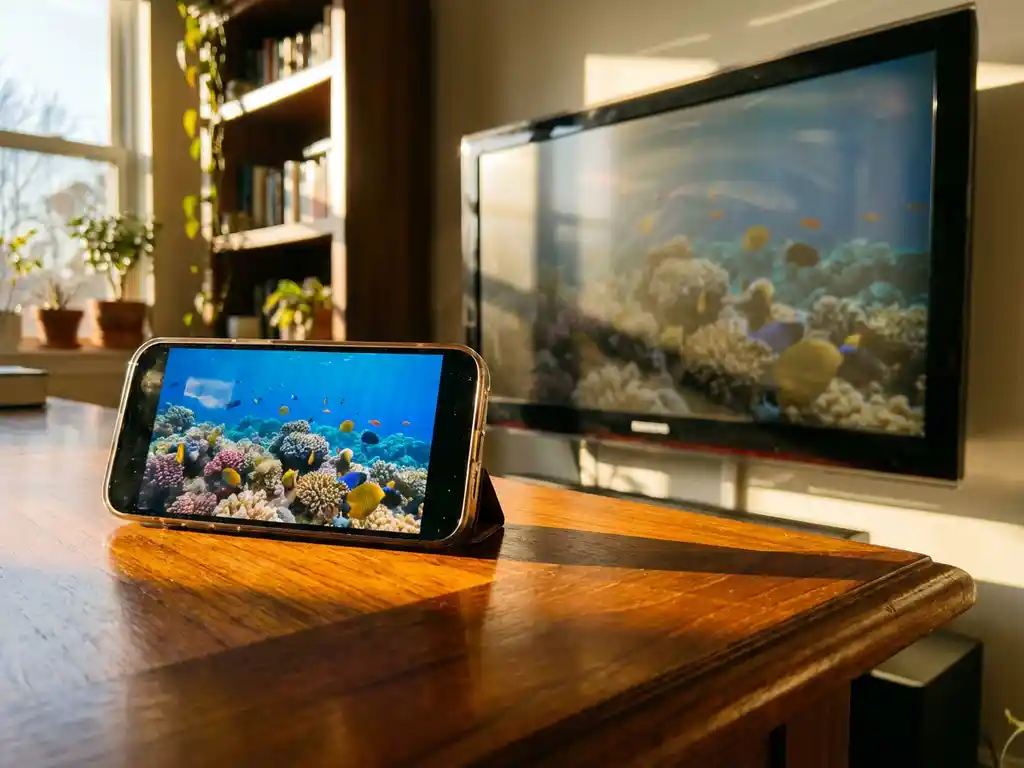
Ever notice how your iPhone screen mirroring suddenly becomes a pixelated mess when you move from your cozy living room to a bright, sunny space? You’re not imagining things. Bright lighting conditions can significantly impact your wireless casting experience, turning what should be crystal-clear content into a frustrating viewing session.
Understanding why this happens—and how to fix it—can save you from squinting at a poor-quality display when you want to enjoy your favorite content on the big screen. Let’s explore the technical reasons behind this common issue and discover practical solutions to maintain smooth mirroring quality regardless of your room’s lighting.
Why does iPhone screen mirroring lag in bright rooms?
iPhone screen mirroring lags in bright rooms primarily because your device’s screen brightness automatically increases to compensate for ambient light, which can significantly increase power consumption and drain the battery. This higher power draw can cause your iPhone to throttle performance to prevent overheating, which can directly affect wireless transmission quality to your TV.
When your iPhone detects bright lighting conditions, it activates several power-intensive features simultaneously. Auto-brightness increases screen luminance, the ambient light sensor continuously adjusts to changes in lighting, and additional background processes may run to maintain display quality. All these functions compete for your device’s limited processing resources.
The wireless transmission process itself can also become more demanding in bright environments. Your iPhone must encode video data while managing the increased thermal load from a brighter display. This can create a bottleneck in which the device can’t sustain smooth data transmission to your TV, resulting in noticeable lag, frame drops, and reduced overall mirroring quality.
What causes screen mirroring to become pixelated in daylight?
Screen mirroring can become pixelated in daylight because your iPhone may reduce video quality to conserve battery and processing power when operating at high brightness. When resources are strained, the device may prioritize overall stability over streaming quality.
Daylight triggers your iPhone’s adaptive display features, which not only increase brightness but also adjust color temperature and contrast. These real-time adjustments require ongoing processing, leaving fewer resources available to maintain high-quality video encoding during screen mirroring sessions.
Additionally, bright environments can coincide with reduced Wi-Fi performance. Heat can affect router performance, and a weaker or less stable wireless connection can prompt the mirroring protocol or app to lower video quality to maintain a consistent stream, resulting in the pixelated appearance you notice.
How does room lighting affect wireless casting performance?
Room lighting affects wireless casting performance by influencing your device’s power consumption, thermal management, and overall processing headroom. Bright lighting can force devices to work harder, creating a cascade of performance impacts that can reduce wireless transmission quality.
In dimly lit environments, your iPhone can operate more efficiently. The screen requires less power, the processor runs cooler, and more resources remain available for encoding and transmitting video data to your TV. This creates ideal conditions for smooth, high-quality screen mirroring with minimal lag or compression artifacts.
Conversely, bright lighting conditions can create a perfect storm of performance challenges. Your device’s thermal sensors may detect increased heat from the brighter display and trigger protective measures that reduce processing speeds. If the Wi-Fi connection is also marginal, you may see additional instability and reduced streaming quality.
What’s the difference between mirroring quality indoors vs. outdoors?
Indoor mirroring typically delivers better quality, with more stable connections and more consistent video clarity, while outdoor mirroring often suffers from reduced resolution, increased lag, and occasional connection drops due to environmental factors and device limitations.
Indoor environments provide controlled conditions that favor wireless casting. Your Wi-Fi router maintains more consistent performance in stable temperatures, your iPhone operates within comfortable thermal ranges, and ambient lighting is relatively steady. These factors combine to support high-quality screen mirroring with fewer interruptions.
Outdoor mirroring faces multiple challenges at once. Direct sunlight can force maximum screen brightness, rapidly draining the battery and generating heat. Wi-Fi signals may struggle with range limitations and interference. Your iPhone’s thermal protection systems may become more aggressive, throttling performance to prevent overheating and potentially interrupting your mirroring session.
How can you improve screen mirroring quality in bright environments?
You can improve screen mirroring quality in bright environments by manually reducing your iPhone’s screen brightness, ensuring strong Wi-Fi connectivity, and using screen mirroring apps for iPhone TV designed for efficient wireless transmission. These adjustments help conserve device resources and maintain stable connections.
Start by manually adjusting your iPhone’s brightness to the lowest comfortable level, even in bright rooms. This simple change can reduce power consumption and heat generation, freeing up processing resources for smoother video transmission. Disable auto-brightness in your display settings to prevent automatic adjustments that could affect performance.
When possible, move closer to your Wi-Fi router, and ensure both your iPhone and TV are connected to the same 5 GHz network for optimal bandwidth. Close unnecessary background apps to free up processing power, and consider using a dedicated screen mirroring app optimized for efficient wireless casting. Some apps automatically adjust compression settings based on your device’s current performance state, helping maintain the best possible quality under challenging conditions.
If you frequently mirror content in bright environments, keep your iPhone plugged into a charger during mirroring sessions. This can reduce battery-related performance throttling and help your device sustain better streaming quality under demanding lighting conditions.
