




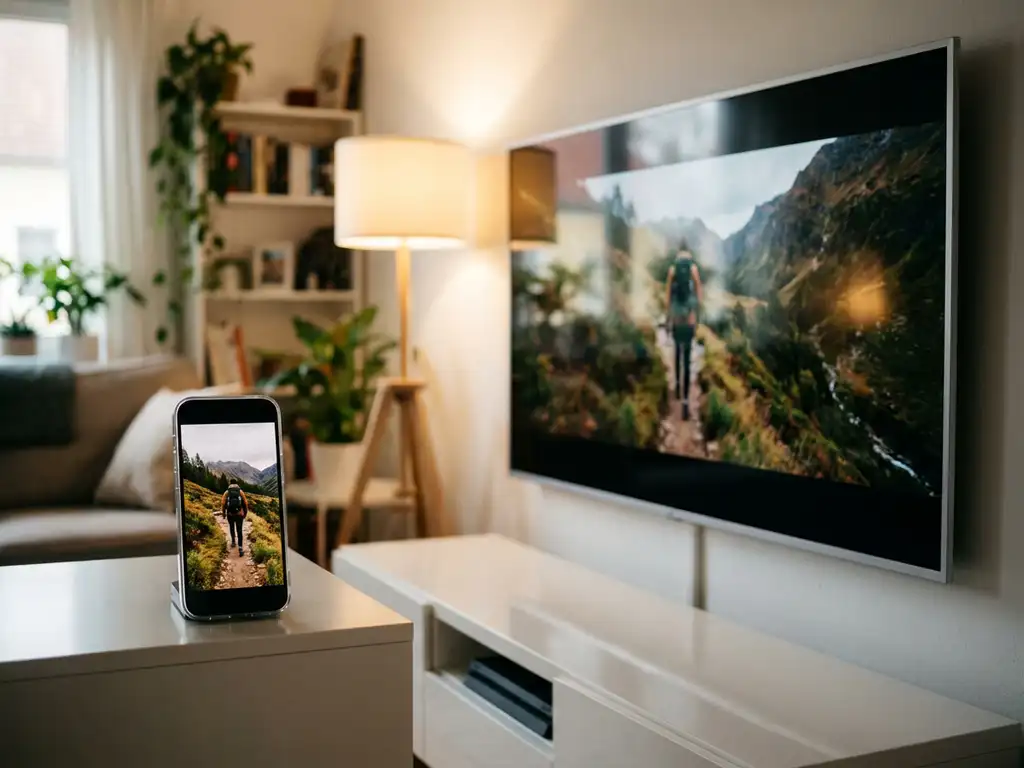
When you mirror your iPhone screen to a TV, you might notice that the image doesn’t fill the entire screen properly. Sometimes there are black bars on the sides, or the content appears stretched or cropped. This happens because iPhones and TVs use different aspect ratios, and various mirroring methods handle this mismatch differently.
Understanding why aspect ratio issues occur during iPhone screen mirroring can help you choose the right solution and get the best viewing experience on your big screen.
What causes iPhone screen mirroring to show different aspect ratios?
iPhone screen mirroring can show different aspect ratios because iPhones use a 19.5:9 aspect ratio, while most TVs display content in a 16:9 format. This fundamental mismatch means your iPhone’s tall, narrow screen doesn’t naturally fit your TV’s wider rectangle, resulting in black bars or a stretched or cropped image.
The problem becomes more complex when you consider that different iPhone models have varying screen dimensions. Newer iPhones, such as the iPhone 14 Pro Max, have even taller screens, making the aspect ratio difference more pronounced. Your TV tries to display this content but must either stretch it to fill the screen, which distorts the image, or maintain the original proportions, which creates empty space.
Additionally, the mirroring method you choose affects how this aspect ratio conversion happens. Some apps automatically adjust the display, while others mirror exactly what’s on your iPhone screen, including its unusual proportions.
How does iPhone aspect ratio differ from TV display formats?
iPhones use a 19.5:9 aspect ratio, making them significantly taller and narrower than TVs, which typically display content in a 16:9 format. This means your iPhone screen is about 2.17 times as tall as it is wide, while your TV screen is only 1.78 times as wide as it is tall.
This difference creates a noticeable gap when you try to display iPhone content on your television. Your iPhone’s screen is designed for portrait viewing and one-handed use, while TVs are optimized for landscape content like movies and shows filmed in widescreen formats.
The mismatch becomes even more apparent with certain content types. Photos taken in portrait mode on your iPhone will appear with large black bars on either side when displayed on your TV. Videos shot in landscape mode on your iPhone might fit better, but they still won’t perfectly match your TV’s native display format.
Why do some mirroring apps handle aspect ratios differently?
Different mirroring apps handle aspect ratios differently because they use different approaches to process and display your iPhone content. Some apps prioritize maintaining the original image quality by preserving exact proportions, while others focus on filling your TV screen by stretching or cropping the image.
Basic mirroring solutions often provide a direct, pixel-for-pixel copy of your iPhone screen, which results in black bars but maintains perfect image fidelity. More advanced apps, such as AirBeamTV, include smart-scaling features that can adjust the display to better match your TV’s format while minimizing distortion.
The processing power and algorithms built into each app also play a role. Some apps perform real-time aspect ratio conversion, analyzing your content and adjusting it frame by frame. Others use simpler scaling methods that apply the same transformation to everything, regardless of whether you’re viewing photos, videos, or apps.
How can you fix aspect ratio problems during iPhone mirroring?
You can fix aspect ratio problems during iPhone mirroring by adjusting your TV’s display settings, choosing content-aware mirroring apps, or rotating your iPhone to landscape mode when possible. Most smart TVs offer zoom, stretch, or fit-to-screen options in their picture settings menu.
Start by checking your TV’s aspect ratio settings. Look for options like “16:9,” “Zoom,” “Wide,” or “Fit to Screen” in your TV’s picture or display menu. The “Fit to Screen” option typically provides the best balance between filling your screen and maintaining proper proportions.
For a more seamless solution, use a mirroring app that includes intelligent aspect ratio handling. These apps can automatically detect your content type and apply appropriate scaling. When mirroring videos or photos, try rotating your iPhone to landscape mode, as this orientation more closely matches your TV’s natural format.
You can also adjust settings within individual apps on your iPhone. Many video apps offer full-screen modes that optimize content for TV viewing when you’re mirroring your screen.
What’s the best way to mirror iPhone content without aspect ratio issues?
The best way to mirror iPhone content without aspect ratio issues is to use a dedicated screen-mirroring app that includes smart-scaling features and supports your specific TV brand. These apps automatically optimize the aspect ratio conversion for the best viewing experience on your big screen.
AirBeamTV offers specialized mirroring apps designed to handle aspect ratio challenges seamlessly. The app automatically detects your TV model and applies the optimal display settings, eliminating the guesswork from aspect ratio management. Simply download the app, select your TV from the menu, and start mirroring with optimized display proportions.
For the smoothest experience, ensure both your iPhone and TV are connected to the same Wi-Fi network, as this provides the stable connection needed for real-time aspect ratio processing. Choose content that works well with TV viewing, such as landscape videos, streaming apps, or presentations designed for widescreen displays.
When possible, use apps on your iPhone that offer TV-optimized viewing modes. Many streaming services and video apps include settings specifically designed for screen mirroring that automatically adjust content formatting for television displays. You can also enhance your setup with a universal remote control TV app to manage your television directly from your iPhone.
