




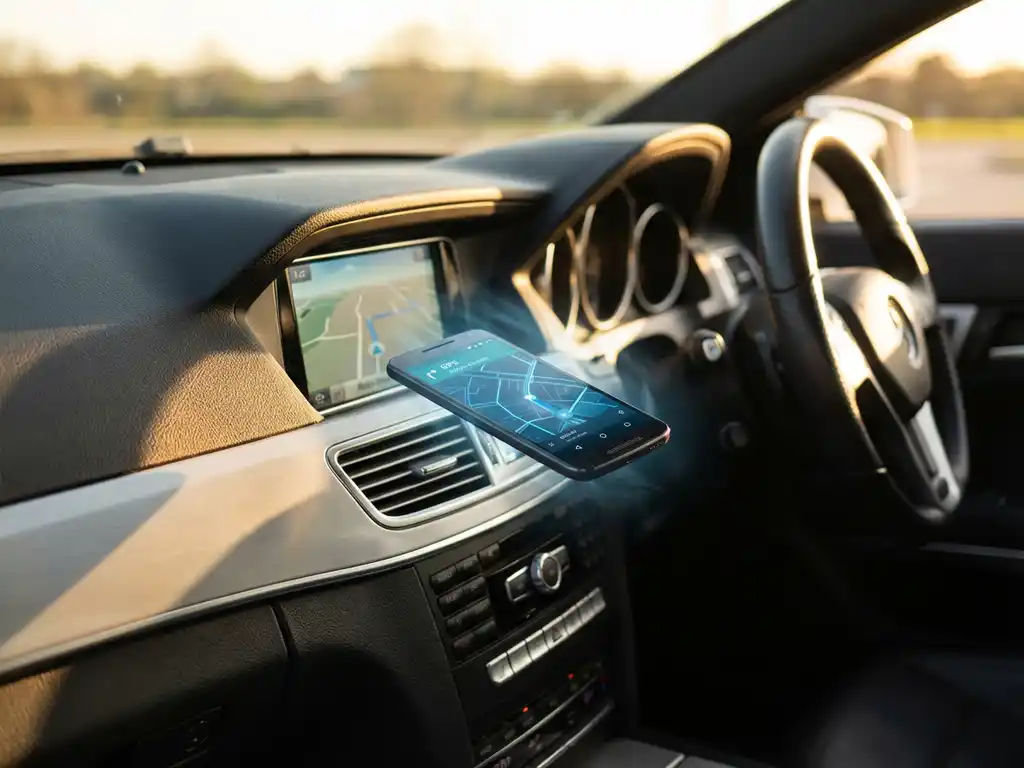
Watching videos on your phone while driving isn’t just unsafe — it’s nearly impossible to see properly. But what if you could wirelessly display your Android screen on your car’s built-in display? Android screen-mirroring technology makes this possible, letting you cast apps, navigation, and entertainment from your phone directly to your vehicle’s infotainment system.
Whether you want to share photos with passengers, display navigation apps more clearly, or stream content during breaks, wireless mirroring transforms your car’s display into an extension of your Android device. Here’s everything you need to know to make it work seamlessly.

What is Android car mirroring and how does it work?
Android car mirroring wirelessly displays your phone’s screen on your vehicle’s infotainment display using Wi-Fi Direct or Bluetooth. The technology creates a direct connection between your Android device and your car’s system, allowing you to control apps and content from your phone while viewing them on the larger dashboard screen.
The mirroring process works by establishing a wireless connection between your Android device and your car’s compatible display system. Your phone broadcasts its screen content over Wi-Fi Direct, while your car’s infotainment system receives and displays it in real time. Unlike traditional wired connections, this wireless approach eliminates the need for USB cables or adapters.
Most modern implementations use Miracast technology, which creates a peer-to-peer Wi-Fi connection specifically for screen sharing. This allows for high-quality video transmission with minimal latency, making it practical for navigation apps, media playback, and other interactive content while parked or when used by a passenger.
Which cars support wireless Android mirroring?
Most 2020 and newer vehicles from major manufacturers support wireless Android mirroring through built-in Miracast or proprietary wireless systems. Popular brands, including Toyota, Honda, Ford, BMW, Mercedes-Benz, Audi, and Hyundai, offer wireless mirroring capabilities in their infotainment systems, though availability varies by model.
Toyota’s latest Entune systems support wireless mirroring across many Camry, RAV4, and Highlander models. Honda’s Display Audio and infotainment systems in Accord, Civic, and CR-V vehicles typically include wireless casting features. Ford’s SYNC 4 system, found in F-150, Mustang, and Explorer models, offers comprehensive wireless mirroring support.
Luxury brands often lead in wireless technology adoption. BMW’s iDrive 7.0 and newer systems support wireless mirroring in most 3 Series, 5 Series, and X models. Mercedes-Benz MBUX systems and Audi’s MMI touch systems generally include wireless display capabilities in their premium and mid-range vehicles.
If your car doesn’t have built-in wireless mirroring, aftermarket head units from Pioneer, Kenwood, and Alpine often include Miracast support. These units can be professionally installed to add wireless mirroring capabilities to older vehicles.
How do you set up wireless mirroring to your car display?
Setting up wireless mirroring requires enabling screen casting on your Android device, connecting to your car’s Wi-Fi network, and selecting your vehicle’s display from your phone’s casting menu. Most setups involve opening your phone’s Settings, finding “Connected devices” or “Display,” and selecting “Cast” or “Wireless display” to begin the pairing process.
Start by ensuring both your phone and car are compatible with wireless mirroring. Turn on your vehicle and activate the infotainment system. Navigate to the connectivity or phone settings menu on your car’s display and look for options like “Wireless display,” “Screen mirroring,” or “Miracast.”
On your Android device, open Settings and locate the casting or display options. This might be under “Connected devices,” “Display,” or “Connections,” depending on your phone’s manufacturer. Select “Cast,” “Smart View,” or “Wireless display” to scan for available devices.
Your car’s display should appear in the list of available devices. Select it to initiate the connection. You may need to confirm the pairing on both your phone and the car’s display. Once connected, your Android screen should appear on your car’s infotainment system, allowing you to control content from your phone.
What’s the difference between Android Auto and screen mirroring apps?
Android Auto provides a simplified, car-optimized interface with specific apps designed for driving, while screen mirroring displays your phone’s exact screen content on your car’s display. Android Auto restricts access to certain apps for safety and offers voice-control integration, whereas screen mirroring shows everything on your phone without restrictions or safety limitations.
Android Auto creates a specialized driving interface that displays only approved apps like Google Maps, Spotify, and messaging apps with voice control. The system is designed with larger buttons, simplified menus, and hands-free operation to minimize driver distraction. It requires compatible apps specifically designed for the Android Auto platform.
Screen mirroring, in contrast, displays your entire Android interface exactly as it appears on your phone. You can access any app, game, or content without restrictions. This includes social media apps, video-streaming services, photo galleries, and productivity tools that aren’t available through Android Auto.
The key advantage of Android Auto is its safety-focused design, with voice commands and driving-optimized layouts. Screen mirroring offers complete flexibility and access to all your phone’s content, making it ideal for passenger use or when the vehicle is parked. Many users prefer screen mirroring for entertainment and media sharing, while using Android Auto for navigation and hands-free remote control app while driving.
Why won’t my Android device connect to my car wirelessly?
Connection failures typically occur due to Wi-Fi interference, incompatible Android versions, or disabled casting settings on either device. Common issues include outdated software, network conflicts, or your car’s system not properly advertising its Miracast capabilities to nearby devices.
First, verify that both your Android device and car support wireless mirroring. Check your phone’s Android version — most wireless mirroring requires Android 4.2 or newer. Ensure your car’s infotainment system firmware is updated to the latest version, as manufacturers frequently release updates that improve wireless connectivity.
Network interference often prevents successful connections. Turn off other Wi-Fi networks and Bluetooth devices that might conflict with the connection. Restart both your phone and your car’s infotainment system to clear any temporary connection issues. Some cars require you to enable “Developer options” or specific wireless display settings that aren’t immediately obvious.
Distance and positioning matter for wireless connections. Ensure your phone is within a few feet of your car’s display system during the initial pairing process. Some vehicles require your phone to be in a specific location, like the center console or cup holder area, for optimal signal strength during setup.
If problems persist, try forgetting any previously paired connections and starting fresh. Clear your phone’s Bluetooth and Wi-Fi cache through Settings, then attempt the pairing process again. Many connection issues resolve after a complete reset of wireless settings on both devices. For additional troubleshooting guidance, consult the knowledge base or contact support if you continue experiencing difficulties. Users with iPhone devices or Mac computers can also explore similar wireless mirroring solutions for their respective platforms.
