




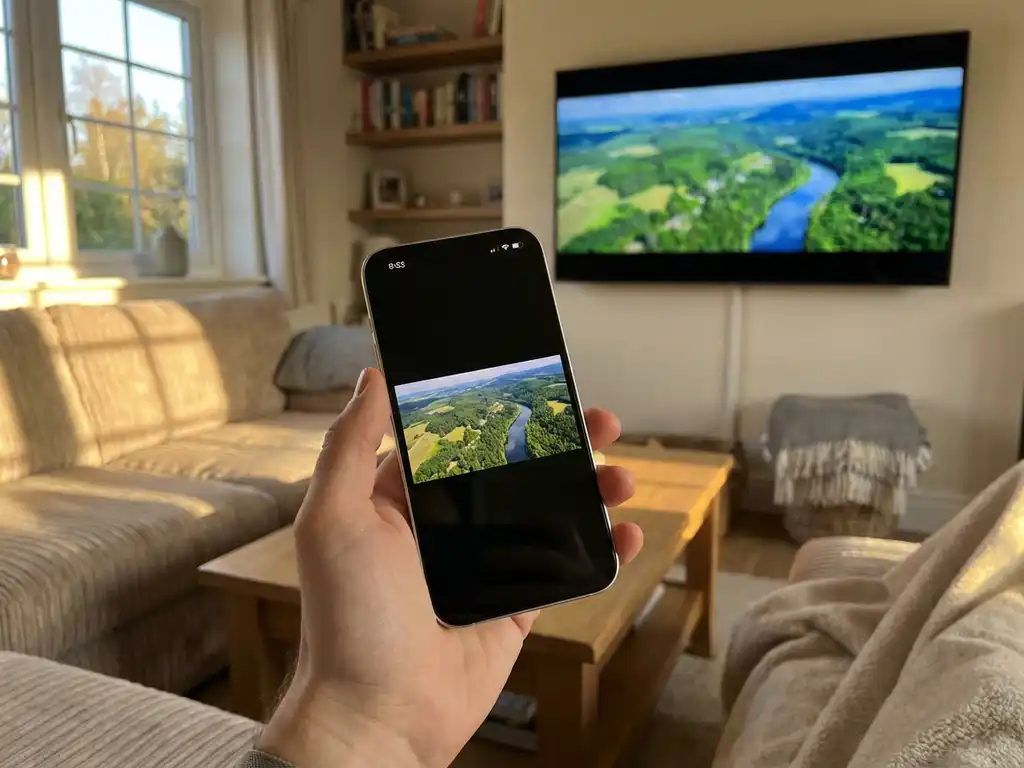
When you mirror your iPhone screen to your TV, you might notice annoying black borders appearing around your content. These dark edges can make your viewing experience less immersive and leave you wondering what went wrong with your screen mirroring setup.
Understanding why these black borders appear and how to minimize them will help you get the most out of your iPhone screen mirroring experience. The good news is that most border issues stem from predictable causes that you can address with the right approach.
What causes black borders when mirroring an iPhone screen to a TV?
Black borders appear during iPhone screen mirroring primarily due to aspect ratio mismatches between your iPhone’s display and your TV screen. Your iPhone has a different screen shape than most TVs, so when the entire iPhone screen is displayed on your television, black bars fill the empty space to maintain the original proportions.
The iPhone’s aspect ratio varies by model, but most recent iPhones use either 19.5:9 or 16:9, while standard TVs typically use 16:9. When these ratios don’t align perfectly, your TV adds black borders to prevent stretching or cropping your content. This ensures everything from your iPhone appears exactly as intended, but it creates those empty black areas.
Another common cause is your TV’s overscan settings. Many televisions automatically add a border around incoming signals to ensure no content gets cut off at the edges. This safety feature can create additional black space beyond what the aspect ratio difference already produces.
How do aspect ratios affect iPhone screen mirroring quality?
Aspect ratios directly determine how much of your TV screen gets filled when mirroring your iPhone. The closer your iPhone’s aspect ratio matches your TV’s native ratio, the fewer black borders you’ll see and the larger your content will appear on screen.
Newer iPhone models, such as the iPhone 14 Pro Max, use a 19.5:9 aspect ratio, which is taller and narrower than the standard 16:9 TV format. When you mirror these devices, you’ll see black bars on the left and right sides of your TV screen. Older iPhone models with 16:9 aspect ratios typically produce minimal or no black borders on standard HDTVs.
The aspect ratio also affects content clarity and detail. When your iPhone screen is scaled to fit within your TV’s display area while maintaining its proportions, text and images might appear smaller than expected. This is especially noticeable when mirroring apps designed for mobile viewing onto large TV screens.
Why do some apps show black borders while others don’t during mirroring?
Different apps handle screen orientation and display formatting in different ways, which affects how they appear when mirrored to your TV. Video streaming apps often automatically adjust to fill your TV screen, while other apps maintain their mobile-optimized layouts, which can create more prominent black borders.
Apps like YouTube, Netflix, and other video platforms are designed to detect when content is being displayed on larger screens. These apps can switch to landscape mode automatically and optimize their video output to minimize black borders. They essentially bypass some of the aspect ratio limitations by formatting content specifically for TV viewing.
In contrast, social media apps, games, and productivity apps typically maintain their portrait orientation and mobile interface design during mirroring. These apps weren’t built with TV display in mind, so they appear as small windows surrounded by black space when cast to your television. The app developers haven’t included TV-optimized viewing modes in their design.
How can you minimize black borders when screen mirroring from an iPhone?
You can reduce black borders by adjusting your TV’s display settings, choosing landscape-oriented content, and using screen mirroring apps that offer better formatting options. Start by checking your TV’s aspect ratio or zoom settings to see whether you can minimize overscan borders.
First, access your TV’s picture settings menu and look for options like “Screen Fit,” “Just Scan,” or “1:1 Pixel Mapping.” These settings eliminate overscan borders that your TV adds automatically. You might also find aspect ratio controls that let you choose how incoming signals are displayed on your screen.
When possible, rotate your iPhone to landscape mode before starting your mirroring session. Landscape orientation naturally matches TV screens better and reduces the amount of black space around your content. This works particularly well for video content, games, and apps that support rotation.
Consider using dedicated screen mirroring apps for TV that offer better display optimization than basic AirPlay mirroring. These specialized apps often include settings to adjust how your iPhone content appears on your TV, giving you more control over borders and scaling. Some apps can even crop or zoom your iPhone display to better fill your TV screen while maintaining acceptable image quality.
