




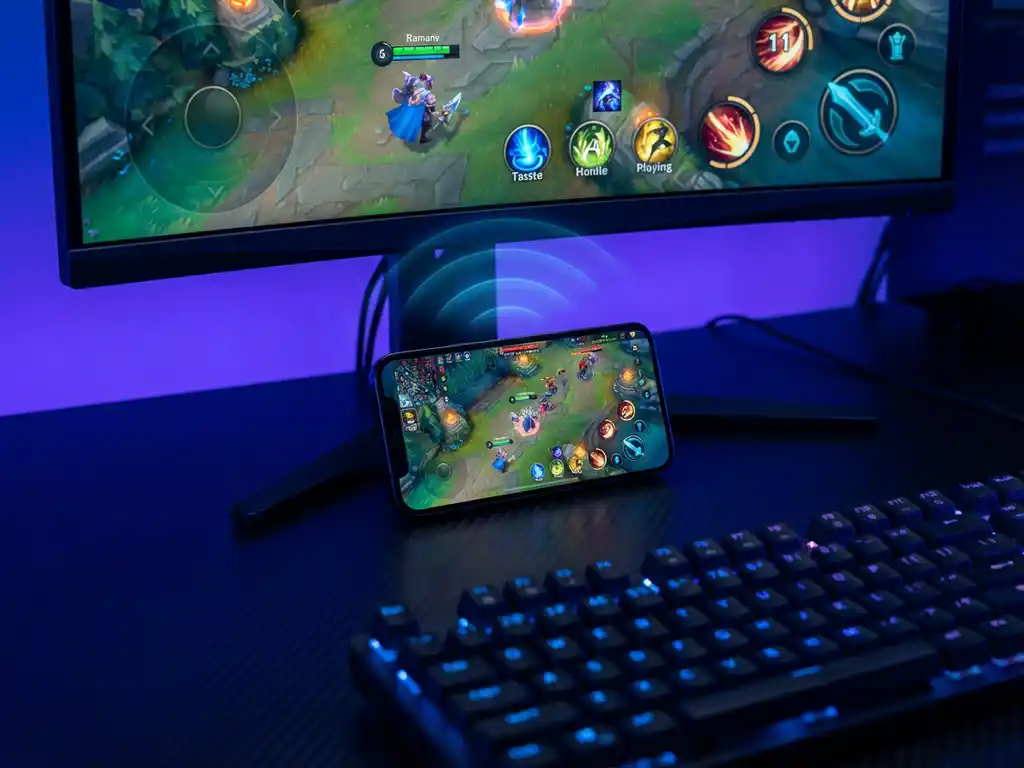
Gaming on your iPhone is great, but sometimes you want that action on a bigger screen. Whether you’re showing off your latest mobile gaming achievements or need a larger display for better visibility, mirroring your iPhone screen to a gaming monitor opens up new possibilities for your mobile gaming experience.
The good news? You absolutely can mirror your iPhone screen to a gaming monitor, and there are several ways to make it happen. Let’s explore how this works and what you need to know to get the best results.
Can you mirror an iPhone screen to gaming monitors?
Yes, you can mirror your iPhone screen to gaming monitors using wireless screen-mirroring apps, HDMI adapters, or AirPlay-compatible displays. Gaming monitors with HDMI inputs work just like regular displays for iPhone mirroring, accepting the same connection methods and displaying your device’s screen in real time.
This works because gaming monitors are essentially high-performance displays with the same input capabilities as regular monitors or TVs. Most gaming monitors include multiple HDMI ports, making them compatible with Lightning-to-HDMI adapters for a direct connection. For wireless options, screen-mirroring apps can cast your iPhone display to any connected device on your network, including computers connected to gaming monitors.
Gaming monitors often provide superior image quality compared to standard displays, with higher refresh rates, lower input lag, and better color accuracy. This makes them excellent choices for iPhone screen mirroring, especially when you want the sharpest possible image quality for your mobile content.
What’s the difference between mirroring to gaming monitors vs. regular displays?
Gaming monitors typically offer higher refresh rates, lower input lag, and better color reproduction than regular displays, but iPhone screen mirroring works identically on both. The main differences you’ll notice are improved visual quality and potentially faster response times on gaming monitors.
Gaming monitors are designed for performance, often featuring 144 Hz or higher refresh rates compared to standard 60 Hz displays. However, iPhone screen mirroring is typically limited to 60 fps regardless of your monitor’s capabilities, so you won’t see the full benefit of ultra-high refresh rates for mirrored content.
Where gaming monitors really shine is input lag. These displays are engineered to minimize the delay between input and display, which can make touch interactions feel more responsive when you’re controlling mirrored content. Gaming monitors also tend to have better color accuracy and contrast ratios, making your iPhone content look more vibrant and detailed on the larger screen.
The connection process remains the same whether you’re using a gaming monitor or a regular display. The monitor simply needs HDMI input capability or network connectivity for wireless mirroring solutions.
How do you mirror iPhone to gaming monitors wirelessly?
To mirror your iPhone to gaming monitors wirelessly, download a screen-mirroring app like AirBeamTV, connect both your iPhone and your computer to the same Wi-Fi network, then start mirroring through the app. The mirrored content will display on your gaming monitor through the connected computer.
Here’s the step-by-step process for wireless mirroring:
- Download the AirBeamTV app on your iPhone from the App Store for iPhone screen mirroring.
- Ensure your iPhone and the computer connected to your gaming monitor are on the same Wi-Fi network.
- Open the mirroring app and select your target device from the available options.
- Tap “Start Mirroring” to begin casting your iPhone screen.
- Your iPhone display will instantly appear on the gaming monitor.
This wireless method eliminates the need for cables or adapters, giving you the freedom to move around while your content displays on the larger screen. This setup works with any gaming monitor connected to a computer, smart TV, or streaming device that supports screen-mirroring reception.
For the smoothest experience, make sure you have a strong Wi-Fi connection. Both devices need stable network access to maintain high-quality mirroring without lag or interruptions.
Does iPhone screen mirroring improve gaming performance on monitors?
iPhone screen mirroring doesn’t improve your device’s gaming performance, but gaming monitors can provide a better viewing experience with reduced input lag, higher refresh rates, and superior image quality compared to standard displays. The performance improvements come from the monitor itself, not the mirroring process.
Your iPhone’s processing power remains the same regardless of the display you’re using. Games will run at the same frame rates and with identical performance whether you’re playing on the iPhone screen or on a mirrored gaming monitor. The device’s hardware limitations don’t change based on the output display.
However, gaming monitors offer several advantages for the viewing experience. Lower input lag can make touch controls feel more responsive, even though you’re still interacting with the iPhone screen. The larger display size can improve visibility for detailed games, making it easier to spot small elements or read text.
Gaming monitors also typically provide better color accuracy and contrast, which can enhance the visual appeal of your games. While this doesn’t boost performance metrics like frame rates or loading times, it can make games more enjoyable to play and watch.
What are the best methods to connect iPhone to gaming monitors?
The best methods to connect an iPhone to gaming monitors are wireless screen-mirroring apps for convenience and Lightning-to-HDMI adapters for a direct connection. Wireless options like AirBeamTV offer the most flexibility, while wired connections provide the most stable, lag-free experience.
For wireless connections, screen-mirroring apps are the most user-friendly option. Download the app, connect to the same network as your gaming setup, and start mirroring instantly. This method works well for casual gaming, media consumption, and situations where you want to move around freely while content displays on the monitor.
Wired connections using Lightning-to-HDMI adapters provide the most reliable performance. Simply connect the adapter to your iPhone’s Lightning port, run an HDMI cable to your gaming monitor, and your screen will appear immediately. This method offers the lowest latency and the most stable connection, making it ideal for competitive gaming or situations where every millisecond matters.
For gaming monitors connected to computers, you can also use AirPlay if your computer supports it, or third-party software that receives iPhone screen mirroring. Each method has its strengths, so choose based on your specific needs for mobility, latency, and setup complexity.
