




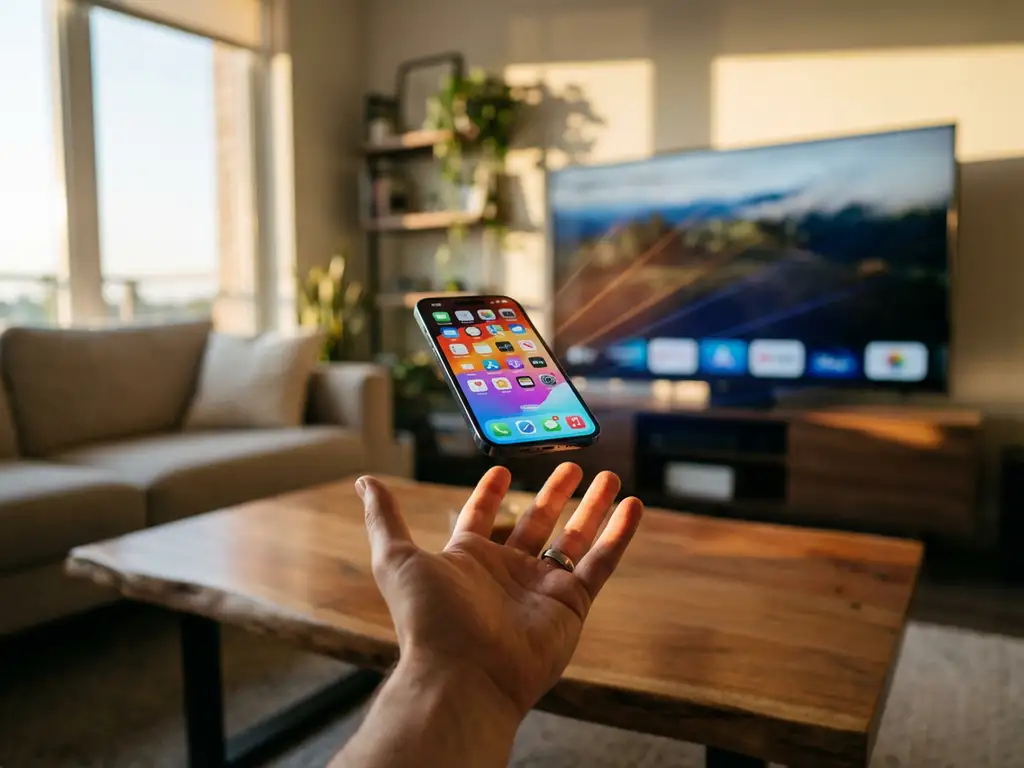
Many iPhone users wonder whether they can mirror their screen using cellular data instead of Wi-Fi. This is especially relevant when you’re away from home or dealing with unreliable internet connections. Understanding how iPhone screen mirroring works with different connection types can help you make the most of your device’s capabilities.
The reality is that most screen-mirroring solutions have specific network requirements that affect how and when you can cast your iPhone screen to a TV. Let’s explore the technical details and practical solutions for mirroring your iPhone in various connectivity scenarios.
Can You Use iPhone Screen Mirroring with Cellular Data?
iPhone screen mirroring typically cannot work directly over a cellular data connection. Most screen-mirroring apps, including AirBeamTV, require both your iPhone and the target TV to be connected to the same Wi-Fi network to establish a wireless connection for casting your screen content.
This limitation stems from how screen-mirroring protocols work. These apps create a direct wireless connection between your iPhone and TV over your local network. Cellular data connections don’t provide the local network environment required for this device-to-device communication. Your iPhone’s cellular connection reaches the internet through your carrier’s network, while your smart TV connects through your home Wi-Fi router, creating two separate network paths that cannot communicate directly.
However, there are workarounds for situations where traditional Wi-Fi isn’t available. You can create a mobile hotspot using your iPhone’s cellular data, essentially turning your phone into a Wi-Fi router. This allows your TV to connect to the hotspot network, creating the shared network environment required for screen mirroring to work properly.
How Much Data Does iPhone Screen Mirroring Use?
iPhone screen mirroring uses approximately 2–8 GB of data per hour, depending on the content quality and resolution being transmitted. HD video content and high-resolution displays require significantly more data than basic app mirroring or static content.
Several factors influence data consumption during screen-mirroring sessions. Video streaming apps like Netflix, YouTube, or Disney+ use the most data, often reaching 6–8 GB per hour for HD content. Gaming and interactive applications typically use 3–5 GB per hour due to constant screen updates and real-time rendering. Basic productivity apps, photo viewing, and text-based content use considerably less data, usually around 1–2 GB per hour.
When using cellular data for screen mirroring via a mobile hotspot, monitor your data usage carefully. Most cellular plans have monthly data limits, and a single movie could consume a significant portion of your allowance. Consider adjusting video-quality settings within streaming apps to reduce data consumption, or limit mirroring sessions to essential content when relying on cellular connections.
What’s the Difference Between Wi-Fi and Cellular for Screen Mirroring?
Wi-Fi provides direct local network connectivity between devices, enabling seamless screen mirroring, while cellular data provides internet-based connectivity that requires additional setup—such as a mobile hotspot—to achieve the same functionality.
Wi-Fi connections offer several advantages for screen mirroring. The local network environment allows for faster data-transfer speeds, lower latency, and more stable connections. Your iPhone and TV communicate through your router without sending data to external servers, resulting in smoother playback and minimal delay between your actions and the TV’s display updates.
Cellular connections present unique challenges and limitations. Data usage becomes a primary concern, as streaming HD content can quickly exhaust monthly data allowances. Connection stability may vary based on proximity to cell towers and network congestion. Additionally, creating a mobile hotspot drains your iPhone’s battery faster than normal Wi-Fi use, requiring more frequent charging during extended mirroring sessions.
Speed differences also affect the user experience. Wi-Fi networks typically provide consistent bandwidth for smooth HD streaming, while cellular speeds fluctuate based on location, time of day, and network traffic. This variability can cause buffering, reduced video quality, or connection drops during screen-mirroring sessions.
How Can You Mirror iPhone Without Wi-Fi?
You can mirror your iPhone without traditional Wi-Fi by creating a mobile hotspot using your cellular data and then connecting your TV to that hotspot network. This approach enables screen-mirroring apps to work by establishing the required shared network connection between devices.
The mobile hotspot method involves several straightforward steps. First, enable Personal Hotspot in your iPhone’s Settings under Cellular. Create a network name and password for your hotspot. Next, connect your smart TV to the newly created hotspot network using the TV’s Wi-Fi settings menu. Once both devices are on the same network, download and open your preferred screen-mirroring app for iPhone to start casting your iPhone screen.
Alternative solutions exist for specific scenarios. Some newer smart TVs support direct casting protocols that don’t require a traditional network connection. Cable solutions, such as a Lightning-to-HDMI adapter, provide a reliable wired connection independent of any network requirements. These adapters connect directly to your iPhone’s charging port and your TV’s HDMI input, offering stable screen mirroring without data-usage concerns.
Consider the limitations of each approach when choosing a solution. Mobile hotspots consume significant cellular data and battery life. Wired connections limit mobility but provide the most reliable performance. Direct-casting features vary by TV brand and may not support all iPhone models or content types. Choose the method that best fits your situation, data plan, and viewing needs.
