




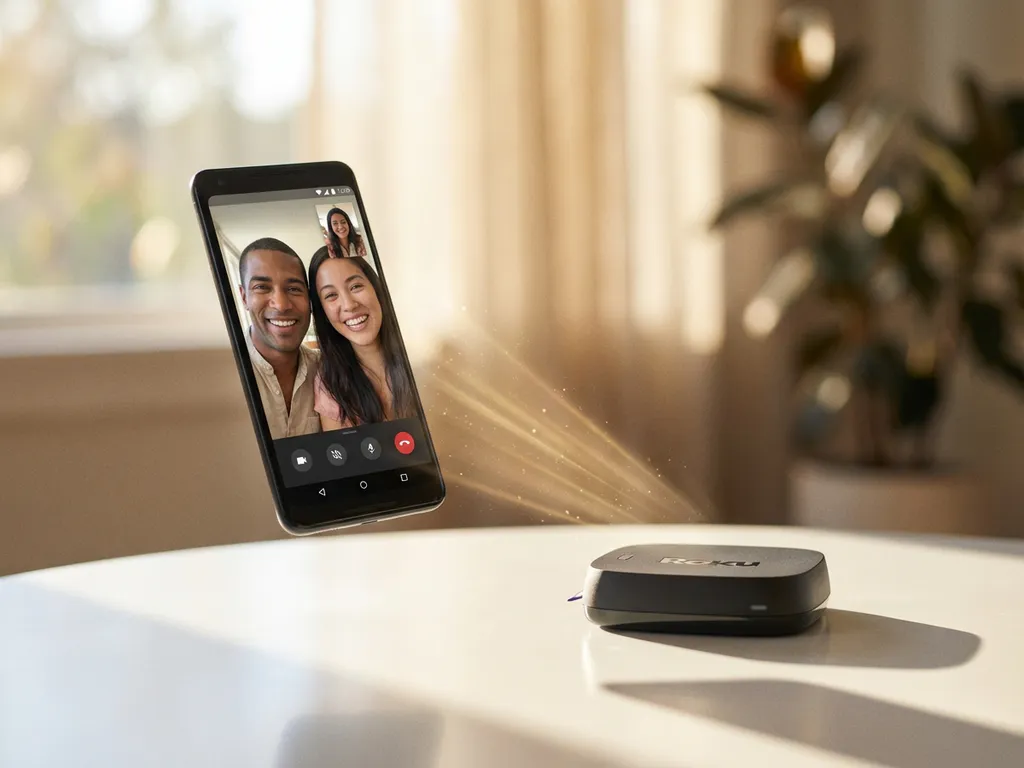
Android screen mirroring to streaming devices has become increasingly popular as more users want to enjoy their mobile content on the big screen. Whether you’re looking to share photos with family, stream videos, or give presentations, understanding which streaming devices support Android mirroring—and how to set them up—can transform your viewing experience.
The good news is that most modern streaming devices offer some form of Android screen mirroring support, though the methods and compatibility can vary significantly between platforms. Let’s explore your options and find the best solution for your setup.
Can you mirror an Android screen directly to Roku?
Yes, you can mirror your Android screen to Roku devices, but Roku doesn’t support direct Android screen mirroring through built-in protocols like Miracast. Instead, you’ll need to use third-party screen-mirroring apps or rely on the Roku mobile app for basic functionality.
Roku devices support screen mirroring primarily through their proprietary system rather than standard Android casting protocols. This means you can’t simply use the built-in “Cast” or “Screen Mirroring” option found in Android’s Quick Settings panel. However, several workarounds exist to achieve wireless screen mirroring.
The most reliable method involves downloading dedicated screen-mirroring applications designed specifically for Roku compatibility. These apps establish a wireless connection between your Android device and Roku player, allowing you to display your phone or tablet screen on your TV. The setup typically requires both devices to be connected to the same Wi-Fi network.
For basic mirroring needs, the official Roku mobile app offers limited screen-sharing capabilities, though it primarily focuses on casting specific content rather than full-screen mirroring. Third-party solutions provide more comprehensive mirroring options, including audio transmission and higher-quality video streaming.
What streaming devices support Android screen mirroring?
Most major streaming devices support Android screen mirroring through various protocols, including Chromecast, Fire TV, Android TV, Apple TV (4th generation and newer), and many smart TV platforms with built-in casting capabilities.
Chromecast devices offer the most seamless Android mirroring experience since they’re designed specifically for Google’s ecosystem. These devices support both app-specific casting and full-screen mirroring directly from Android’s built-in Cast feature. Simply tap the Cast icon in your Android device’s Quick Settings or within supported apps.
Fire TV devices support Android screen mirroring through their Display Mirroring feature, which uses Miracast technology. You can access this by going to Settings > Display & Sounds > Enable Display Mirroring on your Fire TV, then use your Android device’s wireless display option to connect.
Android TV platforms, including devices from Sony, TCL, and Hisense, offer native support for Android screen mirroring since they run Google’s TV operating system. These devices typically support both Chromecast built-in functionality and direct screen-mirroring protocols.
Apple TV devices from the 4th generation onward support Android mirroring through AirPlay, though this requires third-party apps on your Android device since AirPlay isn’t natively supported by Android. Many smart TVs now include built-in Chromecast or support multiple mirroring protocols, making them increasingly compatible with Android devices.
How do you mirror Android to Fire TV and Android TV?
To mirror Android to Fire TV, enable Display Mirroring in Fire TV settings, then use your Android device’s Cast or Wireless Display feature to connect. For Android TV, use the built-in Cast function from your Android device’s Quick Settings panel or from supported apps.
For Fire TV setup, start by navigating to Settings on your Fire TV device, then select Display & Sounds, followed by Enable Display Mirroring. Your Fire TV will enter discovery mode and display a waiting screen. On your Android device, open Settings, look for Connected Devices or Display settings, and select Cast, Wireless Display, or Screen Mirroring (terminology varies by manufacturer).
Your Android device will scan for available displays and should detect your Fire TV. Select it from the list, and your Android screen will appear on your TV within a few seconds. The connection uses Miracast technology, which supports both video and audio transmission.
Android TV mirroring is more straightforward since both devices use Google’s ecosystem. Pull down your Android device’s notification shade, tap the Cast icon, and select your Android TV from the list of available devices. Alternatively, open any Cast-compatible app like YouTube or Netflix, tap the Cast icon within the app, and choose your Android TV.
For optimal performance on both platforms, ensure both devices are connected to the same Wi-Fi network and positioned relatively close to your router. Some Android TV devices also support guest-mode casting, allowing visitors to cast without joining your Wi-Fi network.
What are the best Android screen mirroring apps?
The best Android screen mirroring apps include AirBeamTV for broad TV compatibility, LetsView for free cross-platform mirroring, ApowerMirror for advanced features, and Miracast for devices that support this standard.
AirBeamTV stands out for its broad compatibility across TV brands and streaming devices. The app works with Samsung, LG, Sony, Roku, Fire TV, and many other platforms without requiring additional hardware or cables. Users can download the app, select their TV from the menu, and start mirroring instantly. The app offers a free trial, allowing you to test wireless connectivity before committing to the service.
LetsView provides a completely free screen-mirroring solution that works across multiple platforms, including Windows, macOS, iOS, and Android. The app supports wireless mirroring to smart TVs and computers, making it versatile for both personal and business use. It includes features like screen recording and annotation tools.
ApowerMirror offers advanced functionality for users who need more than basic screen mirroring. The app supports reverse control, allowing you to control your Android device from your computer, along with screen recording and real-time annotation features. It’s particularly useful for presentations and business applications.
For devices that support Miracast, the built-in Android screen-mirroring function often provides the most reliable connection. This native feature eliminates the need for third-party apps when connecting to compatible displays and streaming devices.
Why won’t my Android screen mirror to my streaming device?
Android screen-mirroring issues typically stem from Wi-Fi connectivity problems, incompatible devices, outdated software, or interference from other wireless devices. Both your Android device and streaming device must be on the same Wi-Fi network for mirroring to work properly.
Network connectivity is the most common culprit behind mirroring failures. Ensure both devices are connected to the same Wi-Fi network, as mirroring won’t work across different networks or when one device uses mobile data. Router placement can also affect performance, so keep your devices within a reasonable range of your wireless router for optimal signal strength.
Device compatibility issues arise when your streaming device doesn’t support your Android device’s mirroring protocol. Older streaming devices may lack support for newer Android versions, while some budget Android devices might have limited casting capabilities. Check your device specifications and streaming device compatibility before troubleshooting further. For additional help with iPhone iPad screen mirroring or Mac screen mirroring, similar principles apply.
Software updates frequently resolve mirroring problems. Ensure your Android device is running the latest operating system version and that your streaming device has up-to-date firmware. Many manufacturers release updates specifically to improve casting and mirroring functionality.
Interference from other wireless devices can disrupt the mirroring connection. Bluetooth devices, baby monitors, and even microwave ovens can interfere with Wi-Fi signals. Try temporarily disabling other wireless devices or changing your Wi-Fi channel to reduce interference. Restarting both your Android device and streaming device often resolves temporary connectivity glitches that prevent successful mirroring. You can also use a universal remote control TV app to manage your streaming device more conveniently. If you continue experiencing issues, consult the knowledge base for detailed troubleshooting guides or contact us for personalized support.
