




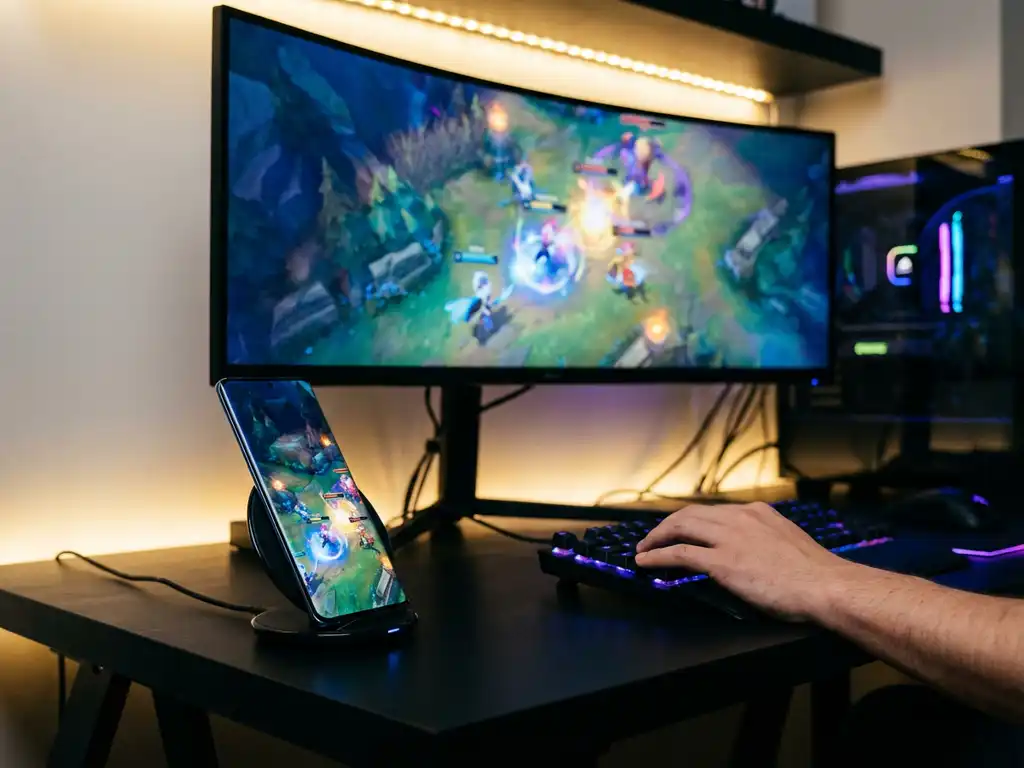
Gaming monitors offer superior refresh rates, low latency, and enhanced visual quality that can transform your mobile gaming experience. While traditional screen-mirroring solutions often focus on entertainment viewing, many Android users wonder whether they can leverage these high-performance displays for wireless screen mirroring.
Android screen mirroring to gaming monitors opens up new possibilities for mobile gaming, productivity, and content creation. Combining your Android device’s portability with a gaming monitor’s performance characteristics creates an interesting setup worth exploring.
Can you mirror Android screens to gaming monitors wirelessly?
Yes, you can mirror Android screens to gaming monitors wirelessly, but it requires the right setup and compatible hardware. Most gaming monitors don’t have built-in wireless capabilities, so you’ll need a streaming device, smart TV functionality, or a wireless display adapter to enable the connection.
The wireless mirroring process works by connecting your Android device and the display device to the same Wi-Fi network. Your Android device transmits its screen data over the network to a receiver connected to your gaming monitor. This receiver could be a Chromecast, Fire TV Stick, Android TV box, or a similar streaming device plugged into your monitor’s HDMI port.
Gaming monitors typically excel at wired connections through HDMI, DisplayPort, or USB-C, but wireless mirroring adds convenience for mobile devices. The key is having a compatible receiver device that can process the wireless signal and output it to your monitor through a wired connection.
What are the performance benefits of mirroring Android to gaming monitors?
Mirroring Android to gaming monitors provides several performance advantages, including higher refresh rates, reduced input lag, superior color accuracy, and more screen real estate than standard TVs or computer monitors.
Gaming monitors typically offer refresh rates of 120 Hz, 144 Hz, or even higher, which can make scrolling, animations, and mobile gaming feel significantly smoother. The reduced input lag inherent in gaming monitor design means your touches and gestures register more quickly on screen, creating a more responsive experience.
The enhanced color accuracy and brightness levels of gaming monitors make content consumption more vibrant and detailed. Whether you’re streaming videos, browsing social media, or playing mobile games, the improved visual quality is immediately noticeable. Additionally, the larger screen size makes productivity tasks like document editing, email management, and video calls more comfortable. You can also enhance your setup with a universal remote control TV app to manage your devices more efficiently.
How does Android screen mirroring work with gaming monitors?
Android screen mirroring to gaming monitors works through a wireless transmission system that captures your device’s display data and sends it over Wi-Fi to a connected receiver device, which then outputs the signal to your monitor via HDMI or another wired connection.
The process begins when your Android device encodes its screen content into a wireless signal. This encoded data travels through your Wi-Fi network to a receiver device connected to your gaming monitor. The receiver decodes the signal and converts it into a format your monitor can display through its HDMI, DisplayPort, or USB-C input.
Screen-mirroring apps facilitate this process by managing the connection between devices, handling the encoding and transmission, and ensuring synchronization between your Android device and the display. The entire system depends on network stability and processing power to maintain smooth, real-time mirroring without significant delay or quality loss.
What equipment do you need to mirror Android to gaming monitors?
To mirror Android to TV displays including gaming monitors, you need your Android device, a gaming monitor with an HDMI input, a streaming device or wireless display adapter, a stable Wi-Fi network, and a compatible screen-mirroring app installed on your Android device.
The streaming device serves as the crucial bridge between your wireless Android signal and your wired gaming monitor. Popular options include Chromecast with Google TV, Amazon Fire TV Stick, Roku devices, or dedicated Android TV boxes. These devices plug into your monitor’s HDMI port and connect to your Wi-Fi network.
Your Wi-Fi network must be robust enough to handle the data transmission without interruption. Both your Android device and the streaming device need to connect to the same network for mirroring to function properly. For additional technical guidance, you can explore the knowledge base for troubleshooting tips. A screen-mirroring app manages the connection process and ensures compatibility between your specific Android device and your chosen streaming platform.
How do you set up Android mirroring to a gaming monitor?
Setting up Android mirroring to a gaming monitor involves connecting a streaming device to your monitor, installing a screen-mirroring app on your Android device, connecting both devices to the same Wi-Fi network, and initiating the mirroring connection through the app interface.
Start by connecting your chosen streaming device to your gaming monitor’s HDMI port and completing its initial setup process. Ensure the streaming device connects to your Wi-Fi network and appears on your monitor’s display. Download a compatible screen-mirroring app on your Android device from the Google Play Store. Professional solutions like AirBeam TV offer reliable wireless mirroring capabilities.
Open the mirroring app on your Android device and allow it to scan for available devices on your network. Select your streaming device from the list of detected options. Depending on your setup, you may need to download a companion receiver app on your streaming device. Once connected, tap “Start Mirroring” in the app, and your Android screen should appear instantly on your gaming monitor.
The wireless connection enables you to stream content, play mobile games, or use productivity apps on the larger, higher-quality gaming monitor display while maintaining the convenience of wireless connectivity. If you experience any issues during setup, consider checking whether your setup works with other devices by testing iPhone iPad screen mirroring or Mac screen sharing. For additional support, you can always contact us for personalized assistance with your mirroring setup.
