




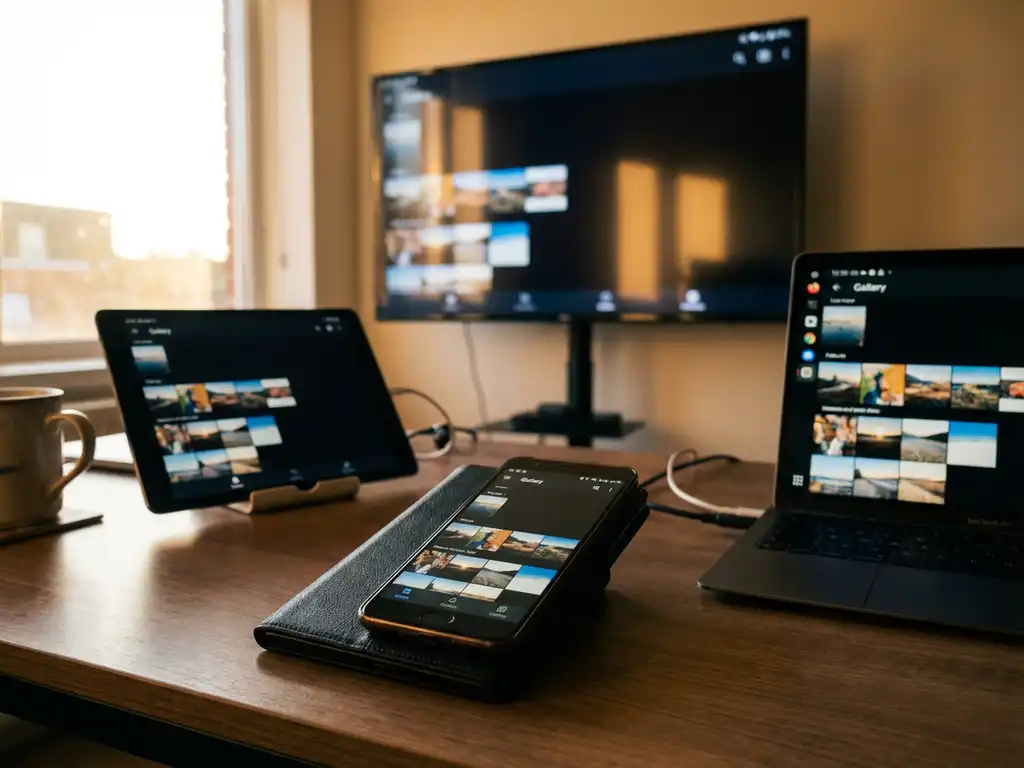
Mirroring Android to multiple devices simultaneously means displaying your Android screen on several TVs or displays at once through wireless casting technology. While Android’s built-in screen mirroring typically connects to one device at a time, specialised apps and hardware solutions can broadcast to multiple screens. This approach is particularly useful for presentations, entertainment, and business applications where you need the same content visible across different rooms or locations.
What does it mean to mirror Android to multiple devices simultaneously?
Multi-device Android screen mirroring involves broadcasting your Android phone or tablet display to several screens at the same time rather than just one television or monitor. This simultaneous casting creates identical displays across multiple devices, allowing everyone to view the same content regardless of their location.
The process works by establishing multiple wireless connections from your Android device to various receiving displays through your Wi-Fi network. Unlike standard mirroring, which creates a single point-to-point connection, multi-device casting requires more processing power and network bandwidth to maintain stable connections to several screens simultaneously.
This capability is especially valuable for business presentations where you need content visible in multiple conference rooms, educational settings with several displays, or home entertainment scenarios where family members are spread across different areas. The key difference lies in the complexity of managing multiple data streams rather than focusing all resources on one high-quality connection.
Can Android natively mirror to multiple screens at once?
Android’s built-in casting features, including Google Cast and Smart View, are designed primarily for single-device connections and cannot natively mirror Android to TV on multiple screens simultaneously. These native functions establish one active connection at a time, requiring you to disconnect from one display before connecting to another.
The limitation stems from how Android’s operating system manages wireless display protocols. When you use the standard “Cast” option in your quick settings or apps like YouTube, the system allocates resources for one stable connection rather than splitting bandwidth across multiple destinations.
Most Android manufacturers, including Samsung with Smart View and LG’s screen sharing, follow this single-connection approach. Even when your device can detect multiple compatible displays on the network, the native casting functions will only maintain one active mirroring session.
This is why third-party solutions become necessary for true multi-device Android screen mirroring. These applications bypass Android’s native limitations by creating their own connection management systems that can handle multiple simultaneous streams.
What are the best methods to cast Android to multiple devices?
The most effective approach for multi-device casting involves using dedicated screen mirroring applications that support simultaneous connections. These apps work by creating multiple wireless streams from your Android device to compatible smart TVs and displays on the same Wi-Fi network.
Third-party mirroring apps are the most accessible solution for most users. These applications download directly to your Android device and can establish connections with multiple televisions simultaneously. The setup process typically involves installing the app, connecting to your Wi-Fi network, and selecting multiple target displays from the available device list.
Hardware-based solutions offer another approach, particularly for permanent installations. Network-attached streaming devices and wireless presentation systems can receive a single cast from your Android device and then redistribute that signal to multiple connected displays. This method works well for conference rooms and educational environments.
Software-based network solutions provide the most flexibility for tech-savvy users. These involve setting up media server applications on your network that can receive Android screen data and broadcast it to multiple endpoints. While more complex to configure, this approach offers the most control over quality and device compatibility.
What challenges should you expect when mirroring to multiple devices?
Network bandwidth becomes the primary limitation when attempting Android screen mirroring to multiple devices. Each additional screen requires substantial data throughput, and most home Wi-Fi networks struggle to maintain high-quality streams to more than two or three displays simultaneously without noticeable degradation.
Latency issues multiply with each additional connection, creating noticeable delays between your Android device actions and their appearance on the mirrored screens. This becomes particularly problematic for interactive content, gaming, or real-time presentations where timing matters.
Audio synchronisation presents another significant challenge. When multiple displays are involved, ensuring that sound reaches all speakers at the same time requires careful management. Different devices may process audio at varying speeds, leading to echo effects or confusing audio overlap.
Device compatibility varies significantly between different smart TV brands and Android versions. While your phone might successfully connect to multiple Samsung displays, mixing different manufacturers often creates connection stability issues. Additionally, older Android devices may lack the processing power needed to maintain multiple high-quality streams simultaneously.
Battery drain accelerates dramatically when maintaining multiple casting connections. The constant wireless transmission and increased processor usage can deplete your Android device’s battery in a fraction of the normal time, making power management a crucial consideration for extended use. You may also find a universal remote control TV app useful for managing your connected displays. If you encounter technical issues, our comprehensive knowledge base provides detailed troubleshooting guides.
How do you set up Android mirroring for multiple screens effectively?
Begin by ensuring your Wi-Fi network can handle the increased bandwidth demands of multiple simultaneous streams. Connect to a 5 GHz network when possible, as it provides more bandwidth and less congestion than 2.4 GHz networks. Position your Android device relatively close to your router to maintain strong signal strength throughout the mirroring session.
Download and install a compatible multi-device mirroring application on your Android phone or tablet. Test the connection with one display before adding additional screens to ensure basic functionality works properly. Most apps will automatically scan for available TVs on your local network and display them in a selectable list.
Configure your display settings by selecting a resolution that balances quality with performance. Lower resolutions like 720p often work better for multiple simultaneous connections than attempting 1080p or 4K streams. This compromise helps maintain stable connections across all devices without overwhelming your network capacity.
Optimise performance by closing unnecessary applications on your Android device before beginning the mirroring session. Background apps consume processing power and memory that could otherwise support your multiple casting streams. Enable “Do Not Disturb” mode to prevent notifications from interrupting the mirrored display.
Monitor your connections throughout use and be prepared to reduce the number of active streams if you notice significant lag or quality degradation. Most multi-device mirroring scenarios work best with two to three displays rather than attempting to connect to every available screen on your network. Keep your Android device plugged into power when possible to prevent battery depletion from affecting connection stability. For users with different devices, similar techniques work for mirror iPhone iPad screen and mirror your Mac screen functionality.
How AirBeamTV helps with Android multi-device mirroring
AirBeamTV provides a comprehensive solution for Android users who need reliable multi-device screen mirroring capabilities. The app overcomes Android’s native limitations by offering seamless simultaneous casting to multiple smart TVs and displays without requiring additional hardware or complex network configurations.
Key benefits of using AirBeamTV for multi-device mirroring include:
- Support for simultaneous connections to multiple TVs from major brands including Samsung, LG, Sony, and Roku devices
- Optimised streaming protocols that maintain stable connections even on standard home Wi-Fi networks
- Automatic quality adjustment to ensure smooth performance across all connected displays
- Simple setup process with automatic device detection and one-tap connection management
- Battery-efficient streaming technology that minimises power consumption during extended use
Whether you’re presenting to multiple conference rooms, entertaining guests across different areas of your home, or managing digital displays for business purposes, AirBeamTV eliminates the technical complexity of multi-device casting. For additional support or questions about specific setup requirements, feel free to contact us. Download AirBeamTV today to experience effortless Android screen mirroring to multiple devices simultaneously.
