




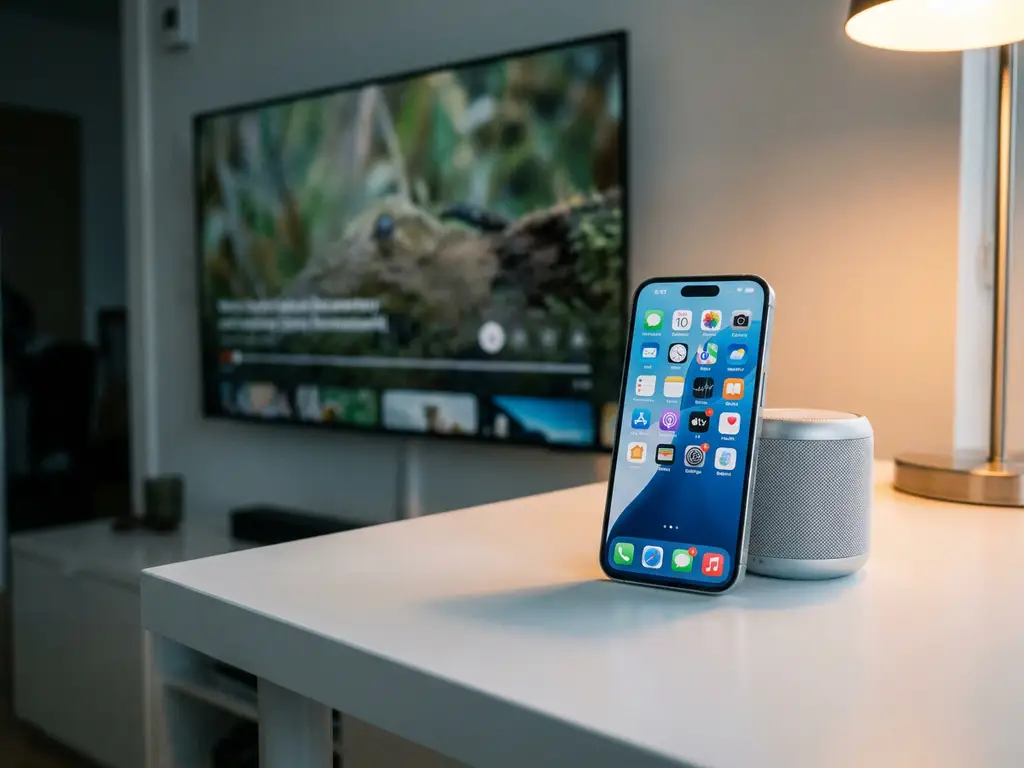
Many iPhone users wonder whether they can use Bluetooth to mirror their screen to a TV, especially when Wi-Fi isn’t available or they want to avoid setting up a network. While Bluetooth is great for connecting headphones and speakers, it has significant limitations for iPhone screen mirroring that make it impractical for most users.
Understanding why Bluetooth doesn’t work well for iPhone screen mirroring—and which alternatives actually deliver a smooth experience—can save you time and frustration when you want to share your screen on a bigger display.
Can you actually mirror iPhone screen through Bluetooth?
No, you cannot effectively mirror your iPhone screen over a Bluetooth connection. While Bluetooth technically supports some basic screen-sharing protocols, it lacks the bandwidth and speed required for smooth, real-time video mirroring that provides a watchable experience.
Bluetooth’s maximum data transfer rate of around 2–3 Mbps is far too slow for video content. Even basic screen mirroring typically requires at least 10–25 Mbps for acceptable quality, while HD video streaming can require 50+ Mbps. This means any attempt to mirror over Bluetooth would result in extremely choppy, delayed, and pixelated video that is essentially unusable.
Additionally, Apple’s iOS doesn’t include built-in Bluetooth screen-mirroring capabilities. The iPhone’s native screen-mirroring features rely on AirPlay, which requires a Wi-Fi connection to function properly.
Why doesn’t Bluetooth work for iPhone screen mirroring?
Bluetooth doesn’t work for iPhone screen mirroring because it’s designed for low-bandwidth data transfer, not high-resolution video streaming. The technology simply cannot handle the massive amount of data required to transmit moving images in real time.
Screen mirroring involves sending thousands of image frames per second from your iPhone to your TV. Each frame contains detailed pixel information that must be transmitted, processed, and displayed almost instantaneously. Bluetooth’s limited bandwidth creates a bottleneck that makes this impossible.
Latency is equally problematic. Bluetooth connections typically have delays of 100–300 milliseconds, which means actions on your iPhone would appear on your TV noticeably later. This makes interactive content like games, presentations, or even basic navigation frustrating and impractical.
Battery drain is another major concern. Attempting to mirror over Bluetooth would require your iPhone to work much harder to compress and transmit video data, leading to rapid battery depletion without delivering acceptable results.
What’s the difference between Bluetooth and WiFi for screen mirroring?
Wi-Fi provides dramatically higher bandwidth and lower latency than Bluetooth, making it the only practical option for iPhone screen mirroring. While Bluetooth maxes out around 2–3 Mbps, modern Wi-Fi networks can deliver 50–1000+ Mbps with minimal delay.
The speed difference is like comparing a narrow walking path to a multi-lane highway. Wi-Fi can easily handle the data-intensive requirements of video streaming, while Bluetooth gets overwhelmed by even basic screen content.
Wi-Fi connections also maintain more stable, consistent data transfer rates. Bluetooth connections can be interrupted by physical obstacles, other devices, or interference, causing frequent disconnections. Wi-Fi networks are designed to handle multiple high-bandwidth devices simultaneously without degrading performance.
Range is another key advantage of Wi-Fi. While Bluetooth typically works within 30 feet, Wi-Fi networks can cover entire homes and maintain strong connections for screen mirroring from anywhere within range.
How can you mirror iPhone screen without cables or Apple TV?
You can mirror your iPhone screen wirelessly using dedicated screen-mirroring apps that connect through your Wi-Fi network. These apps bypass the need for an Apple TV or physical cables while delivering smooth, HD-quality mirroring to most smart TV brands.
The process is straightforward: download a screen-mirroring app such as AirBeamTV to your iPhone, ensure both your phone and TV are connected to the same Wi-Fi network, open the app, select your TV from the available devices, and start mirroring. Your iPhone screen will appear on your TV instantly.
These apps work with popular smart TV brands, including Samsung, LG, Sony, Roku, and Fire TV. Some TV models may require downloading a companion receiver app, but setup typically takes only a few minutes. If you need assistance with setup or troubleshooting, you can always contact support for help.
This Wi-Fi-based approach offers several advantages over using an Apple TV. There’s no additional hardware to purchase, no extra remote controls to manage, and no complex setup procedures. You simply download the app and start mirroring whenever you want to share your screen.
For the best experience, ensure your Wi-Fi network has sufficient bandwidth and that both devices maintain strong connections. Most modern home networks easily support smooth iPhone screen mirroring for streaming videos, sharing photos, giving presentations, or displaying any content from your device on a larger screen. You can also enhance your setup with a universal remote control TV app for seamless device management. For additional tips and troubleshooting guides, check out the comprehensive knowledge base for detailed instructions.
