




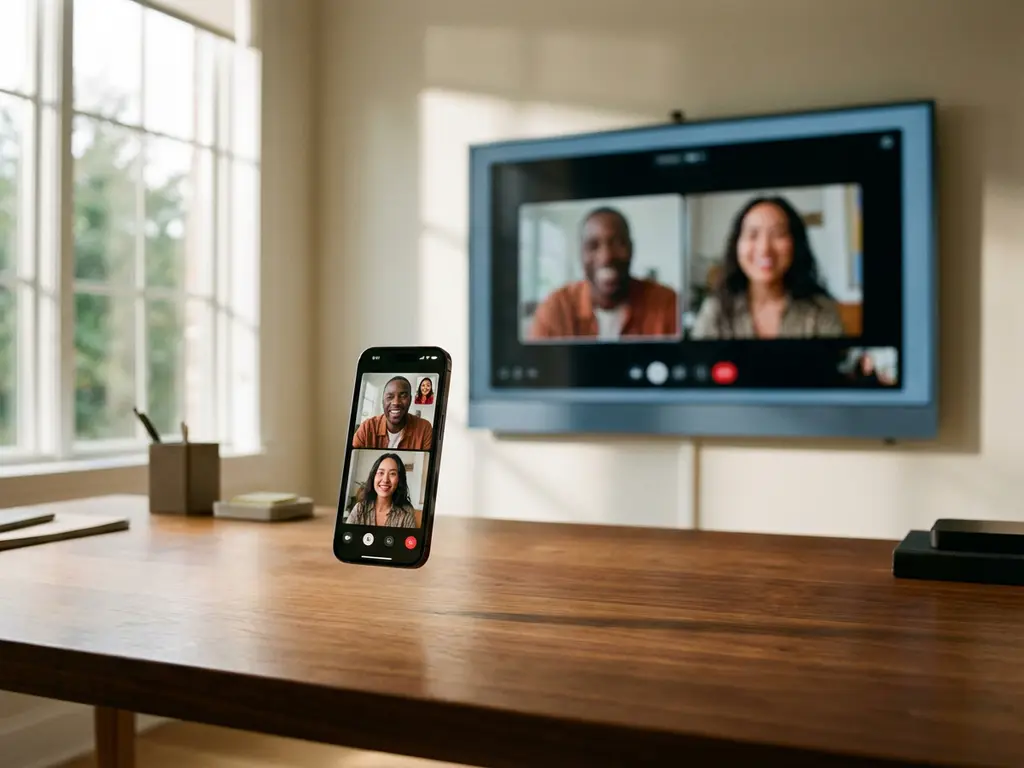
Recording your screen while using iPhone screen mirroring can be tricky. Many users discover that their usual screen recording methods don’t work as expected when they start casting their iPhone to a TV. Understanding how screen recording interacts with mirroring technology helps you capture exactly what you need, whether that’s saving a presentation or documenting a streaming session.
The relationship between screen recording and mirroring involves several technical considerations that affect what gets captured and how. Let’s explore the most common questions about recording during screen mirroring sessions.
Can you record your screen while mirroring your iPhone?
Yes, you can record your iPhone screen while mirroring, but the recording captures what’s on your iPhone display, not what appears on your TV. The built-in iOS screen recording feature continues to work normally during mirroring sessions, recording everything happening on your device’s actual screen.
When you activate screen recording on your iPhone during a mirroring session, it captures your phone’s interface exactly as you see it. This includes any mirroring app controls, notifications, or other elements visible on your device. The recording process runs independently of the mirroring technology, so starting or stopping screen recording won’t interrupt your connection to the TV.
Keep in mind that screen recording uses additional system resources, which might affect mirroring performance on older devices. If you notice lag or reduced quality during simultaneous recording and mirroring, consider recording shorter segments or closing unnecessary background apps to free up processing power.
Why does screen recording stop when you start mirroring?
Screen recording typically doesn’t stop automatically when you start mirroring your iPhone. However, some apps implement digital rights management (DRM) protection that can interrupt recording when certain content is displayed or when mirroring begins.
The confusion often arises from specific apps rather than the mirroring process itself. Streaming services like Netflix, Disney+, or Hulu may detect when screen recording is active and either stop playback or show a black screen in recordings. This protection extends to mirroring sessions, where the app might pause content or display error messages when it detects recording activity.
If your screen recording stops unexpectedly during mirroring, check which app you’re using. Social media apps, web browsers, and personal content typically don’t interfere with recording, while premium streaming services often do. For troubleshooting specific issues, you can consult the knowledge base for detailed solutions or stop screen recording before opening protected content.
How do you record a screen mirroring session on your TV?
To record what appears on your TV during mirroring, you need to record the TV display itself rather than your iPhone screen. This requires external recording equipment like a capture card, an HDMI recorder, or simply using another device to film the TV screen.
The most straightforward approach for casual recording is using another smartphone or tablet to record the TV screen directly. Position the recording device to capture the full TV display and ensure good lighting to minimize glare. For higher-quality results, consider using a tripod or stable surface to avoid camera shake during longer recordings.
Professional setups might involve HDMI capture devices that record the TV’s output directly, but this requires additional hardware and technical knowledge. For most users, simply recording the TV screen with another device provides adequate quality for sharing clips or documenting presentations. If you’re also working with Android devices or need to mirror your Mac screen, similar recording principles apply.
Some smart TVs offer built-in recording features, though these typically work only with broadcast content rather than mirrored displays. Check your TV’s manual to see whether it supports recording external inputs, such as mirrored content from your iPhone.
What’s the difference between recording on iPhone versus recording the mirrored display?
Recording on your iPhone captures the device interface and controls, while recording the mirrored display captures only the content as it appears on your TV screen. iPhone recordings include mirroring app interfaces, notifications, and device-specific elements that don’t appear on the TV.
When you record your iPhone screen during mirroring, the resulting video shows exactly what you see on your phone. This includes any mirroring app controls, status bars, notifications, and the actual content being mirrored. The recording resolution matches your iPhone’s screen resolution, and you’ll capture any interruptions or interface elements that appear during the session.
Recording the mirrored display on your TV captures only the content without device interfaces. The TV shows a clean view of your mirrored content without iPhone-specific elements like Control Center, notification banners, or app-switching interfaces. However, the recording quality depends on your recording method and may not match your iPhone’s native resolution.
Choose iPhone recording when you need to document the complete mirroring process, including app interactions and device controls. Choose TV display recording when you want clean content footage without device interfaces, such as for presentations or sharing video content with others. You can also use a universal remote control TV app to manage your devices during recording sessions. For additional support with your recording setup, feel free to contact us or explore more mirroring solutions that might better suit your recording needs.
