




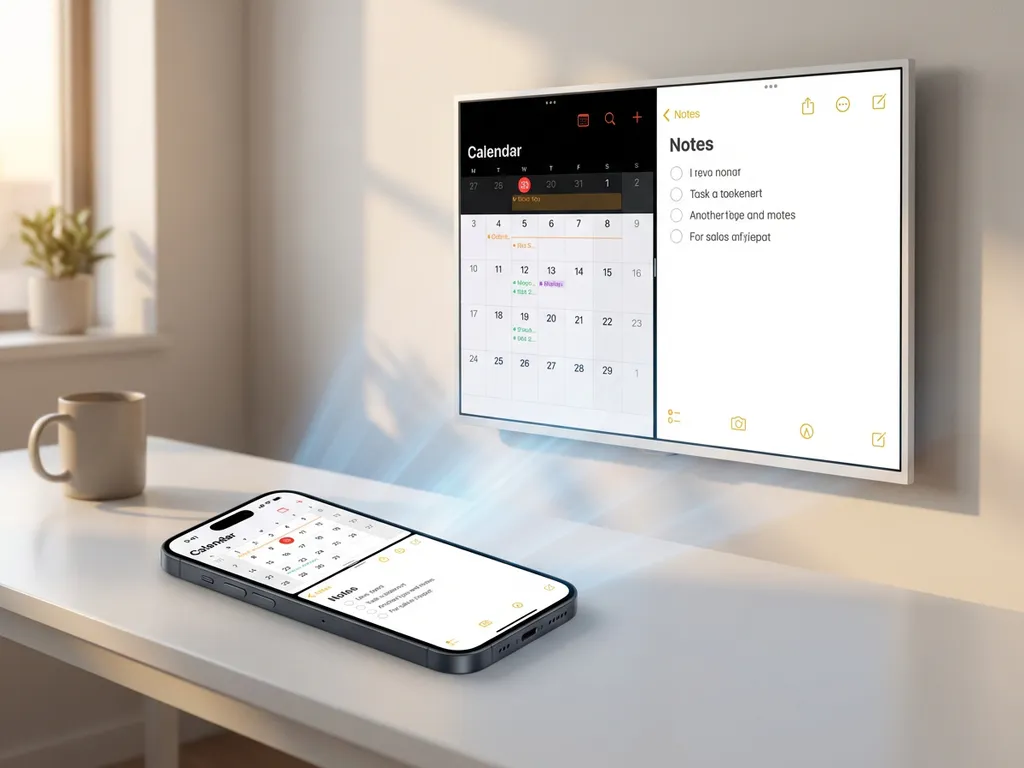
Split-screen mode on iPhone lets you run two apps side by side, but what happens when you try to mirror iPhone iPad screen to your TV? Many iPhone users discover that screen-mirroring apps handle split screen differently than expected, leading to confusion about what will actually appear on their television.
Understanding how iPhone screen mirroring works with split-screen mode can save you from frustrating troubleshooting sessions and help you get the viewing experience you want on your big screen.
What Happens When You Try to Mirror iPhone Split-Screen Mode?
When you mirror iPhone split-screen mode to your TV, most screen-mirroring apps will display the entire split-screen layout exactly as it appears on your phone. Both apps running simultaneously will appear side by side on your television screen, maintaining the same proportions and layout you see on your iPhone.
However, the visual experience differs significantly from mirroring a single app. Since your iPhone screen is much smaller than your TV, the split-screen content is stretched across the larger display. This means each individual app within the split screen appears smaller and may be harder to read, especially if you’re sitting far from your TV.
The audio output typically follows whichever app is currently active or producing sound. If you’re watching a video in one split-screen app while browsing in another, the video’s audio will come through your TV speakers. Some apps may compete for audio control, causing intermittent sound issues during split-screen mirroring.
Why Won’t My iPhone Split Screen Mirror Properly to My TV?
iPhone split-screen mirroring problems usually stem from iOS limitations rather than your mirroring app. Apple restricts certain multitasking features when screen recording or mirroring is active, which can cause split-screen mode to automatically collapse back to a single-app view once mirroring begins.
Your Wi-Fi connection plays a crucial role in successful split-screen mirroring. Since you’re transmitting twice as much visual information compared to single-app mirroring, a weak or unstable Wi-Fi signal often results in choppy video, delayed responses, or complete connection drops. Both your iPhone and TV must be connected to the same strong Wi-Fi network.
App compatibility also affects split-screen mirroring performance. Some apps don’t support multitasking features when being mirrored, automatically forcing full-screen mode. Video streaming apps, games, and certain social media platforms may override split-screen settings to ensure proper playback on your TV.
Memory limitations can cause issues too. Running two apps simultaneously while maintaining a wireless connection to your TV requires significant processing power. Older iPhone models or devices with limited available storage may struggle to maintain stable split-screen mirroring. For troubleshooting tips, check our comprehensive knowledge base.
How Does AirBeamTV Handle iPhone Split-Screen Mirroring?
AirBeamTV mirrors your iPhone’s split-screen mode by displaying exactly what appears on your device screen, including both apps running simultaneously. The app captures your entire iPhone display and wirelessly transmits it to your TV without modifying the split-screen layout.
The mirroring process remains the same whether you’re using split-screen or single-app mode. You download the AirBeamTV app, open it on your iPhone, select your TV from the drop-down menu, and click “Start Mirroring.” Your split-screen setup instantly appears on your television, maintaining the same proportions and functionality.
AirBeamTV works with most major TV brands, including Samsung, LG, Sony, and others, without requiring additional hardware like Apple TV. The app handles split-screen content through your existing Wi-Fi network, making it accessible for users who want to display multiple iPhone apps simultaneously on their big screen.
For optimal split-screen mirroring performance, AirBeamTV requires both your iPhone and TV to connect to the same stable Wi-Fi network. The app automatically adjusts video quality based on your network strength to maintain smooth mirroring even when displaying two active applications.
What Are the Best Alternatives for Mirroring Multiple iPhone Apps?
Instead of split-screen mirroring, consider switching between apps during your mirroring session for better TV viewing quality. This approach gives each app full-screen real estate on your television, making content easier to read and more enjoyable to watch from across the room.
Picture-in-picture mode offers another alternative for certain apps, such as video players. When available, this feature lets you watch videos in a small overlay window while using other apps, providing a cleaner mirroring experience than traditional split-screen mode.
For presentations or demonstrations, consider using your iPhone as a universal remote control for TV while mirroring individual apps one at a time. This method gives you precise control over what appears on your TV while maintaining the ability to quickly switch between different applications as needed. You can also mirror your Mac screen for larger displays during presentations.
Some users find success with hybrid approaches, using split-screen on their iPhone for personal viewing while selectively mirroring just one app to the TV for shared viewing. This lets you multitask on your device while sharing only the relevant content with others in the room. If you’re using Android devices alongside your iPhone setup, you can also mirror Android to TV for seamless cross-platform compatibility.
Ultimately, the best approach depends on your specific viewing situation and content type. Video streaming, photo sharing, and presentations typically work better with single-app mirroring, while productivity tasks might benefit from the multitasking capabilities of split-screen mode. If you need personalized assistance with your setup, feel free to contact us for expert guidance.
