




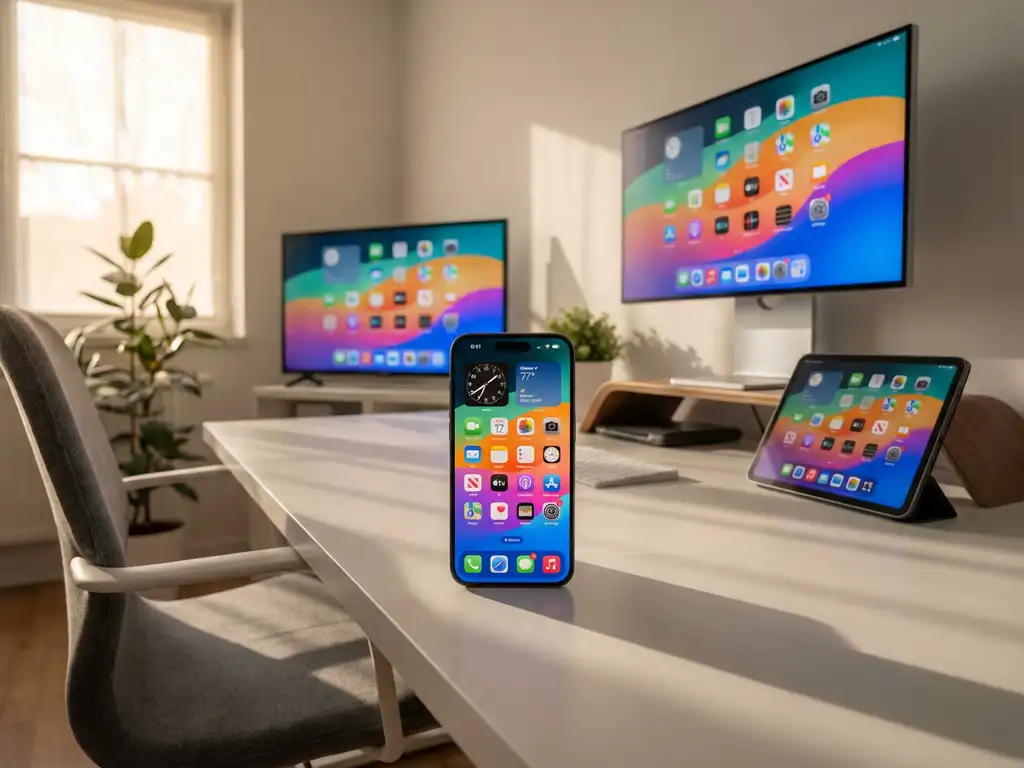
Can you actually mirror an iPhone to multiple displays at the same time?
No, standard iPhone screen mirroring through AirPlay supports only one display connection at a time. Apple’s native mirroring technology is designed to establish a single wireless connection between your iPhone and one receiving device, whether that’s an Apple TV, a smart TV, or another compatible display.
This limitation exists because AirPlay creates a direct peer-to-peer connection that requires dedicated bandwidth and processing power. When you start mirroring to one display, iOS essentially locks that connection and prevents additional simultaneous streams through the same protocol.
However, third-party screen mirroring applications can work around this restriction. These apps use different streaming protocols and can potentially broadcast your iPhone’s display to multiple receivers simultaneously. The key difference is that these solutions don’t rely on Apple’s built-in AirPlay technology; instead, they use Wi-Fi network broadcasting methods that can reach several displays at once.
The technical challenge lies in your iPhone’s processing capabilities and network bandwidth. Broadcasting to multiple displays requires significantly more resources than single-screen mirroring, which can affect both video quality and device performance during extended use.
What are the different methods to cast iPhone to multiple screens?
Third-party mirroring apps, hardware splitters, and network-based broadcasting solutions are the main approaches for multi-display iPhone casting. Each method has distinct advantages and limitations depending on your specific needs and technical setup.
Third-party screen mirroring applications represent the most accessible option for most users. These apps work by downloading software to your iPhone and installing receiver applications on your target displays or streaming devices. The process typically involves opening the mirroring app, selecting multiple TVs on your local network, and starting the broadcast to begin wireless casting to several screens simultaneously.
Hardware splitters provide another approach, though they require physical connections. HDMI splitters can take a single video output from a Lightning-to-HDMI adapter and distribute it to multiple displays. This method ensures perfect synchronisation between screens but eliminates the wireless convenience that makes iPhone screen mirroring appealing.
Network-based broadcasting solutions work through your Wi-Fi network by creating multiple streams from your iPhone to different receiving devices. These systems often require compatible smart TVs or streaming devices connected to the same network. Some solutions may need receiver apps installed on each target display, while others can work with the built-in casting capabilities of modern smart TVs.
Apple’s own ecosystem offers limited multi-display options through features like Sidecar for iPad and AirPlay to Apple TV, but these don’t provide true simultaneous mirroring to multiple independent displays from a single iPhone. For Mac users seeking similar functionality, Mac screen mirroring solutions offer additional options for multi-display setups.
How does screen mirroring to multiple displays actually work technically?
Multi-display mirroring works by encoding your iPhone’s screen into multiple video streams that are broadcast simultaneously over your Wi-Fi network to different receiving devices. This process requires significantly more processing power and network bandwidth compared to single-screen mirroring.
The technical process begins with your iPhone capturing its screen content and encoding it into a digital video format. For multiple displays, this encoded stream must be duplicated and transmitted to several receivers simultaneously. Unlike single-screen mirroring, where one optimised stream is sent, multi-display setups require your iPhone to manage multiple concurrent connections.
Network bandwidth becomes a critical factor because each additional display requires its own data stream. A single high-definition mirroring session typically uses 10–25 Mbps of bandwidth, meaning three displays could require 30–75 Mbps of available network capacity. Your Wi-Fi router must handle this increased load while maintaining stable connections to all receiving devices.
Processing demands on your iPhone increase substantially with each additional display. The device must encode multiple video streams simultaneously while maintaining normal operation. This intensive processing can cause the device to heat up, drain the battery faster, and potentially degrade the performance of other apps running on your iPhone.
Synchronisation across multiple displays presents another technical challenge. Network latency variations can cause slight delays between screens, creating noticeable differences in lag that become more apparent with audio content. Most multi-display solutions prioritise video transmission over perfect audio-video synchronisation across all screens.
What are the main limitations when mirroring iPhone to several displays?
Audio synchronisation issues, video quality degradation, high network bandwidth requirements, and device performance impacts are the primary limitations of multi-display iPhone mirroring. These challenges become more pronounced as you add additional screens to your setup.
Audio synchronisation problems occur because different displays may have varying processing delays and network latency. This creates a situation where audio might be perfectly synced on one screen but noticeably delayed on others. Many users find this particularly distracting when watching videos or during presentations where audio timing is important.
Video quality often suffers when broadcasting to multiple displays simultaneously. Your iPhone must divide its processing power between multiple streams, potentially reducing the resolution or frame rate sent to each display. This is especially noticeable when mirroring high-definition content or during fast-moving scenes in videos.
Network bandwidth limitations can cause stuttering, buffering, or connection drops when your Wi-Fi network becomes overwhelmed. Most home networks struggle to maintain stable, high-quality streams to more than two or three displays simultaneously, particularly if other devices are also using the network. Android users face similar challenges when attempting to mirror Android to TV across multiple displays.
Device performance impacts include faster battery drain, increased heat generation, and potential slowdowns in other iPhone functions. Extended multi-display mirroring sessions can cause your iPhone to become noticeably warm and may affect the performance of other apps or system functions. You can also use a universal remote control TV app to manage your connected displays more conveniently during these sessions.
Compatibility issues also arise because not all smart TVs or streaming devices support the same mirroring protocols. You might find that while one display connects easily, another requires additional setup steps or doesn’t support the multicasting features needed for simultaneous mirroring. If you encounter difficulties, consulting the knowledge base can provide troubleshooting guidance.
Understanding these limitations helps set realistic expectations for multi-display iPhone mirroring. While the technology works, it’s best suited to specific use cases rather than regular daily use, particularly when high-quality audio-video synchronisation is important.
How AirBeamTV Helps with Multi-Display iPhone Mirroring
AirBeamTV provides a comprehensive solution for iPhone users who need to mirror their screens to multiple displays simultaneously. This specialized app overcomes the limitations of Apple’s native AirPlay technology by offering:
- True multi-display broadcasting: Mirror your iPhone to multiple TVs and displays at once without needing additional hardware
- Optimized streaming protocols: Advanced compression and network management to maintain video quality across all connected screens
- Wide device compatibility: Support for Samsung, LG, Sony, and other major smart TV brands, plus streaming devices like Roku and Fire TV
- Simple setup process: One-time configuration that remembers your preferred displays for future sessions
- Bandwidth optimization: Intelligent streaming that adapts to your network capacity to prevent buffering and connection drops
Whether you’re delivering presentations to multiple conference rooms, creating immersive entertainment experiences, or managing digital signage displays, AirBeamTV eliminates the technical complexity of multi-screen mirroring. If you need assistance with setup or have questions about compatibility, contact us for personalized support. Download AirBeamTV today and transform your iPhone into a powerful multi-display broadcasting device that works reliably across all your screens.
