




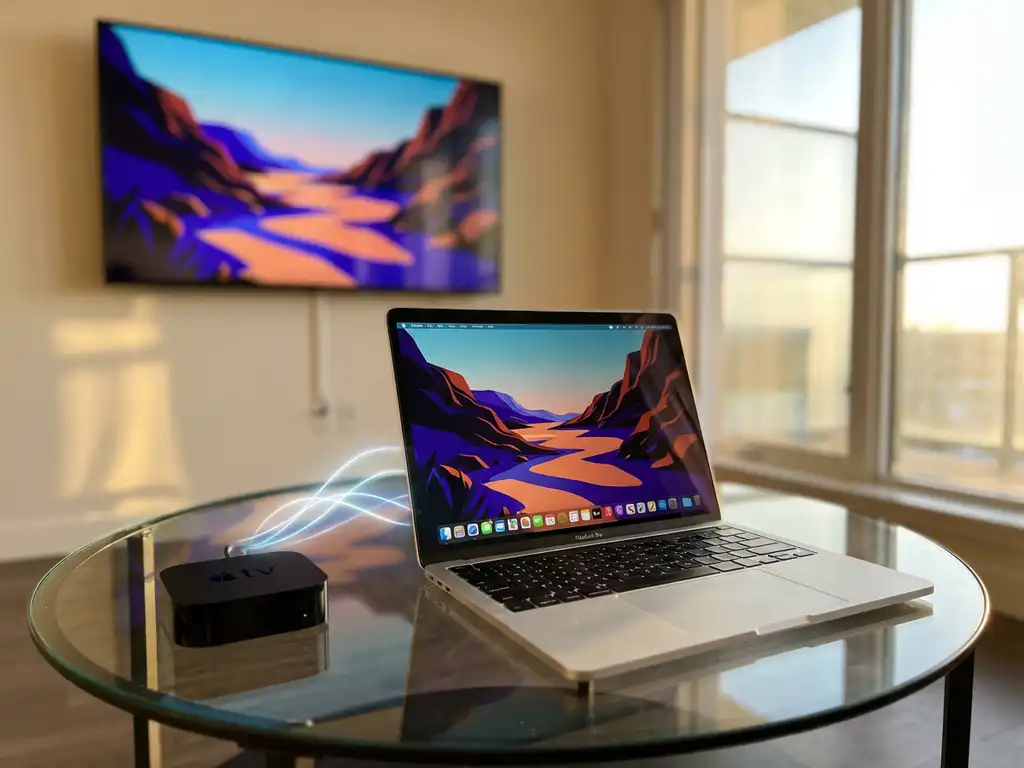
Yes, you can mirror your Mac to an Apple TV wirelessly using Apple’s built-in AirPlay technology. This feature lets you display your Mac’s screen on your television without cables or additional hardware. AirPlay creates a direct wireless connection between compatible devices on the same Wi-Fi network, enabling seamless Mac screen mirroring for presentations, streaming, and content sharing.
What does it mean to mirror a Mac to an Apple TV wirelessly?
Wireless Mac-to-Apple TV mirroring means displaying your Mac’s screen on your television through Apple’s AirPlay technology without physical cables. This wireless connection transmits both video and audio over your Wi-Fi network, creating a real-time duplicate of your Mac’s display on a larger screen.
The technology works by establishing a direct communication channel between your Mac and Apple TV over your local network. Your Mac compresses and transmits screen data, which the Apple TV receives and displays on your television. This process happens in real time with minimal delay, making it suitable for a wide range of activities.
With wireless Mac screen mirroring, you can do many things: stream films and series from your Mac to enjoy on the big screen; share presentations during meetings or classes without crowding around a laptop; display photos and videos for family viewing; or mirror games and apps for a more immersive experience. The wireless connection maintains high-quality video resolution while providing the convenience of cable-free operation.
How do you mirror a Mac to an Apple TV using AirPlay?
To mirror your Mac to an Apple TV using AirPlay, make sure both devices are connected to the same Wi-Fi network. Then click the AirPlay icon in your Mac’s menu bar and select your Apple TV. Your Mac’s screen will appear on your television within seconds, providing instant wireless mirroring.
System requirements include a Mac from 2011 or later running macOS Mountain Lion or later, and a second-generation Apple TV or later. Both devices must be connected to the same Wi-Fi network for the connection to work properly.
Here’s the complete setup process:
- Check your Wi-Fi connection – Verify that both your Mac and Apple TV are on the same network.
- Locate the AirPlay icon – Look for the rectangle with a triangle at the bottom in your Mac’s menu bar.
- Select your Apple TV – Choose your device from the drop-down menu.
- Choose a mirroring option – Select “Mirror Built-in Display” for full-screen mirroring.
- Confirm the connection – Your Mac’s screen should appear on the TV immediately.
You can also access AirPlay through System Preferences under Displays, where you’ll find additional options for resolution and arrangement. The connection remains active until you disconnect manually or turn off either device.
Why won’t my Mac connect to Apple TV for screen mirroring?
Connection failures between a Mac and an Apple TV typically result from Wi-Fi issues, software compatibility problems, or incorrect settings. The most common cause is that the devices are on different networks or are running outdated software that doesn’t support current AirPlay protocols.
Network connectivity problems often prevent successful connections. Both devices must be connected to the same Wi-Fi network, and some corporate or public networks block AirPlay traffic. Router settings can also interfere with device discovery, particularly if client isolation is enabled.
Software compatibility issues can also cause connection failures. Older Macs may not support newer Apple TV models, while outdated Apple TV software may reject connections from newer versions of macOS. Compatibility mismatches can create communication barriers that prevent successful mirroring.
Practical solutions include:
- Restart both devices and your Wi-Fi router.
- Update macOS and Apple TV software to the latest versions.
- Check Wi-Fi settings and make sure both devices are on the same network.
- Temporarily disable your firewall to test whether it’s causing the issue.
- Reset Apple TV network settings if problems persist.
- Move the devices closer to the router to improve signal strength.
If standard troubleshooting doesn’t help, check your router’s documentation for AirPlay-specific settings or contact us about potential restrictions or for additional support with your mirroring setup.
What are the alternatives if AirPlay isn’t working for Mac mirroring?
If AirPlay fails, third-party screen-mirroring apps can provide reliable alternatives for wireless Mac-to-Apple TV connections. These apps often support a wider range of devices and can sometimes work around network restrictions that prevent standard AirPlay from functioning.
Third-party solutions typically offer more flexibility than native AirPlay. Many work across different TV brands and streaming devices, not just Apple TV. Some apps provide extra features such as mirroring a single window, audio-only streaming, or improved compression for better performance on slower networks.
Popular alternative approaches include dedicated mirroring apps that establish direct connections between your Mac and your television. These apps are often available in the App Store and may require installation on both your Mac and your TV or streaming device. Alternative mirroring solutions frequently support older hardware combinations that AirPlay may not accommodate.
Consider these factors when choosing an alternative:
- Compatibility with your specific Mac and TV models
- Network requirements and bandwidth usage
- Video quality and latency
- Cost for premium features
- Ease of use and setup complexity
Some alternatives work through a web browser, eliminating the need to install additional software. Others don’t require an Apple TV at all, connecting directly to smart TVs or other streaming devices. These solutions can offer the same ease of use as AirPlay while providing broader compatibility and more troubleshooting options. You can also enhance your setup with a universal remote control TV app to manage your devices more conveniently.
Wireless Mac screen mirroring remains accessible through various methods, ensuring you can find a solution that works with your setup and requirements. For comprehensive guides on different devices, explore our knowledge base which covers various mirroring scenarios and solutions.
How AirBeamTV helps with Mac screen mirroring
AirBeamTV provides a comprehensive solution for Mac screen mirroring that eliminates the common frustrations of AirPlay connectivity issues. This specialized app offers reliable wireless mirroring capabilities that work seamlessly when native AirPlay fails or isn’t available.
Key benefits of using AirBeamTV for your Mac mirroring needs include:
- Support for multiple TV brands beyond just Apple TV, including Samsung, LG, Sony, and Roku devices
- Simplified setup process that bypasses complex network configurations
- Stable connections that maintain quality even on slower networks
- Compatibility with older Mac models that may struggle with standard AirPlay
- Advanced features like audio delay adjustment and custom resolution settings
- Direct connection options that don’t require both devices on the same network
Whether you need to mirror iPhone iPad screen or mirror Android to TV, AirBeamTV offers comprehensive solutions across all major platforms. Ready to experience hassle-free Mac screen mirroring? Download AirBeamTV today and enjoy seamless wireless connectivity to your TV without the technical complications of traditional mirroring methods.
