




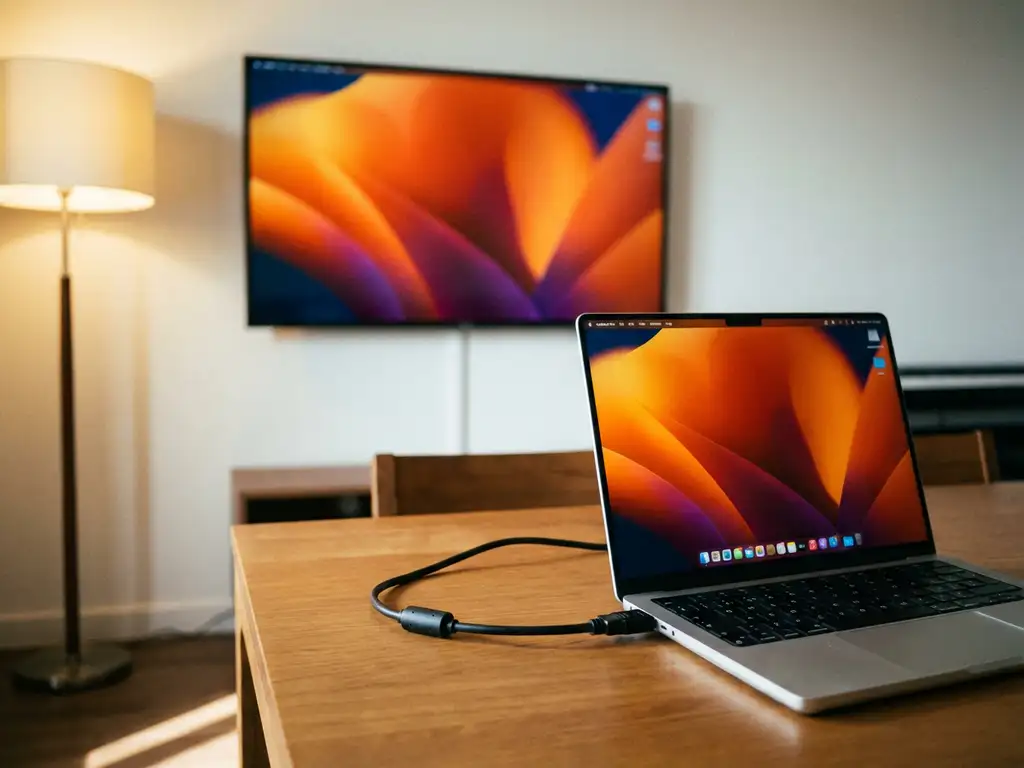
Yes, you can mirror your Mac to non-Apple devices, including Samsung, LG, Android TV, and other smart TVs, without Apple TV or AirPlay. Third-party screen-mirroring apps enable wireless casting from a Mac to virtually any modern television over Wi-Fi. These solutions work across all major TV brands and streaming devices, making it easy to display your Mac’s screen on a big screen regardless of the manufacturer.
What does it mean to mirror a Mac to non-Apple devices?
Mac screen mirroring to non-Apple devices means wirelessly displaying your Mac’s screen on televisions and displays that don’t support Apple’s native AirPlay technology. This process uses Wi-Fi to transmit your Mac’s visual content to Samsung, LG, Sony, Panasonic, Android TV, Fire TV, Roku, and other smart TV brands.
The technology works by establishing a wireless connection between your Mac and the target display over your home network. Unlike traditional AirPlay, which requires Apple TV hardware, these solutions use dedicated apps that create a direct casting connection. Your Mac sends video and audio data over Wi-Fi to the receiving device, which then displays the content in real time.
This wireless casting capability opens up numerous possibilities for Mac users. You can stream videos, movies, presentations, and any content from your Mac’s screen directly to non-Apple televisions. Whether you’re watching YouTube videos, conducting video meetings, sharing photos, or streaming from platforms like Netflix and Hulu, Mac screen-mirroring technology makes it possible to enjoy everything on a larger display without cables or expensive hardware.
Can you actually mirror a Mac screen to Samsung and LG TVs?
Absolutely. Mirroring a Mac to Samsung and LG TVs is completely possible using wireless screen-mirroring applications. These apps support all major smart TV manufacturers, including Samsung, LG, Sony, Philips, Panasonic, TCL, and many others, without requiring any additional hardware purchases.
The compatibility requirements are straightforward. Your Mac and smart TV must be connected to the same Wi-Fi network for wireless casting to work properly. Most modern smart TVs from Samsung, LG, and other manufacturers include built-in wireless capabilities that work seamlessly with third-party mirroring apps. The process typically involves downloading a mirroring app on your Mac, selecting your TV from the list of available devices, and starting the wireless connection.
The technical methods for enabling this connection vary slightly between TV brands. Some Samsung and LG models may require downloading a companion receiver app on the television itself, while others work directly through the TV’s existing wireless protocols. The apps automatically scan your local network to detect compatible TVs, making the setup process simple even for users who aren’t technically minded.
Streaming content works particularly well with this setup. You can mirror YouTube videos, social media content, and even streaming platforms like Netflix and Hulu using the Chrome browser on your Mac. The wireless connection maintains high-definition quality while eliminating the need for HDMI cables or Apple TV hardware.
What are the best ways to mirror a Mac to Android TV devices?
Third-party screen-mirroring apps are the most reliable method for casting a Mac to Android TV devices. These dedicated applications work specifically with Android TV platforms, providing seamless wireless connectivity without requiring Apple TV or additional hardware.
The setup process for Android TV mirroring follows a simple pattern. Download a compatible screen-mirroring app on your Mac, ensure both devices are connected to the same Wi-Fi network, and select your Android TV from the app’s device list. Many Android TV devices support direct wireless protocols that enable immediate screen casting once the connection is established.
Built-in casting protocols offer another viable option. Android TV systems often include Chromecast functionality, which can work with Mac computers through Chrome browser casting. This method works particularly well for web-based content and streaming platforms, though it may have limitations compared to dedicated mirroring applications.
Wireless solutions provide the most flexibility for Mac-to-Android TV casting. These apps support various content types, including videos, presentations, games, and applications. You can stream content from YouTube and social media platforms, and you can even conduct video meetings or conference calls on your Android TV screen. The wireless connection maintains audio synchronisation and provides high-definition video quality suitable for entertainment and business applications using Android TV mirroring solutions.
How do you set up wireless Mac mirroring without Apple TV?
Setting up wireless Mac mirroring without Apple TV involves downloading a screen-mirroring app, installing it on your Mac, and establishing a Wi-Fi connection to your target display. The entire process typically takes just a few minutes and requires no technical expertise or additional hardware purchases.
The app installation process begins with downloading the mirroring software to your Mac. Different apps may be available depending on your specific TV brand, so choose one that matches your television or streaming device. After downloading, install the PKG file that appears in your Downloads folder. Follow the instructions in the installation window, and delete the installer file when the process is complete.
Network requirements are essential for successful wireless mirroring. Both your Mac and target TV must be connected to the same Wi-Fi network for data transfer to work properly. Ensure your Wi-Fi connection provides stable bandwidth, as screen mirroring requires consistent data transmission to maintain smooth video playback and audio synchronisation.
Device-pairing procedures vary slightly between TV manufacturers. Open the mirroring app on your Mac and allow it to scan for available devices on your network. Select your TV from the drop-down menu that appears. Some TV brands may require downloading a companion receiver app on the television itself before the connection can be established. You can also enhance your setup with a universal remote control TV app for convenient device management.
Common setup challenges include network connectivity issues and device-discovery problems. If your TV doesn’t appear in the app’s device list, verify that both devices are on the same Wi-Fi network, then restart the app and your TV’s wireless connection. For streaming-platform content like Netflix or Hulu, use the Chrome browser rather than Safari, as Chrome provides better compatibility with wireless casting protocols. If you need additional help, check our comprehensive knowledge base for troubleshooting guides.
How AirBeamTV helps with Mac screen mirroring to non-Apple devices
AirBeamTV provides a comprehensive solution for Mac users who want to mirror their screens to non-Apple devices without the complexity of multiple apps or unreliable connections. Our dedicated screen-mirroring applications eliminate the technical barriers that often prevent seamless wireless casting to Samsung, LG, Android TV, and other smart TV brands.
Here’s how AirBeamTV simplifies Mac screen mirroring:
• Universal compatibility: Works with all major TV brands including Samsung, LG, Sony, Panasonic, and Android TV devices without requiring additional hardware
• One-click setup: Simple installation process with automatic device detection that gets you mirroring in minutes
• High-quality streaming: Maintains HD video quality and audio synchronisation for presentations, entertainment, and video calls
• No cables required: Complete wireless solution that works over your existing Wi-Fi network
• Multiple content support: Stream videos, presentations, browser content, and applications seamlessly
Ready to start mirroring your Mac to any TV? Download AirBeamTV today and enjoy wireless screen mirroring without the limitations of Apple TV or complex setup procedures. If you have questions about compatibility or setup, feel free to contact us for personalized support.
