




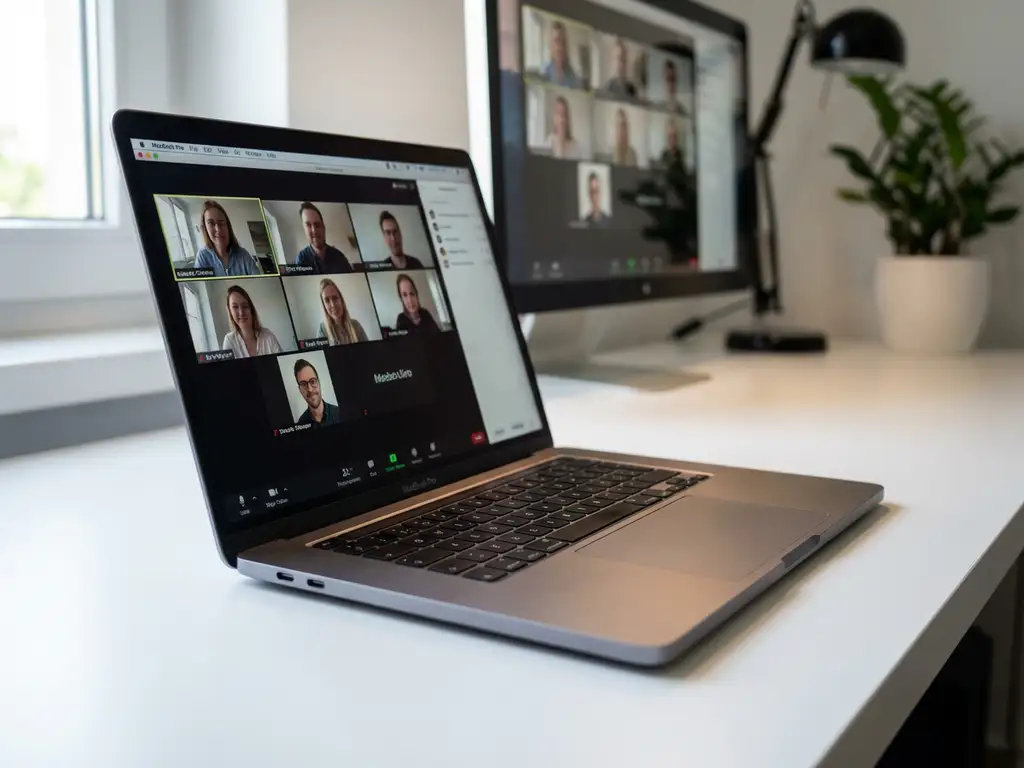
Yes, you can mirror specific Mac applications instead of your entire screen. Application-specific mirroring allows you to share just one program window while keeping other activities private on your Mac. This selective approach provides better performance, enhanced privacy, and more control during presentations or streaming sessions compared to full-screen mirroring.
What is application-specific mirroring and how does it work on Mac?
Application-specific mirroring is a selective screen-sharing technology that captures and displays only a chosen application window rather than your entire desktop. Unlike full-screen mirroring, which broadcasts everything visible on your Mac, selective app mirroring isolates individual programs for targeted display.
The technology works through macOS system-level window-capture APIs, which allow applications to access specific program windows rather than the complete display buffer. Modern Mac screen mirroring solutions leverage these built-in capabilities to provide granular control over what content gets shared.
Mac architecture supports this functionality through its window server system, which manages individual application windows as separate display objects. This enables mirroring apps to capture specific windows while maintaining system performance and user privacy. However, some limitations exist with certain full-screen applications and protected content, which may require special permissions or alternative approaches.
Which Mac mirroring apps support selective application casting?
Several mirroring solutions offer application-specific functionality, though capabilities vary significantly between platforms. Built-in Mac features like QuickTime Player provide basic screen recording, while third-party solutions offer more comprehensive wireless casting options.
Screen-mirroring apps for Mac from providers like AirBeamTV focus primarily on full-screen wireless casting to smart TVs, supporting major brands including Samsung, LG, Sony, and Roku. These solutions excel at complete desktop mirroring over Wi-Fi networks without requiring additional hardware or cables.
Professional applications such as OBS Studio offer advanced window-capture capabilities for streaming and recording specific applications. Video conferencing platforms like Zoom and Teams include built-in selective screen-sharing features that allow you to choose individual windows during meetings. Each solution has distinct strengths depending on whether you need wireless TV casting, professional streaming, or business presentation capabilities. You can also enhance your setup with a universal remote control TV app to manage your smart TV directly from your device.
How do you set up application-specific mirroring on your Mac?
Setting up selective app mirroring requires proper system permissions and compatible software configured for your specific use case. The process begins with granting screen recording permissions in System Settings under Privacy & Security, which enables applications to capture window content.
For basic window sharing during video calls, open your conferencing application and select “Share Screen” or a similar option. Choose “Window” instead of “Entire Screen” when prompted, then select the specific application you want to share from the available list. The selected program window will appear highlighted, indicating successful capture.
Wireless casting to TVs typically requires downloading the appropriate mirroring app for your television brand. Install the application, ensure both your Mac and TV are connected to the same Wi-Fi network, then launch the mirroring software. Some solutions may require installing companion receiver apps on your smart TV before establishing the wireless connection.
Common setup issues include permission denials, network connectivity problems, and compatibility conflicts. For detailed troubleshooting guidance, consult our comprehensive knowledge base which covers checking system permissions, verifying Wi-Fi connections, and ensuring your Mac meets the software’s minimum requirements for reliable performance.
What are the benefits of mirroring specific apps instead of your entire screen?
Selective app mirroring provides enhanced privacy protection and improved system performance compared to full desktop sharing. You can share presentation slides or video content while keeping personal notifications, messages, and other applications completely private from viewers.
Performance benefits include reduced bandwidth usage since only one application’s content is transmitted rather than your entire desktop. This results in smoother streaming, lower latency, and better video quality, which is particularly important when using wireless connections or slower networks.
Professional presentation control improves significantly with selective mirroring. You can prepare materials in background applications, switch between different programs seamlessly, and maintain a clean viewing experience without desktop clutter or distracting elements visible to your audience.
Enhanced multitasking capabilities allow you to continue working on other projects while sharing specific content. You can check email, take notes, or research information without interrupting the shared application or revealing unrelated work to viewers. This flexibility makes selective mirroring particularly valuable for business meetings, educational sessions, and professional streaming scenarios.
How AirBeamTV helps with application-specific mirroring
AirBeamTV provides a seamless solution for wireless Mac screen mirroring to smart TVs, making application-specific casting simple and reliable. Our platform addresses the key challenges of selective mirroring by offering:
- Universal TV compatibility – Works with Samsung, LG, Sony, Roku, and other major smart TV brands without additional hardware
- High-quality wireless streaming – Optimized performance for both full-screen and application-specific mirroring over Wi-Fi networks
- Easy setup process – Simple installation and connection that gets you mirroring specific apps within minutes
- Stable connection technology – Reduced latency and improved video quality for professional presentations and entertainment
Whether you’re presenting business applications, streaming specific media content, or sharing educational materials, AirBeamTV eliminates the complexity of traditional mirroring setups. We also support iPhone and iPad screen mirroring as well as Android to TV mirroring for complete cross-platform compatibility. If you need assistance getting started, don’t hesitate to contact us and experience effortless application-specific mirroring from your Mac to any compatible smart TV.
