




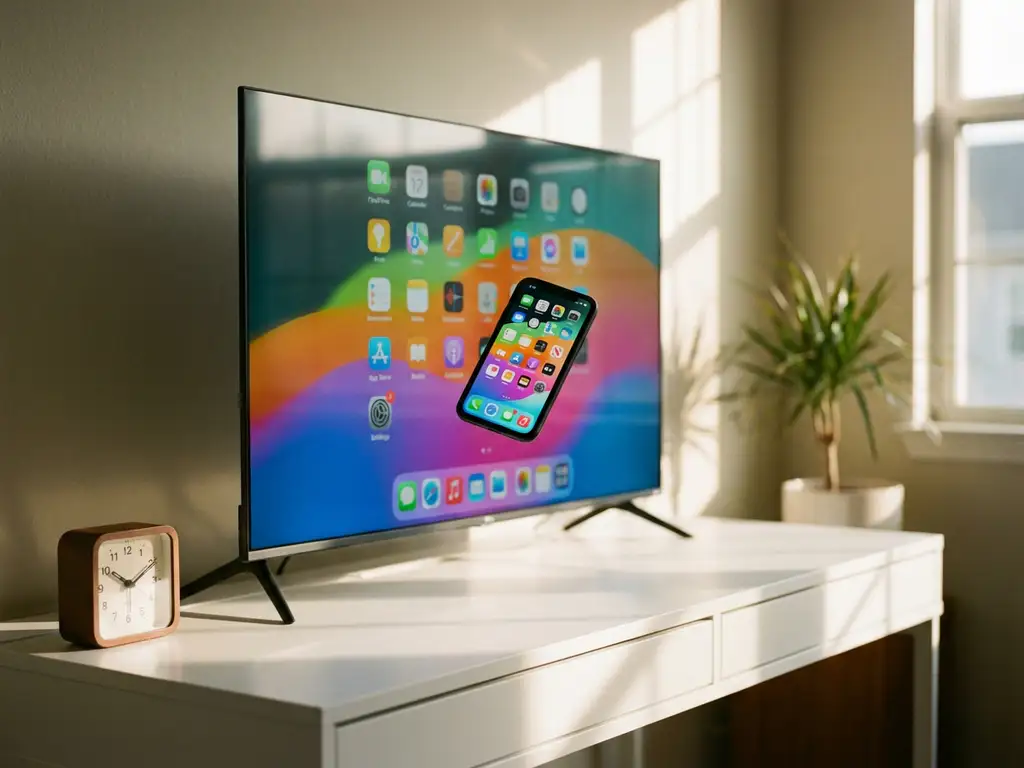
Many iPhone users wonder whether they can schedule their screen mirroring sessions to start automatically at specific times. While this would be incredibly convenient for regular presentations, entertainment, or business meetings, the reality is more complex than you might expect.
The short answer is that true automatic scheduling isn’t possible with current iPhone screen mirroring technology, but there are several practical workarounds that can make the process much smoother. Let’s explore what’s possible and how to get the closest thing to automated mirroring sessions.
Can you automatically schedule iPhone screen mirroring sessions?
No, you cannot schedule fully automatic iPhone screen mirroring sessions that start without any user interaction. iOS security restrictions prevent apps from initiating screen recording or mirroring without explicit user permission each time. This means that every mirroring session requires you to manually tap “Start Broadcast” on your device.
This limitation exists for privacy and security reasons. Apple designed iOS to ensure that no app can secretly access your screen content or begin broadcasting without your knowledge. While this protects your privacy, it does mean that true “set it and forget it” scheduling isn’t possible.
However, you can streamline the process significantly. Once you’ve set up your mirroring app and connected to your TV, starting a session becomes a matter of opening the app and tapping a single button. The connection settings and TV preferences remain saved, making subsequent sessions much faster to initiate.
What screen mirroring apps offer scheduling features?
Currently, no iPhone screen mirroring apps offer true automatic scheduling features due to iOS limitations. However, some apps provide scheduling-adjacent features, such as saved connections, quick-start options, and reminder notifications, that make regular mirroring sessions more convenient.
Most high-quality mirroring apps, including AirBeamTV, focus on making the connection process as quick as possible rather than trying to work around iOS restrictions. These apps typically offer features such as automatic TV detection, saved device preferences, and one-tap connection to previously used displays.
Some apps do offer reminder notifications that can alert you when it’s time to start your mirroring session. While you’ll still need to manually initiate the connection, these reminders can help you maintain a regular schedule for presentations, entertainment, or other planned activities.
How do you set up automated screen mirroring with AirBeamTV?
While AirBeamTV cannot fully automate iPhone screen mirroring due to iOS restrictions, you can set up the app for the fastest possible connection process. Download the AirBeamTV app, connect to your TV once, and the app will remember your preferences for faster future connections.
The setup process is straightforward. First, download the AirBeamTV app from the App Store and open it on your iPhone. The app will automatically scan for available TVs on your Wi-Fi network. Select your TV from the drop-down menu, and depending on your TV brand, you may need to download a companion receiver app on your television.
Once you’ve completed the initial setup, AirBeamTV saves your TV selection and connection preferences. For future sessions, simply open the app and tap “Start Mirroring.” Your iPhone screen will appear on your TV within seconds, making it feel almost automatic even though you’re still performing a manual action.
To make regular mirroring sessions even smoother, keep the AirBeamTV app easily accessible on your Home Screen. You can also set reminders on your phone for your regular mirroring times, so you remember to initiate the connection when needed.
Why doesn’t iPhone allow fully automatic screen mirroring?
The iPhone doesn’t allow fully automatic screen mirroring because of Apple’s strict privacy and security framework. iOS requires explicit user consent for screen recording and broadcasting to prevent unauthorized access to sensitive information displayed on your device.
This security measure protects against malicious apps that could secretly record your screen, capture passwords, or broadcast private conversations without your knowledge. Every time you start screen mirroring, iOS shows a countdown and requires you to confirm the action, ensuring that you’re always aware when your screen is being shared.
Apple’s approach prioritizes user control over convenience. While this means extra steps for legitimate uses such as scheduled presentations, it prevents serious privacy violations that could occur if apps could automatically access your screen content. The company has consistently chosen security over convenience in iOS design decisions.
Additionally, automatic screen mirroring could drain your battery significantly and use substantial bandwidth without your awareness. By requiring manual initiation, iOS ensures that you’re making an intentional decision to use these resources.
What are the best workarounds for scheduling iPhone mirroring?
The best workarounds for scheduling iPhone mirroring include using calendar reminders, setting up quick shortcuts, keeping your mirroring app easily accessible, and preparing your TV connection in advance. These methods minimize the time and effort needed to start each session.
Create calendar events for your regular mirroring sessions with alerts that remind you to start the connection. Set the reminder for a few minutes before you need to begin, giving yourself time to open the app and initiate the mirroring process. This creates a semi-automated workflow that keeps you on schedule.
Consider using iOS Shortcuts to create a custom shortcut that opens your mirroring app directly. While you’ll still need to tap “Start Mirroring” manually, having a shortcut on your Home Screen or in Control Center makes the process faster and more reliable.
For business presentations or regular entertainment sessions, prepare your setup in advance. Ensure that your iPhone and TV are on the same Wi-Fi network, test the connection beforehand, and keep your mirroring app updated. This preparation eliminates technical delays when it’s time to start your session.
Finally, establish a routine around your mirroring sessions. If you regularly mirror content at the same time each day, the process becomes second nature. Combined with saved app preferences and familiar connection steps, this routine creates the smoothest possible experience within iOS limitations. You can also explore a universal remote control app for TV to further streamline managing your TV setup alongside your mirroring sessions.
