




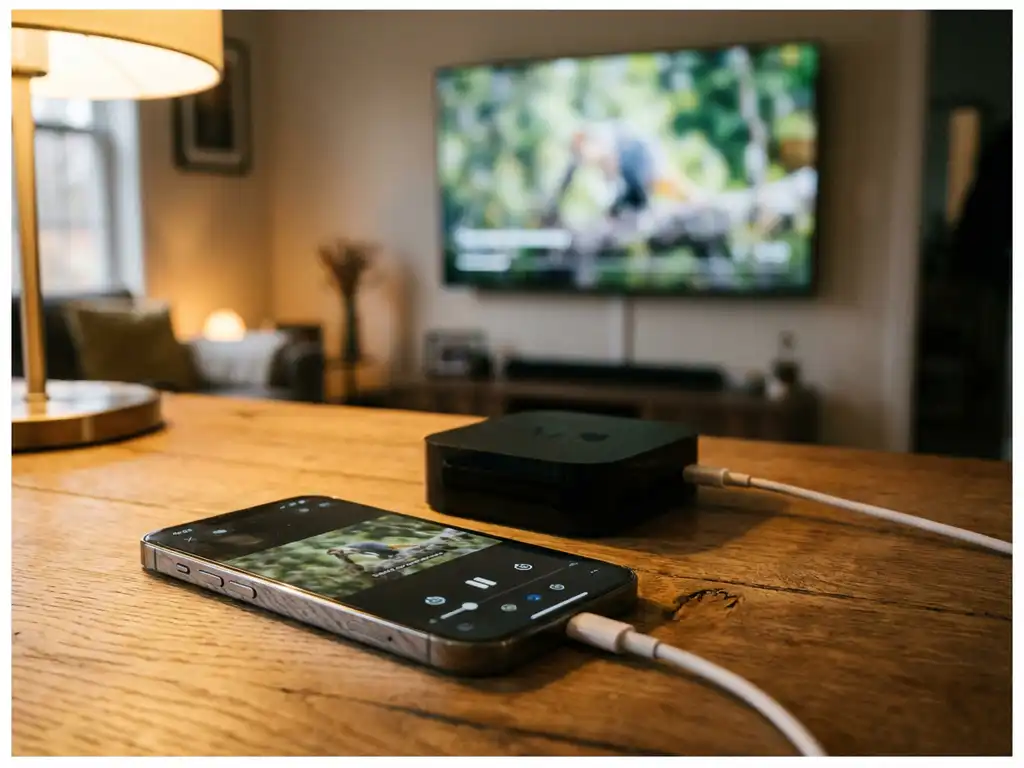
iPhone screen mirroring typically requires a Wi-Fi connection, but you’re not completely stuck without one. While traditional wireless mirroring relies on Wi-Fi networks, several alternatives can help you mirror iPhone iPad screen on a larger display. Mobile hotspots, cellular data connections, and wired solutions offer practical workarounds when Wi-Fi isn’t available.
Can you actually mirror your iPhone screen without Wi-Fi?
Yes, you can mirror your iPhone screen without traditional Wi-Fi, though you’ll need alternative connection methods. The key is understanding that screen mirroring apps still require some form of network connection to transmit data between your phone and your TV. This means you’ll need to create a network using mobile data, use a direct wired connection, or set up an alternative wireless solution.
Most wireless screen mirroring applications, including popular options like AirBeamTV, are designed to work over a network connection. They scan for available displays on your local network and establish a connection for streaming. Without any network at all, wireless mirroring simply won’t work.
The good news is that “no Wi-Fi” doesn’t mean “no options.” Your iPhone’s cellular data can serve as the foundation for several mirroring solutions. You can create a mobile hotspot, use specific apps designed for cellular streaming, or opt for wired connections that bypass network requirements entirely.
What connection methods work for iPhone screen mirroring without Wi-Fi?
Creating a mobile hotspot is the most practical wireless solution when Wi-Fi isn’t available. Your iPhone can share its cellular connection as a Wi-Fi network, allowing your TV or streaming device to connect. This creates the network environment that mirroring apps need to function properly.
To set up mobile hotspot mirroring, enable Personal Hotspot in your iPhone settings, then connect your TV or streaming device to that network. Once both devices are on the same network, screen mirroring apps can communicate just as they would over traditional Wi-Fi.
Wired connections offer another reliable alternative. Lightning-to-HDMI adapters provide a direct connection between your iPhone and your TV, completely bypassing network requirements. These adapters mirror your screen instantly, without any setup process or data-consumption concerns.
Some newer smart TVs support direct device connections through technologies like Wi-Fi Direct or Miracast. These create point-to-point connections between your iPhone and your TV without requiring a traditional Wi-Fi network infrastructure. For Android users facing similar challenges, you can mirror Android to TV using comparable methods.
How does cellular data affect iPhone screen mirroring performance?
Cellular data can support iPhone screen mirroring, but expect higher data consumption and potential quality limitations compared with Wi-Fi connections. Screen mirroring typically uses 1–3 GB per hour, depending on content quality and resolution settings.
Connection stability varies significantly based on your cellular signal strength and carrier network congestion. Strong 4G or 5G signals generally provide adequate bandwidth for smooth mirroring, while weaker signals may cause lag, buffering, or connection drops during streaming.
Data costs can add up quickly with cellular mirroring. Streaming high-definition content for extended periods may consume a substantial portion of your monthly data allowance. Consider adjusting quality settings or limiting session duration to manage usage effectively.
Network latency on cellular connections is typically higher than on Wi-Fi, which may create noticeable delays between actions on your iPhone and their appearance on the TV screen. This lag is most apparent with interactive content or universal remote control TV app gaming sessions.
What are the best alternatives when Wi-Fi isn’t available for screen mirroring?
Lightning-to-HDMI adapters provide the most reliable no-Wi-Fi solution for iPhone screen mirroring. These wired connections deliver consistent quality without data consumption, network dependencies, or connection-stability concerns.
Setting up a mobile hotspot offers the best wireless alternative when you need to keep your iPhone mobile during mirroring. Enable Personal Hotspot on your iPhone, connect your TV or streaming device to that network, then use your preferred mirroring app as usual.
Downloaded content eliminates streaming requirements entirely. Download movies, shows, or presentations to your iPhone while Wi-Fi is available, then use a wired connection to display that content without any network dependency. Mac users can also mirror your Mac screen using similar alternative connection methods.
Portable streaming devices with built-in storage can serve as intermediary solutions. Some devices allow you to transfer content from your iPhone via a direct connection, then display it on your TV independently of network connections.
For business presentations or important content sharing, always prepare backup solutions. Carry a Lightning-to-HDMI adapter, ensure you have sufficient cellular data, and download critical content in advance to avoid connectivity issues. If you encounter problems, our knowledge base provides comprehensive troubleshooting guides.
How AirBeamTV helps with iPhone screen mirroring without Wi-Fi
AirBeamTV provides a reliable solution for iPhone screen mirroring when traditional Wi-Fi isn’t available by offering flexible connectivity options that work seamlessly with alternative network setups. The app excels in scenarios where you need to mirror your iPhone screen using mobile hotspot connections or cellular data networks.
Key benefits of using AirBeamTV for no-Wi-Fi mirroring include:
- Mobile hotspot compatibility – Works perfectly when your iPhone shares its cellular connection as a Wi-Fi network
- Optimized data usage – Intelligent compression reduces cellular data consumption during streaming
- Quick device detection – Rapidly finds and connects to compatible TVs on any network type
- Stable performance – Maintains consistent connection quality even on cellular networks
- Multiple TV support – Compatible with major smart TV brands for maximum flexibility
Experience hassle-free iPhone screen mirroring regardless of your Wi-Fi situation. Download AirBeamTV today and enjoy seamless screen sharing wherever you are, using your mobile data or any available network connection. For additional support or questions, feel free to contact us for personalized assistance.
