




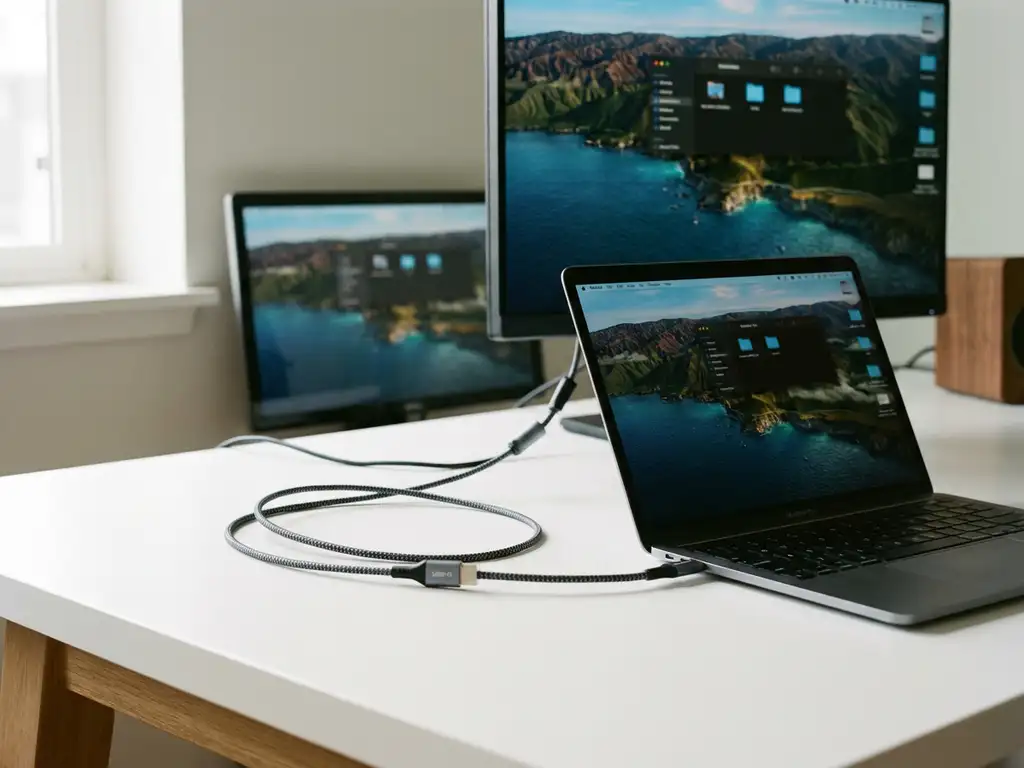
Yes, you can use Mac screen mirroring without AirPlay by using third-party apps that connect wirelessly to smart TVs. These alternatives work with most major TV brands, including Samsung, LG, Sony, and Roku, requiring only a Wi-Fi connection and no additional hardware. Simply download a screen mirroring app, connect to your TV, and start casting your Mac display instantly.
What is Mac screen mirroring, and do you really need AirPlay?
Mac screen mirroring allows you to wirelessly display your Mac’s screen on a television or external display. AirPlay is Apple’s built-in wireless streaming protocol that works seamlessly within Apple’s ecosystem, connecting Macs to Apple TVs and AirPlay-compatible devices over your Wi-Fi network.
AirPlay serves as Apple’s native solution for wireless casting, offering smooth integration between Mac computers and Apple TV devices. However, many users seek alternatives because they don’t own an Apple TV, want broader compatibility with different TV brands, or need more flexible casting options.
The reality is that AirPlay isn’t essential for Mac screen mirroring. Third-party applications provide viable alternatives that often work with more TV brands than AirPlay supports. These apps eliminate the need for Apple TV hardware while maintaining wireless convenience.
Users typically look beyond AirPlay when they own Samsung, LG, Sony, or other non-Apple smart TVs. Rather than purchasing additional Apple hardware, screen mirroring apps offer direct compatibility with existing televisions through simple app downloads.
What are the best alternatives to AirPlay for Mac screen mirroring?
Third-party screen mirroring apps offer excellent AirPlay alternatives by connecting directly to smart TVs over Wi-Fi. These applications support major TV brands, including Samsung, LG, Sony, Panasonic, and streaming devices like Roku, Fire TV, and Chromecast, without requiring additional hardware purchases.
App-based solutions work by establishing direct connections between your Mac and television over your local Wi-Fi network. Unlike AirPlay’s Apple TV requirement, these apps communicate directly with smart TV operating systems or streaming device platforms.
Key features that make these alternatives compelling include universal TV compatibility, no hardware requirements, and often lower costs than purchasing an Apple TV. Many apps offer free trials, allowing you to test wireless connectivity before committing to the service.
The most effective alternatives provide dedicated apps for specific TV brands, ensuring optimized performance and compatibility. Some solutions require downloading companion receiver apps on your television, while others connect directly to built-in smart TV capabilities.
These applications extend beyond entertainment to support business use cases, enabling wireless presentations, video conferences, and meeting-room displays in any room without cables.
How do you set up wireless Mac screen mirroring without AirPlay?
Setting up Mac screen mirroring without AirPlay involves downloading a compatible app, ensuring both devices are connected to the same Wi-Fi network, and following a simple three-step process: install the app, select your TV, and start mirroring. The entire setup typically takes less than five minutes.
Begin by downloading a screen mirroring application compatible with your TV brand from the Mac App Store. Popular options include dedicated apps for Samsung, LG, Sony, and other major manufacturers, each optimized for specific TV operating systems.
Ensure your Mac and television are connected to the same Wi-Fi network. This shared connection enables data transfer between devices. Open the screen mirroring app on your Mac, which will automatically scan for available TVs on your local network.
Select your desired television from the drop-down menu within the app. Depending on your TV brand or streaming device, you might need to download a companion receiver app on your television. Many modern smart TVs have built-in compatibility that eliminates this step.
Click “Start Mirroring” and select the option to mirror to your chosen TV. Press “Start Broadcast,” and your Mac screen appears instantly on the television display. The wireless connection maintains quality while eliminating the need for cables.
Common troubleshooting steps include ensuring both devices are on the same Wi-Fi network, restarting the app if the connection fails, and checking that your TV’s software is up to date for optimal compatibility. For additional help, visit our knowledge base for detailed setup guides.
Which TV brands work with Mac screen mirroring apps?
Most major smart TV brands support Mac screen mirroring apps, including Samsung, LG, Sony, Panasonic, Hisense, and Philips. Streaming devices like Roku, Amazon Fire TV, and Chromecast also provide compatibility. The key requirement is Wi-Fi connectivity and either built-in casting capabilities or the ability to download receiver apps.
Samsung Smart TVs offer excellent compatibility through dedicated mirroring applications available through various app stores. The setup process involves downloading the appropriate Samsung-specific mirroring app on your Mac and connecting over your Wi-Fi network.
LG televisions support wireless casting through their webOS platform, which accommodates third-party mirroring applications. Sony TVs running Android TV provide native compatibility with many screen mirroring solutions without requiring additional receiver apps.
Streaming devices expand compatibility beyond smart TV limitations. Roku, Fire TV, and Chromecast devices can transform older televisions into wireless casting displays, supporting Mac screen mirroring through dedicated applications.
Universal compatibility depends on Wi-Fi network connectivity rather than specific TV technology. Both your Mac and television must be connected to the same local network to facilitate data transfer and establish the mirroring connection.
Some older TV models might require downloading receiver applications from their respective app stores, while newer smart TVs often include built-in casting protocols that work directly with Mac mirroring apps. If you’re also looking to mirror Android to TV, similar solutions are available for mobile devices.
What should you expect from Mac screen mirroring performance without AirPlay?
Mac screen mirroring without AirPlay typically delivers good video quality and acceptable audio synchronization for most viewing scenarios. Expect slightly more latency than with AirPlay, with performance varying based on Wi-Fi network strength, distance from the router, and the specific app used. Gaming and other real-time applications may experience noticeable delays.
Video quality generally maintains HD resolution for streaming content, presentations, and casual viewing. However, performance depends heavily on your Wi-Fi network’s bandwidth and stability. Stronger networks provide smoother streaming with fewer interruptions.
Audio synchronization usually works well for video content and presentations, though some apps may introduce minor delays between video and audio. This latency is typically unnoticeable during movie watching but might be apparent during music playback or gaming.
Latency considerations become important for interactive applications. While perfectly acceptable for streaming videos, presentations, and photo sharing, real-time gaming or live demonstrations might experience delays that affect the user experience.
Performance differences between AirPlay and third-party solutions vary by application and network conditions. AirPlay often provides slightly better integration and lower latency within Apple’s ecosystem, while third-party apps offer broader TV compatibility with comparable quality for most use cases.
The wireless connection quality depends on network congestion, router proximity, and interference from other devices. Optimal performance requires both your Mac and TV to maintain strong Wi-Fi connections throughout the mirroring session. For similar functionality on iOS devices, check out how to mirror iPhone iPad screen wirelessly.
How AirBeamTV helps with Mac screen mirroring without AirPlay
AirBeamTV provides the ultimate solution for Mac screen mirroring without AirPlay by offering dedicated apps for every major TV brand and streaming device. Our specialized applications eliminate the need for Apple TV hardware while delivering seamless wireless connectivity to Samsung, LG, Sony, Roku, Fire TV, and many other popular brands.
Key benefits of choosing AirBeamTV include:
- Universal compatibility – Works with 15+ major TV brands and streaming devices
- No additional hardware required – Connect directly to your existing smart TV
- Simple setup – Download, connect, and start mirroring in under 5 minutes
- High-quality streaming – Enjoy HD video and synchronized audio for presentations and entertainment
- Cost-effective solution – Avoid expensive Apple TV purchases with our affordable app alternatives
Ready to start wireless Mac screen mirroring today? Download AirBeamTV from the Mac App Store and discover the easiest way to connect your Mac to any smart TV without AirPlay limitations. You can also enhance your setup with a universal remote control TV app for convenient device management. Have questions? Contact us for personalized support and recommendations.
