




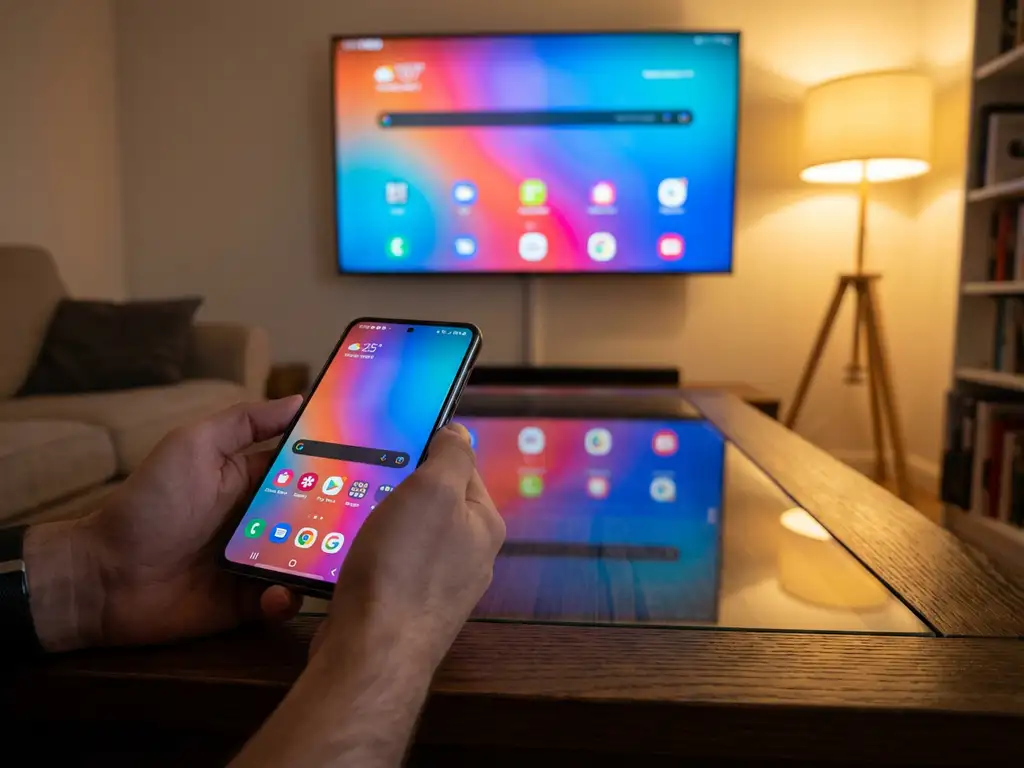
Android screen mirroring allows you to wirelessly display your phone or tablet screen on a TV, projector, or computer monitor. Most Android devices include built-in casting features such as Google Cast or Smart View, while third-party apps offer additional compatibility options. The process typically involves connecting both devices to the same Wi-Fi network and selecting your display from the available casting options.
What is screen mirroring, and how does it work on Android devices?
Screen mirroring is a wireless technology that duplicates your Android device’s display onto a larger screen in real time. Your phone or tablet transmits video and audio signals over your Wi-Fi network to compatible displays, creating an exact copy of what appears on your device’s screen.
Android devices use several protocols for screen mirroring. Google Cast is the most common method and is built into most modern Android phones and tablets. This technology connects to Chromecast devices, smart TVs with built-in casting, and other compatible displays. Some manufacturers, such as Samsung, include their own casting protocols, such as Smart View, for connecting to Samsung TVs.
The mirroring process works by encoding your device’s screen content into a video stream and then transmitting this data over your local Wi-Fi network. The receiving device decodes the stream and displays it on the larger screen. This happens continuously, allowing you to see your phone’s interface, apps, videos, and games on your TV without any cables.
Different Android manufacturers may use different names for their casting features. Samsung calls it Smart View, LG uses Screen Share, while HTC brands it as HTC Connect. Despite the different names, they all accomplish the same goal: wirelessly displaying your Android screen on compatible displays.
How do you enable built-in screen mirroring on Android phones and tablets?
To enable built-in Android screen mirroring, open your device’s Settings app, look for “Connected devices” or “Display,” and then select “Cast” or “Screen mirroring.” Your Android device will scan for available displays on your Wi-Fi network. Tap your desired TV or display from the list to start mirroring immediately.
The exact steps vary slightly between Android versions and manufacturers. On most devices, you can also access casting through the Quick Settings panel. Swipe down from the top of your screen twice to open Quick Settings, and then look for a “Cast,” “Smart View,” or “Screen Share” button. Tap this icon to see nearby compatible devices.
Before attempting to mirror, ensure both your Android device and the receiving display are connected to the same Wi-Fi network. Your TV or streaming device must support casting protocols such as Chromecast, Miracast, or your manufacturer’s specific standard. Many modern smart TVs include these features built in.
Some Android devices require you to enable Developer options for advanced mirroring features. Go to Settings > About phone, and then tap “Build number” seven times to unlock Developer options. Within Developer options, you’ll find additional wireless display settings that may improve compatibility with older displays.
Once connected, your Android screen will appear on the larger display with minimal delay. You can navigate your phone normally, and everything will be mirrored in real time, including apps, videos, photos, and games.
What should you do when Android screen mirroring isn’t working properly?
When Android screen mirroring fails, restart both your Android device and the receiving display, and then ensure they’re connected to the same Wi-Fi network. Check that your router supports 5 GHz connections, as screen mirroring performs better on faster network bands. Clear the cache of your casting app and try reconnecting.
Network issues cause most mirroring problems. Your Wi-Fi connection should provide at least 10–15 Mbps for smooth mirroring without lag or quality issues. Position your Android device closer to your router to improve signal strength. Avoid using public or guest networks, which often block the device-to-device communication required for casting.
Compatibility problems may prevent successful connections. Older smart TVs might not support newer Android casting protocols. Check your TV’s manual or settings menu to confirm it supports Chromecast, Miracast, or DLNA. Some displays require specific apps to be installed before they can accept mirrored content.
If you experience lag, stuttering, or poor video quality during mirroring, reduce the load on your Wi-Fi network by disconnecting other devices. Close unnecessary apps running in the background on your Android device. Temporarily lowering your phone’s screen resolution can also improve mirroring performance on slower networks.
Audio sync issues sometimes occur during screen mirroring. Go to your Android device’s sound settings and disable any audio enhancement features or equalisers. Some devices allow you to adjust audio delay in the casting settings to synchronise sound with the mirrored video. For additional troubleshooting guidance, consult our comprehensive knowledge base.
Which screen mirroring apps work best for Android devices?
The best Android screen mirroring apps include Google Home for Chromecast devices, Samsung SmartThings for Samsung TVs, and universal apps such as AirBeamTV that work across multiple TV brands. These apps offer reliable connections, good video quality, and support for both screen mirroring and media casting.
Third-party mirroring apps provide broader compatibility than built-in features. Apps such as AirBeamTV work with most major TV brands, including Samsung, LG, Sony, Roku, Android TV, and Fire TV, without requiring additional hardware. The setup process involves downloading the app, opening it on your device, selecting your TV from the available options, and clicking Start Mirroring to wirelessly display your screen.
Different apps excel in specific areas. Google Home integrates seamlessly with Chromecast devices and products in the Google ecosystem. It handles YouTube, Netflix, and other streaming services particularly well. Samsung SmartThings works best with Samsung smart TVs and offers features such as multi-device control and automation.
Universal mirroring apps typically offer free trials before requiring payment for full features. These apps often include additional functionality such as audio streaming, HD video support, and compatibility with streaming platforms that may not work with built-in casting. Some apps require installing companion software on your TV or streaming device.
When choosing a mirroring app, consider your specific TV brand, desired features, and budget. Free apps may include advertisements or watermarks, while paid versions typically offer better performance, customer support, and regular updates for improved compatibility with new Android versions and TV models. If you’re also interested in mirroring other devices, AirBeamTV offers solutions for iPhone and iPad screen mirroring as well as Mac screen mirroring.
How AirBeamTV helps with Android screen mirroring
AirBeamTV provides a comprehensive solution for Android screen mirroring that eliminates the common compatibility and connection issues users face with built-in casting features. The app delivers reliable wireless screen mirroring across all major TV brands and streaming devices, ensuring you can connect your Android device regardless of your display type. Key benefits include:
• Universal compatibility – Works with Samsung, LG, Sony, Roku, Fire TV, Android TV, and more without additional hardware
• Simple setup – Connect in seconds by selecting your TV from the app and tapping Start Mirroring
• High-quality streaming – Supports HD video with optimized performance for smooth, lag-free mirroring
• No network restrictions – Bypasses common Wi-Fi limitations that prevent built-in casting from working
• Regular updates – Continuous compatibility improvements for new Android versions and TV models
Experience seamless Android screen mirroring today by downloading AirBeamTV and enjoying your mobile content on the big screen with professional-grade reliability and performance. For personalized support or technical assistance, feel free to contact us. You can also enhance your setup with our universal remote control TV app for a complete home entertainment experience.
