




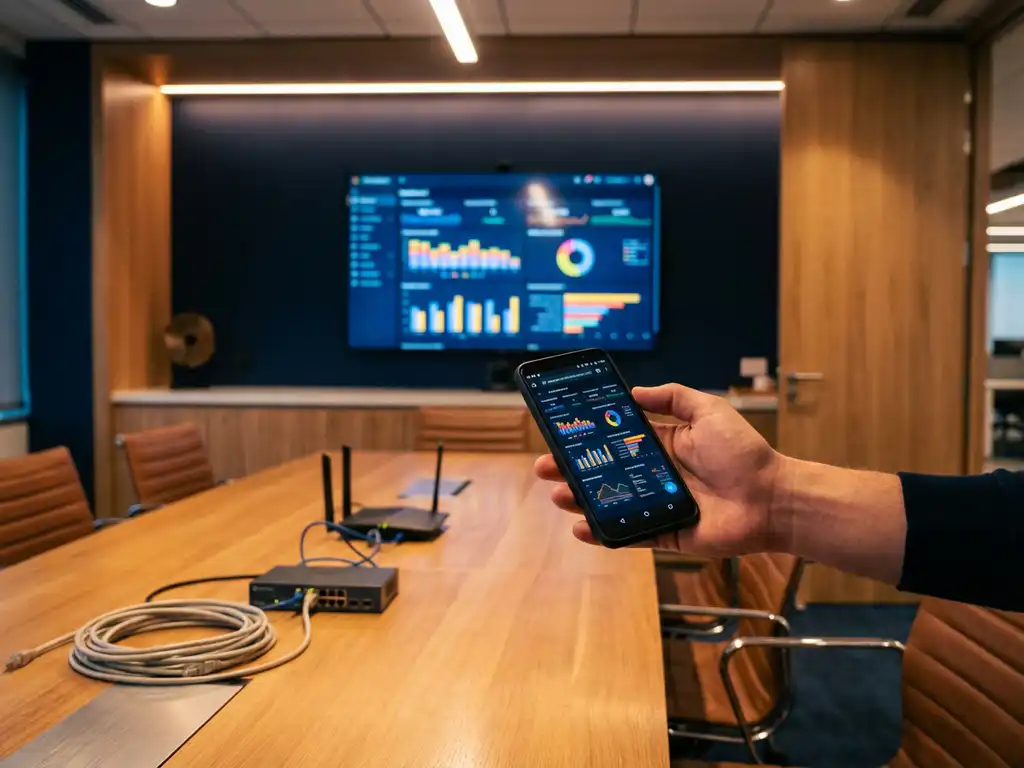
Android screen mirroring in corporate environments presents unique challenges that don’t exist on home networks. While consumer Wi-Fi networks are typically open and permissive, business networks implement strict security protocols, firewalls, and access controls that can block standard mirroring connections. Understanding these corporate network restrictions is essential for successfully casting your Android device to conference room displays and meeting room TVs.
The good news is that with proper configuration and the right approach, you can achieve reliable Android screen mirroring even in the most secure business environments. Let’s explore the specific challenges and practical solutions that work in corporate settings.
What Makes Android Screen Mirroring Difficult in Corporate Networks?
Corporate networks implement multiple security layers that actively prevent standard Android screen mirroring protocols from functioning properly. These networks use network segmentation, device isolation policies, and strict port blocking that treat mirroring traffic as potentially suspicious activity.
The primary obstacle is network isolation. Corporate IT departments typically separate devices into different network segments to prevent unauthorized access between systems. Your Android phone might connect to a guest network while the conference room TV operates on a separate corporate VLAN, making direct communication impossible even though both devices appear to be connected to the same building’s Wi-Fi.
Additionally, corporate networks often block the specific ports and protocols that screen mirroring applications require. Standard mirroring uses discovery protocols such as mDNS and DLNA that corporate firewalls frequently filter out as potential security risks. This creates a situation in which your Android device can access the internet but cannot detect or connect to nearby smart TVs.
Bandwidth management also plays a role. Corporate networks prioritize business-critical traffic over multimedia streaming, which can result in poor mirroring quality even when connections are established. The network may throttle or deprioritize the high-bandwidth video streams that make screen mirroring effective.
How Do Corporate Firewalls Block Screen Mirroring Apps?
Corporate firewalls block Android screen mirroring by filtering specific network ports, blocking device discovery protocols, and preventing direct peer-to-peer connections between devices on the network. These security measures treat mirroring traffic as potentially unauthorized data transfer.
Most screen mirroring applications rely on ports 7000–7100 and various UDP ports to establish connections. Corporate firewalls maintain strict port policies that allow only essential business traffic, automatically blocking these mirroring ports. The firewall interprets attempted connections on these ports as potential security threats rather than legitimate business communication.
Device discovery represents another major blocking point. Android mirroring apps use protocols such as Bonjour, mDNS, and UPnP to automatically detect available TVs and displays. Corporate firewalls typically disable these discovery protocols because they can expose network topology information that security policies aim to protect.
Deep packet inspection adds another layer of complexity. Advanced corporate firewalls analyze the actual content of network traffic, not just port numbers. They can identify and block multimedia streaming patterns even when the traffic appears to use approved ports, preventing successful mirroring connections.
What Network Permissions Do You Need for Android Mirroring?
Successful Android screen mirroring in corporate environments requires specific network permissions, including port access for TCP 7000–7100, UDP multicast permissions, allowances for device discovery protocols, and same-subnet connectivity between your Android device and the target display.
Your IT department needs to configure firewall rules that permit bidirectional communication on the required mirroring ports. This includes both the initial handshake ports and the streaming ports used for actual video transmission. Without these specific port permissions, mirroring apps cannot establish stable connections, regardless of which application you choose.
Multicast traffic permissions are equally critical. Android mirroring relies on multicast UDP packets for device discovery and connection maintenance. Corporate networks often disable multicast traffic by default, so explicit permissions must be granted for the multicast addresses used by mirroring protocols.
Network administrators also need to ensure that your Android device and the target TV or display are on the same logical network segment. This might require configuring VLAN bridging or adjusting network segmentation policies to allow communication between device categories that are normally isolated.
Quality of Service (QoS) settings should prioritize multimedia traffic during scheduled meeting times to ensure smooth mirroring performance. This prevents network congestion from degrading the mirroring experience during important presentations or video conferences.
Which Android Mirroring Methods Work Best in Corporate Environments?
Cloud-based mirroring solutions and enterprise-grade applications designed for corporate network compatibility work best in business environments, as they bypass many traditional firewall restrictions by routing connections through approved internet channels rather than relying on direct local network communication.
AirBeamTV offers reliable Android screen mirroring that works effectively in corporate settings because it adapts to various network configurations and provides stable wireless connections without requiring complex IT setup. The app’s compatibility with major smart TV brands makes it suitable for most conference room displays commonly found in business environments.
Web-based mirroring presents another effective option. Solutions that operate through standard web browsers use the same network ports as regular internet traffic, making them less likely to trigger corporate firewall blocks. These browser-based approaches can mirror content over approved HTTP and HTTPS connections.
Hardware-based solutions such as dedicated mirroring devices or wireless HDMI transmitters provide the most reliable performance in corporate environments. These systems create their own wireless networks or use direct connections that bypass corporate network restrictions entirely, though they require additional equipment investment.
For maximum compatibility, consider solutions that offer multiple connection methods. Apps that can switch between Wi-Fi Direct, standard network mirroring, and internet-based connections provide fallback options when primary methods encounter corporate network restrictions. A universal remote control TV app can also complement your mirroring setup by giving you seamless control over connected displays without additional hardware.
How Do You Configure Network Settings for Business Screen Mirroring?
Configure business screen mirroring by working with your IT department to allow the required ports, enable device discovery protocols on the corporate network, and ensure your Android device and target displays connect to compatible network segments with appropriate bandwidth allocation.
Start by identifying the specific network requirements for your chosen mirroring solution. Document the required ports, protocols, and network access patterns, then submit a formal request to your IT security team. Most corporate networks can accommodate mirroring traffic with proper advance planning and a security review.
Request temporary or meeting-room-specific network policies that enable mirroring during scheduled presentation times. Many organizations implement time-based firewall rules that automatically allow mirroring traffic during business hours while maintaining security restrictions during off-hours.
Consider implementing a dedicated presentation network segment. This approach creates a separate Wi-Fi network specifically for meeting room activities, with relaxed security policies that support various mirroring and presentation technologies while maintaining isolation from core business systems.
Test your mirroring setup well before important meetings or presentations. Corporate network changes can take time to implement, and testing helps identify potential issues while there’s still time to work with IT on solutions. Always have a backup presentation method available in case network-based mirroring encounters unexpected restrictions. If you need additional troubleshooting assistance, consult the comprehensive knowledge base for detailed setup guides, or contact support for personalized help. For those using other devices, similar principles apply to iPhone and iPad mirroring as well as Mac screen mirroring in corporate environments.
