




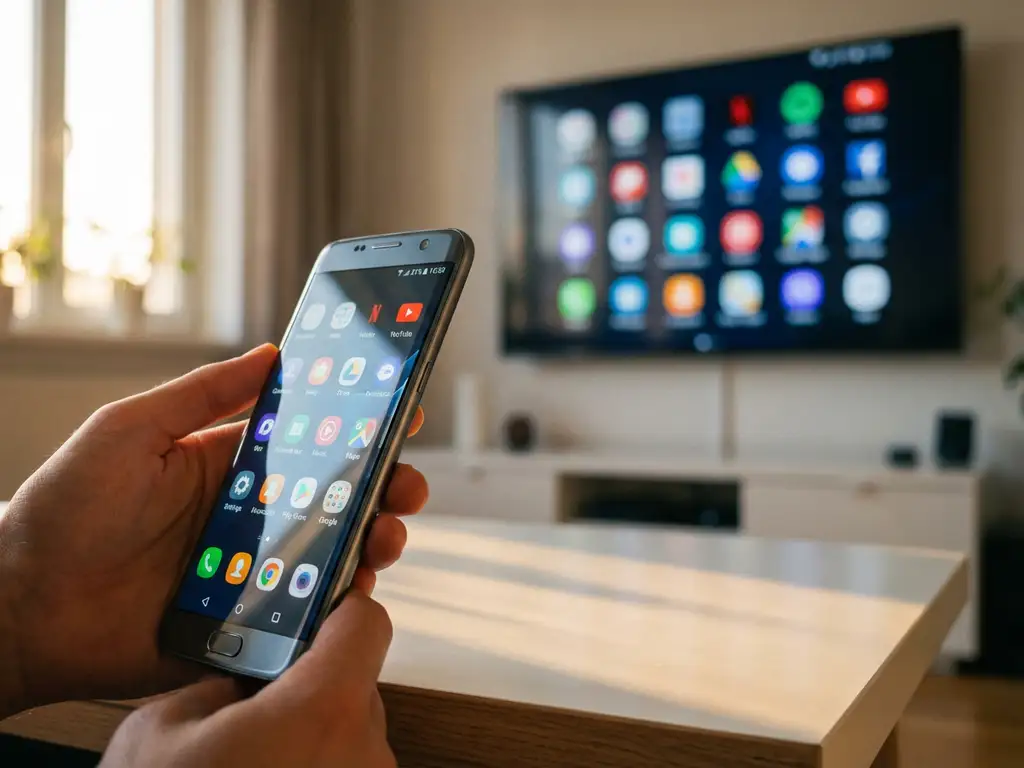
Android screen mirroring through a mobile hotspot opens up new possibilities for wireless casting when traditional Wi-Fi networks aren’t available. Whether you’re traveling, working remotely, or simply don’t have access to a stable internet connection, using your phone’s hotspot can bridge the gap between your Android device and your TV.
Understanding how mobile data affects screen mirroring performance helps you make informed decisions about when and how to use this feature. Let’s explore the practical aspects of mirroring your Android screen through hotspot connections.
Can you mirror an Android screen through a mobile hotspot?
Yes, you can mirror your Android screen through a mobile hotspot by creating a Wi-Fi network that connects both your casting device and your receiving device. The hotspot acts as a local network bridge, enabling wireless screen mirroring without requiring traditional broadband internet.
This setup works because screen mirroring apps like AirBeamTV primarily need a shared network connection rather than internet access for core mirroring functionality. Your mobile device creates a local Wi-Fi network that your TV or streaming device can join, establishing the connection needed for wireless casting.
The process involves enabling your phone’s hotspot feature, connecting your smart TV or streaming device to this hotspot network, and then launching your screen mirroring app. Most modern Android devices support hotspot functionality, making this a viable solution for situations where traditional Wi-Fi isn’t available.
How does screen mirroring work with mobile data?
Screen mirroring with mobile data works by transmitting your device’s display content over the hotspot’s local network for the actual mirroring process, while using your cellular connection to keep internet-dependent apps and services working. Mobile data supports streaming services and online content, while the local hotspot network handles the screen casting.
When you mirror content that requires internet access, such as YouTube videos or Netflix shows, your device pulls this content through your mobile data connection. The mirroring app then transmits this content, along with your entire screen display, through the hotspot network to your TV.
Local content like photos, videos stored on your device, or apps that don’t require internet access can be mirrored without consuming additional mobile data beyond what’s needed to maintain the hotspot connection. This makes screen mirroring more data-efficient for locally stored content.
What are the data usage requirements for Android screen mirroring?
Android screen mirroring through a hotspot typically uses minimal mobile data for the mirroring process itself, consuming approximately 1-5 MB per hour for basic screen casting. However, streaming online content while mirroring can use 1-3 GB per hour, depending on video quality and the streaming service.
The actual mirroring function requires very little data because it primarily uses the local hotspot network. Your mobile data consumption comes from:
- Maintaining the hotspot connection (minimal usage)
- Streaming online video content (high usage)
- Loading web pages or apps that require internet access
- Downloading app updates or content
To minimize data usage, consider mirroring locally stored content, reducing streaming quality settings, or downloading content for offline viewing before mirroring sessions.
How do you set up Android screen mirroring through a hotspot?
Setting up Android screen mirroring through a hotspot requires three main steps: enable the mobile hotspot on your Android device, connect your TV to the hotspot network, and then launch your screen mirroring app to begin casting wirelessly.
Here’s the detailed setup process:
- Enable the hotspot on your Android device through Settings > Connections > Mobile Hotspot and Tethering
- Configure your hotspot name and password for security
- Connect your smart TV or streaming device to your phone’s hotspot network
- Download and open a screen mirroring app like AirBeamTV on your Android device
- Select your TV from the available devices and start mirroring
Some smart TVs may require downloading a companion receiver app, depending on your TV brand and the mirroring solution you choose. This setup eliminates the need for cables or additional hardware while providing flexible wireless casting.
What problems can occur with hotspot screen mirroring?
Common problems with hotspot screen mirroring include connection delays, reduced video quality, increased battery drain, and potential data overage charges. Mobile data limitations and network stability can also affect the overall mirroring experience compared to traditional Wi-Fi connections.
Typical issues you might encounter include:
- Latency between your device and the TV display
- Reduced streaming quality due to mobile data speed limitations
- Faster battery drain from running the hotspot and mirroring simultaneously
- Interrupted connections if mobile signal strength varies
- Data usage exceeding your mobile plan limits
To minimize these problems, ensure strong cellular signal strength, monitor your data usage regularly, keep devices charged, and use power-saving modes when possible. Position yourself near windows or in areas with better cellular reception for more stable hotspot performance during mirroring sessions. You can also enhance your setup with a universal remote control TV app for convenient device management. For additional troubleshooting tips and detailed guides, check the knowledge base or contact us for support. You can also explore other mirroring options like mirroring iPhone iPad screen or mirroring your Mac screen for different device setups.
