




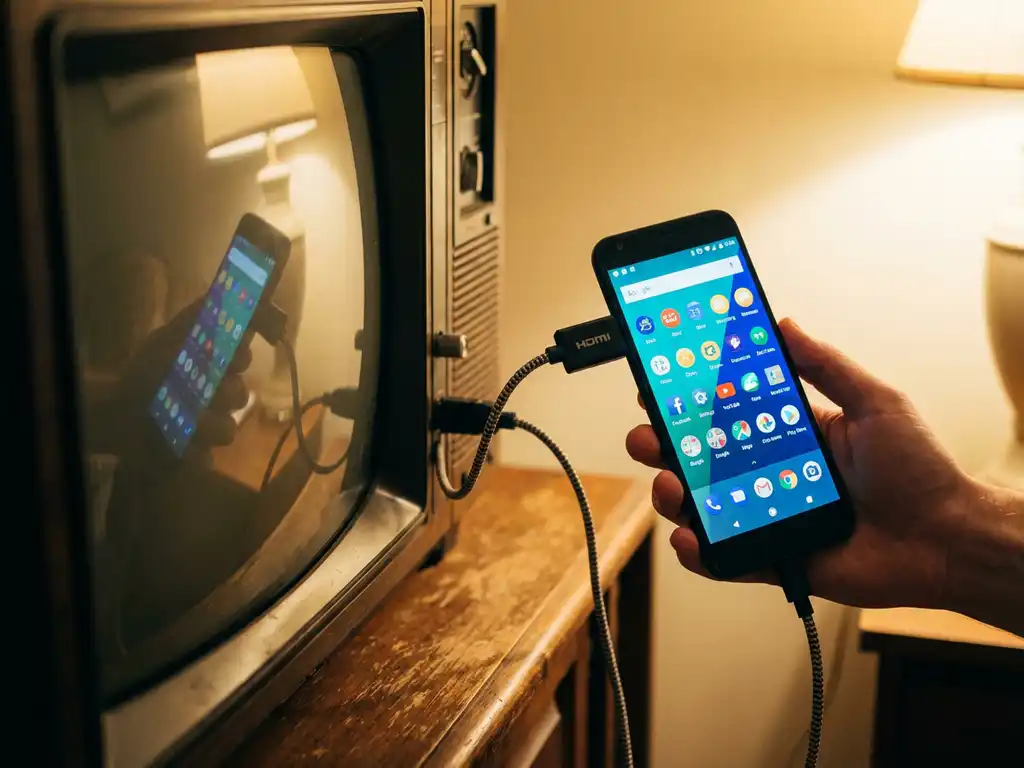
Want to enjoy your Android content on a bigger screen but stuck with an older TV that lacks smart features? You’re not alone. Many people assume they need to upgrade their entire television just to mirror Android to TV, but that’s simply not true.
The good news is that there are several straightforward ways to bring Android screen mirroring to any older TV model. With the right approach and equipment, you can wirelessly cast your Android phone or tablet to virtually any television, regardless of its age or built-in capabilities.
Can you mirror Android to a TV that isn’t smart?
Yes, you can absolutely mirror your Android device to a non-smart TV by adding a streaming device like Chromecast, Fire TV Stick, or Roku. These affordable dongles plug into your TV’s HDMI port and provide the wireless connectivity needed for Android screen mirroring.
The key is understanding that older TVs simply lack the built-in Wi-Fi and processing power required for wireless mirroring. However, they still have HDMI ports that can receive signals from external devices. By connecting a streaming device to your TV, you essentially transform it into a smart TV capable of receiving wireless signals from your Android phone or tablet.
This approach works with virtually any TV manufactured in the last 15 years, as long as it has an HDMI input. Even older TVs with only composite or component inputs can work with the right adapters, though the video quality may be limited.
What equipment do you need to cast Android to older TVs?
To cast Android to older TVs, you need a streaming device (Chromecast, Fire TV Stick, or Roku), an HDMI cable if one isn’t included, a stable Wi-Fi network, and a screen mirroring app like AirBeamTV installed on your Android device.
The streaming device serves as the bridge between your Android device and your TV. Popular options include:
- Google Chromecast – Direct casting support for many apps
- Amazon Fire TV Stick – Supports multiple mirroring apps
- Roku devices – Compatible with various casting solutions
- Android TV boxes – Full Android interface on your TV
Most streaming devices come with their own HDMI cable, but you may need to purchase one separately. Your Wi-Fi network is crucial because both your Android device and the streaming device must connect to the same network for mirroring to work. Without this shared connection, the devices cannot communicate with each other.
How does wireless screen mirroring work with streaming devices?
Wireless screen mirroring works by establishing a Wi-Fi connection between your Android device and the streaming device attached to your TV. Your phone sends video and audio data over your home network to the streaming device, which then displays the content on your television screen.
The process involves several steps happening simultaneously. First, your Android device captures everything displayed on its screen and compresses this data into a format suitable for transmission. Next, this data travels through your Wi-Fi router to the streaming device connected to your TV. Finally, the streaming device decodes the signal and outputs it through the HDMI port to your television.
This wireless transmission happens in near real time, typically with only a slight delay of one to two seconds. The quality of your Wi-Fi network directly impacts the mirroring experience. A strong, stable connection ensures smooth playback, while a weak signal may result in lag, pixelation, or dropped connections.
Which streaming device works best for Android mirroring?
Amazon Fire TV Stick and Android TV devices generally work best for Android mirroring because they support multiple mirroring apps and provide reliable wireless connections. Chromecast also offers excellent compatibility but may be limited to specific apps that support casting.
The Fire TV Stick stands out for its versatility and affordability. It supports numerous screen mirroring applications available through the Amazon Appstore, including specialized apps for different Android device brands. The setup process is straightforward, and the device maintains stable connections even with moderate Wi-Fi speeds.
Android TV boxes offer the most comprehensive solution since they run the same operating system as your Android phone. This native compatibility often results in smoother mirroring experiences and broader app support. However, they typically cost more than basic streaming sticks.
Chromecast works exceptionally well for apps that specifically support Google Cast technology, such as YouTube, Netflix, and Spotify. However, for full-screen mirroring of your entire Android interface, you may need additional apps or workarounds. If you’re also interested in mirroring iPhone iPad screen or need to mirror your Mac screen, similar solutions are available for those devices.
How do you set up screen mirroring on an older TV?
To set up screen mirroring on an older TV, connect your streaming device to an HDMI port, download a mirroring app like AirBeamTV on your Android device, ensure both devices are connected to the same Wi-Fi network, then open the app and select your TV to start mirroring.
Begin by physically connecting your streaming device to your TV’s HDMI port and powering it on. Follow the device’s initial setup instructions to connect it to your Wi-Fi network. This step is crucial because your Android device and streaming device must share the same network connection.
Next, download your chosen screen mirroring app from the Google Play Store on your Android device. Apps like AirBeamTV automatically scan for available devices on your network, making the connection process simple. Open the app and look for your streaming device in the list of available receivers.
Once you select your TV or streaming device from the app’s menu, tap “Start Mirroring” and then “Start Broadcast” when prompted. Your Android screen should appear on your television within seconds. You can now navigate your phone normally, and everything will display on the big screen, including videos, photos, apps, and games. You can also use a universal remote control TV app to manage your viewing experience. If you encounter any issues during setup, check the knowledge base for troubleshooting tips or contact us for additional support.
