




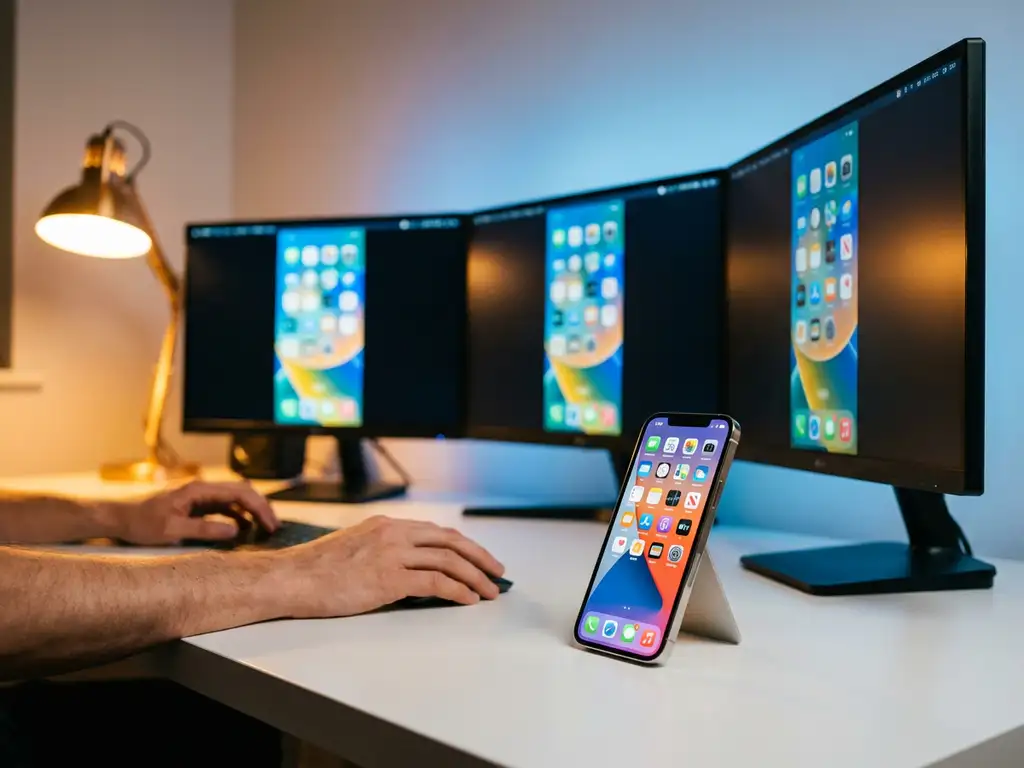
Many iPhone users wonder whether they can display their screen on multiple monitors or TVs at the same time. Whether you want to share content with different groups in separate rooms or create a multi-display setup for presentations, understanding your iPhone’s mirroring capabilities is essential.
While the iPhone’s built-in screen-mirroring features have certain limitations, there are practical solutions that can help you achieve multi-display mirroring. Let’s explore what’s possible and how to make it work for your specific needs.
Can you mirror iPhone to multiple monitors at the same time?
No, the iPhone cannot natively mirror its screen to multiple monitors simultaneously using built-in features like AirPlay. Apple’s standard screen-mirroring functionality is designed to connect to one display at a time, whether that’s an Apple TV, a compatible smart TV, or an external monitor.
However, there are workaround solutions that can help you achieve multi-display mirroring. Some third-party apps and hardware solutions can duplicate your iPhone screen to multiple displays, though these typically require additional setup and may not provide the same seamless experience as single-display mirroring.
This limitation exists because iPhone screen mirroring creates a direct wireless connection between your device and the receiving display. When you initiate AirPlay or another mirroring protocol, your iPhone establishes a dedicated connection that consumes significant bandwidth and processing power. Supporting multiple simultaneous connections would strain both your device’s resources and your Wi-Fi network.
For most users, the single-display limitation isn’t a major issue, since screen mirroring is typically used to share content with one audience at a time. If you need true multi-display functionality, you might consider alternative approaches, such as using a computer as an intermediary or specialized presentation hardware.
What apps allow iPhone screen mirroring to multiple displays?
Very few apps can truly mirror your iPhone screen to multiple displays simultaneously. Most screen-mirroring applications, including popular options, are designed to connect to one display at a time due to technical and bandwidth limitations.
Some specialized presentation apps offer limited multi-display support, but these typically work by sending content to multiple devices rather than by providing true screen mirroring. For example, certain conference-room solutions allow you to share specific content, such as presentations or documents, to multiple screens, but they don’t mirror your entire iPhone screen in real time.
Third-party screen-mirroring apps generally follow the same one-to-one connection model as Apple’s built-in AirPlay. When you use AirBeamTV for iPhone screen mirroring, you select one target TV or display from the available options. The app creates a dedicated connection to that specific device.
If you need to display the same content on multiple screens, your best option is usually to mirror to one primary display and then use that display’s built-in features or additional hardware to duplicate the signal to other monitors. Many smart TVs and streaming devices offer universal remote control TV app output options that can help extend your content to additional displays.
How do you set up iPhone mirroring to multiple TVs wirelessly?
Setting up iPhone mirroring to multiple TVs wirelessly requires using each TV individually rather than making simultaneous connections. You can connect to different TVs one at a time by switching your mirroring target as needed through your iPhone’s Control Center or a mirroring app.
To prepare multiple TVs for iPhone mirroring, ensure each TV is connected to the same Wi-Fi network as your iPhone. If you’re using AirPlay, make sure each TV supports AirPlay 2 or has an Apple TV connected. For third-party solutions, install the appropriate receiver app on each smart TV or streaming device.
When you want to switch between TVs, open your iPhone’s Control Center, tap Screen Mirroring, and select your desired TV from the list of available devices. The connection will transfer from your current display to the newly selected one. This process typically takes just a few seconds.
For presentations or situations where you need content on multiple screens simultaneously, consider using a smart TV’s built-in casting features to duplicate its signal to other displays. Some smart TVs can output received content to additional monitors through HDMI or other connections, effectively creating a multi-display setup from a single iPhone mirroring session.
Why does iPhone screen mirroring lag with multiple monitors?
iPhone screen mirroring can lag with multiple monitors because your device and Wi-Fi network become overwhelmed when trying to process and transmit data to multiple destinations simultaneously. Each additional display connection requires significant bandwidth and processing power, which can exceed your iPhone’s capabilities.
The lag occurs because your iPhone must encode your screen content, compress it for transmission, and send it over your Wi-Fi network to each connected display. When multiple displays are involved, this process multiplies the computational load and network traffic, creating bottlenecks that result in delayed or choppy video.
Your Wi-Fi network also becomes a limiting factor with multiple connections. Screen mirroring requires substantial bandwidth to maintain smooth video quality, and most home networks struggle to support multiple high-quality video streams simultaneously. The available bandwidth is divided among connections, reducing quality and increasing latency for all displays.
Additionally, each receiving device must decode and display the incoming video stream, which introduces its own processing delays. When these delays compound across multiple displays, the cumulative lag becomes noticeable and can make the mirroring experience frustrating. For troubleshooting these issues, you can check our knowledge base for optimization tips.
What’s the difference between mirroring and extending iPhone screen to multiple displays?
Mirroring displays the exact same content on all connected screens, while extending would allow different content on each display, treating them as separate desktop spaces. However, the iPhone does not support extending its screen to multiple displays the way a computer does.
When you mirror your iPhone screen, every connected display shows identical content in real time. If you open an app, scroll through photos, or play a video, all mirrored displays show exactly the same thing simultaneously. This is useful for presentations or sharing content with multiple audiences viewing the same material.
Screen extension, by contrast, would allow you to use additional displays as separate workspace areas. On a computer, you might have email on one monitor and a spreadsheet on another. This functionality requires sophisticated display management that mobile devices like the iPhone don’t currently support, though Android devices have similar limitations.
The iPhone’s display architecture is designed around a single-screen experience. Even when connected to external displays, the iPhone treats them as mirrors of its main screen rather than independent display zones. This limitation exists because iOS is optimized for touch-based interaction on a single display, unlike desktop operating systems, which are built to manage multiple independent screens effectively.
