




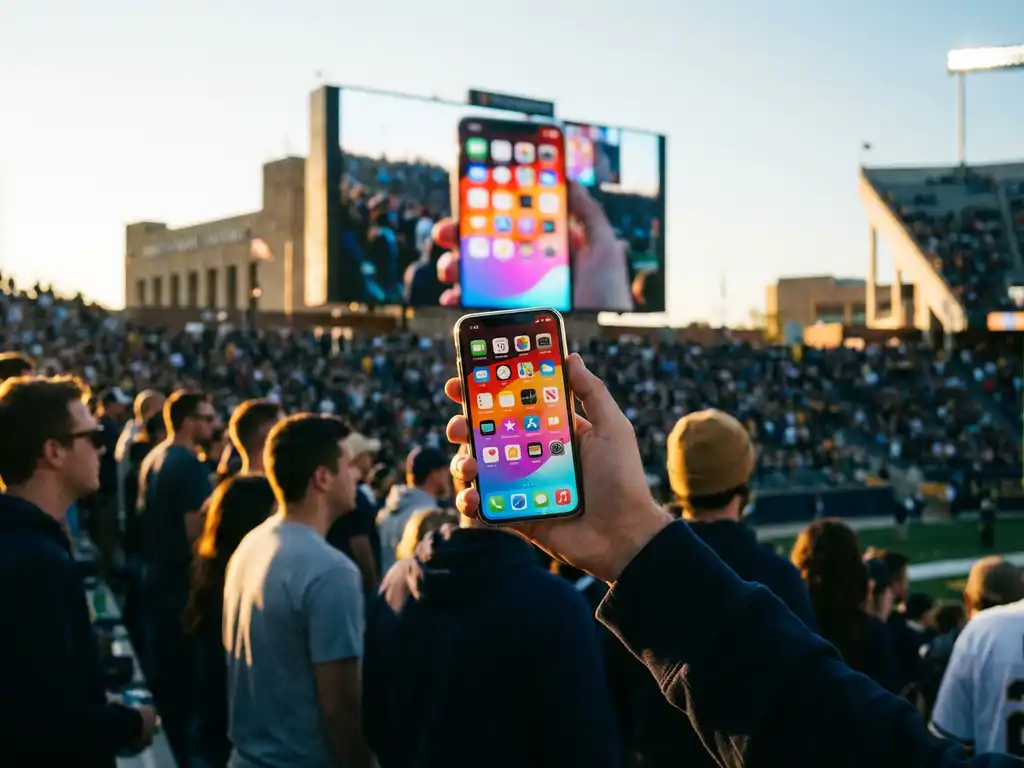
Outdoor events, camping trips, and backyard gatherings often call for sharing content from your iPhone on a bigger screen. Whether you’re presenting to a group, streaming a movie under the stars, or displaying photos from your latest adventure, mirroring your iPhone screen to an outdoor display opens up exciting possibilities for entertainment and communication.
While outdoor display setups require a few additional considerations compared with indoor screen mirroring, the process remains straightforward with the right approach. Understanding your equipment options and setup requirements will help you successfully mirror your iPhone screen to an outdoor display without the frustration of dropped connections or compatibility issues.
What Are Outdoor Display Systems, and Can iPhones Mirror to Them?
Outdoor display systems are weatherproof or weather-resistant screens designed for use outside, including portable projectors, outdoor TVs, LED displays, and mobile presentation screens. Yes, iPhones can mirror to most outdoor display systems that support wireless connectivity or have HDMI inputs for wireless adapters.
These systems range from simple portable projectors that connect via wireless dongles to sophisticated outdoor smart TVs with built-in Wi-Fi capabilities. Many outdoor displays function similarly to indoor smart TVs, accepting wireless connections through apps or streaming devices. The key difference lies in their ruggedized construction and enhanced brightness levels to combat outdoor lighting conditions.
Popular outdoor display options include battery-powered portable projectors, weatherproof outdoor TVs, and large LED screens used for events. Most modern outdoor displays either include smart TV functionality or can accommodate streaming devices like Fire TV Sticks or Roku players, making iPhone screen mirroring possible through dedicated apps.
How Does iPhone Screen Mirroring Work With Outdoor Displays?
iPhone screen mirroring to outdoor displays works through Wi-Fi networks, either by connecting directly to smart display systems or through wireless adapters plugged into the display’s HDMI port. The iPhone transmits its screen content wirelessly to the receiving device, which then displays it on the outdoor screen.
The process relies on your iPhone and the display system connecting to the same wireless network. For outdoor setups, this often means creating a mobile hotspot from your iPhone or using a portable Wi-Fi router. Screen mirroring apps establish the connection between your iPhone and the display, encoding your screen content and transmitting it in real time.
Unlike indoor setups, where you might use Apple TV or built-in AirPlay, outdoor displays typically require third-party screen mirroring solutions. These apps work by installing a receiver component on the display system and a sender app on your iPhone, creating a direct wireless link that bypasses the need for Apple’s proprietary casting technology.
What Equipment Do You Need for iPhone-to-Outdoor-Display Mirroring?
Essential equipment includes your iPhone, an outdoor display with an HDMI input or smart TV capabilities, a reliable Wi-Fi connection, and a screen mirroring app. You may also need a wireless streaming device, a portable router, and a power source, depending on your specific setup.
For basic setups, a portable projector or outdoor TV with a streaming device like Fire TV or Roku provides the foundation. These devices need power, so consider battery packs for projectors or access to electrical outlets for larger displays. The streaming device serves as the receiver for your iPhone’s mirrored content.
Network connectivity is crucial for outdoor mirroring. Options include using your iPhone’s hotspot feature, bringing a portable Wi-Fi router, or leveraging existing outdoor Wi-Fi, if available. Some users prefer dedicated mobile routers for better range and stability, especially when multiple devices need internet access during the event.
Power management becomes more complex outdoors. Portable projectors often include built-in batteries, while outdoor TVs require AC power or large battery systems. Plan for extension cords, portable power stations, or generator access to keep your display system running throughout your event.
How Do You Set Up iPhone Screen Mirroring for Outdoor Use?
Set up iPhone screen mirroring for outdoor use by first establishing Wi-Fi connectivity, then installing a screen mirroring app on both your iPhone and the display system, followed by connecting the devices and starting the mirroring session. The entire process typically takes 5–10 minutes once the equipment is powered on.
Start by powering on your outdoor display and any connected streaming devices. Create a Wi-Fi network using your iPhone’s hotspot feature or a portable router, ensuring both your iPhone and the display system connect to the same network. Test the internet connection to confirm stability before proceeding.
Download a screen mirroring app compatible with your display system. Install the corresponding receiver app on your streaming device or smart display, if required. Open the mirroring app on your iPhone, select your outdoor display from the list of available devices, and tap “Start Mirroring” to begin the connection process.
Once connected, your iPhone screen appears on the outdoor display. Test the connection by opening different apps and checking for smooth video playback. Adjust the display brightness and audio levels as needed for outdoor viewing conditions. Keep your iPhone charged and stay close to the Wi-Fi source for optimal performance.
Why Won’t My iPhone Connect to My Outdoor Display System?
iPhone connection issues with outdoor displays typically stem from Wi-Fi network problems, app compatibility issues, or device-setting conflicts. The most common culprit is that both devices are not on the same Wi-Fi network, or the signal is weak in outdoor environments.
Check that your iPhone and display system are connected to the same Wi-Fi network. Outdoor environments can suffer from poor signal strength, so move closer to your Wi-Fi source or router. Restart both your iPhone and the display system, then try connecting again.
App-related issues often occur when you’re using an incompatible screen mirroring application or an outdated software version. Ensure you’re using a screen mirroring app specifically designed for your display brand or streaming device. Update both the iPhone app and any receiver apps on your display system to the latest versions. If you continue experiencing issues, check our knowledge base for troubleshooting guides.
Environmental factors unique to outdoor setups can interfere with connections. Other electronic devices, metal structures, or distance from the Wi-Fi source may disrupt the signal. Try reducing the distance between your iPhone and the display, eliminate potential sources of interference, and consider using a more powerful Wi-Fi router for outdoor coverage. For additional assistance with your setup, feel free to contact us. If you’re also working with other devices, you might find our guides on mirroring Android to TV or mirroring your Mac screen helpful for comprehensive outdoor display solutions. You can also enhance your outdoor setup with a universal remote control TV app to manage your display directly from your iPhone.
