




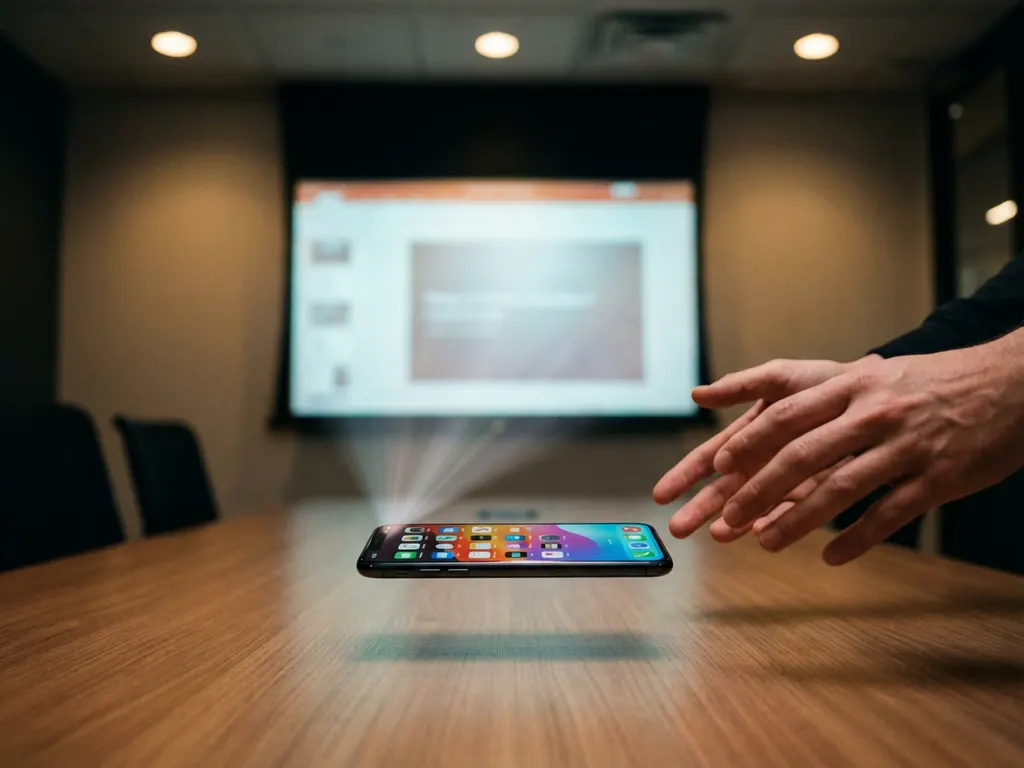
Presenting your iPhone screen on a conference room projector can transform meetings, making presentations more engaging and collaborative. Whether you’re sharing slides, demonstrating apps, or walking through documents, iPhone screen mirroring gives you the flexibility to move around the room while keeping everyone focused on your content.
The good news is that modern conference rooms offer both wired and wireless options for connecting your iPhone to a projector. Understanding your equipment options and connection methods will help you choose the best approach for your specific meeting setup and ensure a smooth presentation experience.
What equipment do you need to mirror an iPhone to a conference room projector?
To mirror your iPhone to a conference room projector, you need either a Lightning-to-HDMI adapter for a wired connection or a wireless screen-mirroring solution that works with your projector or a connected device. Many modern conference rooms include smart projectors, Apple TV units, or wireless presentation systems that support iPhone mirroring.
For wired connections, you’ll need Apple’s Lightning Digital AV Adapter and an HDMI cable. This adapter plugs directly into your iPhone’s charging port and connects to any projector with an HDMI input. The setup is straightforward and provides a reliable connection that works in any conference room with basic projection equipment.
Wireless options vary depending on your conference room setup. If the projector is connected to an Apple TV, you can use AirPlay directly from your iPhone. For projectors connected to smart devices or computers, screen-mirroring apps provide broader compatibility without requiring specific hardware. Many conference rooms now feature wireless presentation systems from companies like Barco or Crestron that support direct iPhone connections.
The key is identifying what’s already available in your conference room before your meeting. Check whether there’s an Apple TV, a smart projector, or a wireless presentation system that can receive iPhone signals directly.
How do you connect your iPhone to a conference room projector wirelessly?
To connect your iPhone wirelessly to a conference room projector, ensure both devices are on the same Wi-Fi network, then use either AirPlay (if an Apple TV is connected) or a screen-mirroring app that’s compatible with your projector’s smart device or connected computer.
If your conference room has an Apple TV connected to the projector, the process is simple. Swipe down from the upper-right corner of your iPhone to open Control Center, tap Screen Mirroring, and select the Apple TV from the list. Your iPhone screen will appear on the projector within seconds.
For conference rooms without an Apple TV, screen-mirroring apps offer broader compatibility. Download a mirroring app that works with your conference room’s setup, whether it’s connected to a smart TV, streaming device, or computer. Open the app, select the target device from the available options, and tap “Start Mirroring” to begin wireless projection.
Before your meeting, test the connection to ensure everything works smoothly. Join the conference room’s Wi-Fi network and verify that your iPhone can detect the projection device. This preparation prevents technical delays during your presentation.
Why won’t my iPhone connect to the conference room projector?
iPhone connection issues with conference room projectors typically stem from Wi-Fi network problems, incompatible devices, or incorrect settings. The most common cause is that your iPhone and the projector’s connected device aren’t on the same Wi-Fi network, which is required for wireless mirroring.
Network connectivity is the primary culprit in most connection failures. Corporate Wi-Fi networks often have security restrictions that prevent device-to-device communication. Ask your IT department about guest networks or presentation-specific Wi-Fi that allows screen mirroring. Some conference rooms have dedicated networks specifically for wireless presentations.
Device compatibility can also cause connection problems. Older projectors may not support modern iPhone mirroring protocols, and some corporate presentation systems require specific apps or authentication. Check whether your conference room requires a particular app download or has instructions posted for iPhone connections.
Settings issues on your iPhone can block connections, too. Ensure Bluetooth and Wi-Fi are enabled, and check that your iPhone isn’t in Do Not Disturb mode, which can interfere with AirPlay discovery. Restarting both your iPhone and the conference room’s wireless system often resolves temporary connection glitches. If you continue experiencing issues, consult our knowledge base for additional troubleshooting steps.
What’s the difference between wired and wireless iPhone projection methods?
Wired iPhone projection uses a Lightning-to-HDMI adapter and cable for a direct connection to a projector, providing stable video quality and broad compatibility. Wireless methods use Wi-Fi to transmit your iPhone screen to compatible devices, offering mobility and convenience but requiring specific network configurations.
Wired connections deliver consistent performance regardless of Wi-Fi quality or network restrictions. The Lightning Digital AV Adapter provides full-resolution mirroring with minimal lag, making it ideal for video presentations or interactive demonstrations. With a direct cable connection, you won’t have to worry about network connectivity issues or corporate firewall restrictions.
Wireless projection offers freedom of movement and eliminates cable management, but it depends on network quality and device compatibility. You can walk around the conference room while presenting, interact with colleagues, and easily switch between presenters. However, wireless connections may experience lag during video playback or in areas with weak Wi-Fi signals. If you’re using other devices like Android phones or Mac computers for presentations, you might want to explore Android mirroring or Mac screen mirroring options as well.
Consider your presentation needs when choosing between methods. For critical presentations with video content or interactive elements, wired connections provide reliability. For collaborative meetings where you need mobility and multiple presenters might share content, wireless solutions offer better flexibility despite potential technical considerations. You can also enhance your setup with a universal remote control app for iPhone to manage your devices seamlessly. If you need assistance setting up either method, feel free to contact us for personalized support.
