




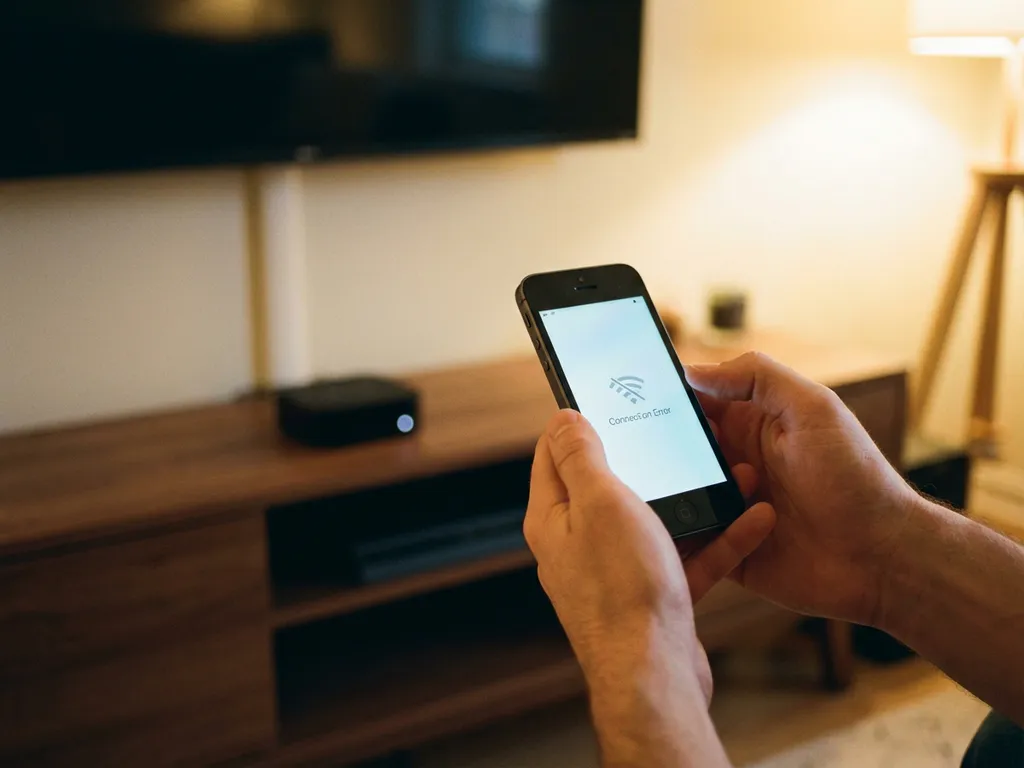
iPhone screen mirroring connection issues typically stem from Wi-Fi network problems, device compatibility conflicts, or software version mismatches. Most connection failures occur when devices aren’t on the same network, are positioned too far apart, or have outdated software. The key is systematic troubleshooting: start with basic connectivity checks before moving on to advanced solutions.
What are the most common iPhone screen mirroring connection problems?
The most frequent iPhone screen mirroring issues include network connectivity problems, device incompatibility, and software conflicts that prevent successful wireless casting. Network-related problems account for the majority of connection failures, particularly when your iPhone and TV aren’t connected to the same Wi-Fi network or when the network signal is weak or unstable.
Device compatibility issues arise when your iPhone’s operating system doesn’t support your TV’s mirroring protocol or when the TV lacks the necessary receiver capabilities. Many users experience problems because their smart TV requires a companion app that they missed during setup.
Software conflicts often occur when multiple screen mirroring apps are installed simultaneously, creating interference between different casting protocols. Background apps that consume bandwidth can also disrupt the connection, causing the mirroring session to fail before it properly establishes.
Distance and interference problems are equally common, especially in homes with thick walls or multiple electronic devices operating on the same frequency. Your iPhone needs to maintain a stable connection to your Wi-Fi router, which then communicates with your TV for successful mirroring.
Why won’t my iPhone connect to my TV for screen mirroring?
Your iPhone fails to connect to your TV primarily because Wi-Fi network requirements aren’t being met, as both devices must share the same network connection to communicate. Device proximity issues, software version mismatches, and hardware limitations create additional barriers to establishing screen mirroring.
Wi-Fi network requirements are strict for iPhone screen mirroring. Both your iPhone and smart TV must connect to the exact same Wi-Fi network, not merely networks with similar names. Guest networks, separate 2.4 GHz and 5 GHz bands, or VPN connections can prevent devices from detecting each other even when they appear connected.
Software version mismatches occur when your iPhone is running an iOS version that is incompatible with your TV’s mirroring capabilities. Older smart TVs may not support newer iOS mirroring protocols, while newer TVs might require iOS updates to establish proper communication.
Hardware limitations affect connection success, particularly with older TV models that lack built-in mirroring support. Some TVs require you to download specific receiver apps before accepting iPhone connections, while others need firmware updates to enable compatibility with current iPhone models.
Device proximity plays a crucial role, as iPhones typically need to remain within 30 feet of the router for stable mirror iPhone iPad screen functionality. Walls, floors, and electronic interference can reduce this range significantly, causing connection attempts to time out before completion.
How do you fix iPhone screen mirroring when it keeps disconnecting?
Fix intermittent iPhone screen mirroring disconnections by optimising your Wi-Fi network settings, adjusting device configurations, and eliminating sources of interference that disrupt the wireless connection. Network optimisation, device setting adjustments, and interference reduction provide the most effective solutions for unstable mirroring sessions.
Network optimisation starts with positioning your iPhone closer to the Wi-Fi router and ensuring no other devices are consuming excessive bandwidth. Restart your router to clear temporary connectivity issues, and consider switching to a less congested Wi-Fi channel if multiple networks operate nearby.
Device setting adjustments include disabling Auto-Lock on your iPhone, as a locked screen can terminate mirroring sessions. Turn off Background App Refresh for non-essential apps to preserve bandwidth for the mirroring connection. Enable Do Not Disturb to prevent notifications from interrupting the casting process.
Interference elimination involves identifying and relocating electronic devices that operate on similar frequencies. Microwaves, baby monitors, and Bluetooth devices can disrupt Wi-Fi signals. Move these devices away from your mirroring setup or temporarily disable them during screen casting sessions.
Check your TV’s power management settings, as some smart TVs automatically enter sleep mode during extended use, breaking the mirroring connection. Adjust these settings to maintain an active connection throughout your mirroring session. For additional troubleshooting resources, visit our knowledge base for comprehensive guides.
What should you check first when iPhone screen mirroring isn’t working?
Check your Wi-Fi connectivity status and confirm device compatibility before attempting advanced troubleshooting. Essential diagnostics include verifying that both devices are connected to the same network, confirming software updates, and ensuring the basic requirements for wireless screen mirroring are met.
Wi-Fi connectivity verification requires confirming that your iPhone and TV share the exact same network connection. Check your iPhone’s Wi-Fi settings and compare the network name with your TV’s connection. Guest networks, mobile hotspots, and separate network bands can prevent successful device communication.
Software updates significantly impact mirroring compatibility. Update your iPhone to the latest iOS version through Settings > General > Software Update. Similarly, check your smart TV for firmware updates through its system settings menu, as outdated software often causes connection failures.
Device compatibility confirmation involves verifying that your TV supports screen mirroring. Most smart TVs manufactured after 2018 include built-in mirroring support, but older models may require additional apps or hardware. Check your TV’s manual or the manufacturer’s website for specific mirroring requirements. If you’re using a Mac computer, you can also mirror your Mac screen to TV using similar principles.
Basic requirement verification includes ensuring your iPhone has sufficient battery life, as Low Power Mode can disable mirroring capabilities. Confirm that your TV is powered on and set to the correct input source. Some TVs require you to select a specific “Screen Mirroring” or “Smart View” input before accepting iPhone connections. You can also enhance your setup with a universal remote control TV app to manage your TV directly from your iPhone.
Distance and positioning matter more than most users realise. Keep your iPhone within a reasonable range of both the Wi-Fi router and your TV—typically within 30 feet—with minimal obstacles between the devices. Android users experiencing similar issues can explore options to mirror Android to TV using comparable troubleshooting steps.
How AirBeamTV Helps with iPhone Screen Mirroring Issues
AirBeamTV provides a comprehensive solution for iPhone screen mirroring connection problems by eliminating the common technical barriers that prevent successful wireless casting. Our dedicated mirroring app addresses the core issues that frustrate users:
• Simplified connectivity – No complex network configuration or device pairing required
• Universal compatibility – Works with all major TV brands and models, regardless of age
• Stable connections – Advanced protocols prevent disconnections and maintain consistent streaming
• No additional hardware – Direct iPhone-to-TV connection without Apple TV or dongles
• High-quality streaming – Maintains full resolution and audio synchronisation
Ready to experience hassle-free iPhone screen mirroring? Download AirBeamTV today and start casting your content to any TV in seconds. If you need personalized assistance, feel free to contact us for expert support.
