




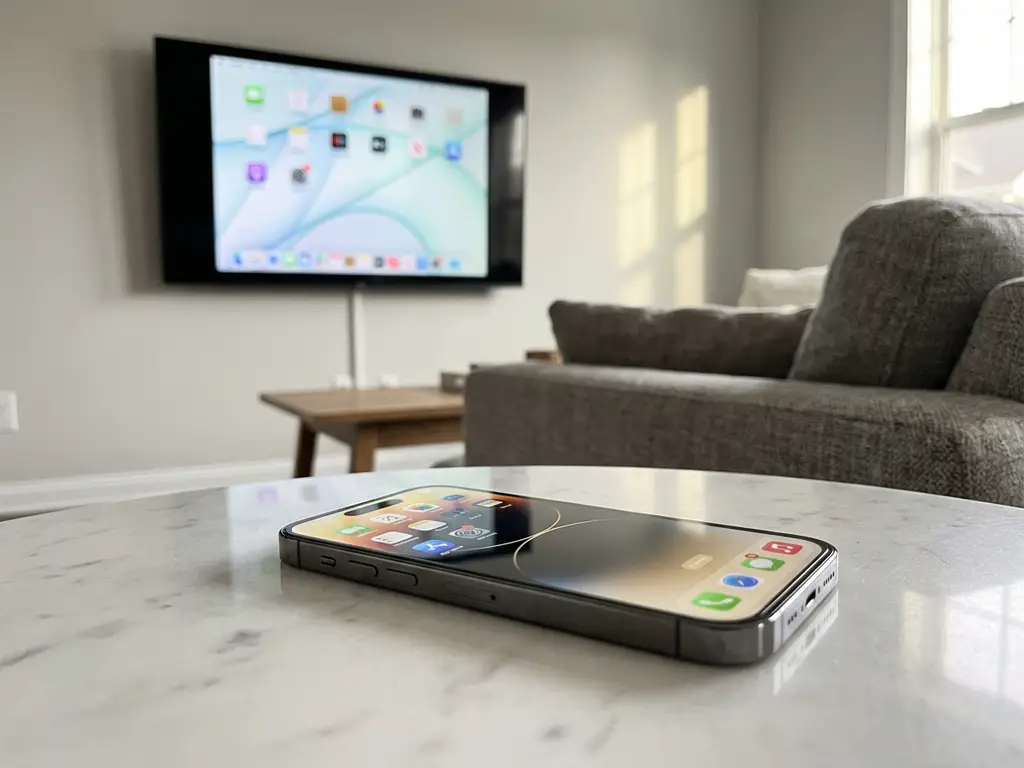
iPhone screen mirroring and AirPlay are both wireless display technologies, but they work differently. iPhone screen mirroring uses third-party apps to cast your device to many smart TVs without requiring an Apple TV or specific Apple hardware. AirPlay is Apple’s built-in technology that works only with an Apple TV or AirPlay-compatible devices. Screen mirroring apps often offer broader compatibility across TV brands such as Samsung, LG, Sony, and Panasonic.
What exactly is iPhone screen mirroring and how is it different from AirPlay?
iPhone screen mirroring through third-party apps creates a wireless connection between your iPhone and your TV over your Wi-Fi network. It works by downloading a dedicated app that scans for available TVs on your local network and then establishes a casting connection.
AirPlay is Apple’s proprietary wireless streaming protocol built into iOS devices. It’s designed specifically to work with Apple TV devices or AirPlay-enabled smart TVs and speakers. The key difference lies in compatibility requirements: AirPlay requires Apple-certified hardware, while screen mirroring apps work with many smart TV brands.
The technical approaches differ significantly. Screen mirroring apps may use Wi-Fi Direct or similar protocols to establish connections, whereas AirPlay relies on Apple’s ecosystem integration. This means screen mirroring solutions can display your iPhone’s content on Samsung, LG, Sony, Panasonic, TCL, and other TV brands without additional hardware.
Which devices can you use with screen mirroring versus AirPlay?
Screen mirroring apps support a much wider range of devices than AirPlay. You can mirror to Samsung Smart TVs, LG displays, Sony TVs, Panasonic screens, Philips TVs, TCL models, and streaming devices such as Roku, Amazon Fire TV, and Android TV boxes.
AirPlay compatibility is limited to Apple TV devices, AirPlay 2-enabled smart TVs from select manufacturers, and certain speakers with AirPlay support. The selection includes some newer Samsung, LG, Sony, and Vizio models, but coverage remains inconsistent across product lines.
Screen mirroring apps work with all iPhone and iPad models running recent iOS versions. The same applies to AirPlay, but your receiving-device options are considerably narrower. Universal compatibility makes screen mirroring apps particularly valuable for households with non-Apple TVs or older smart TV models that lack AirPlay certification.
How do you set up iPhone screen mirroring without AirPlay?
Setting up iPhone screen mirroring typically takes four simple steps. Download the screen mirroring app from the App Store, ensuring you select the version that matches your TV brand. Install the app on your iPhone, then open it to begin the setup process.
The app automatically scans for available TVs on your Wi-Fi network. Select your TV from the drop-down menu within the app. Some TV brands may require you to download a companion receiver app on your TV, but this process is typically automatic.
Tap “Start Mirroring” and select your TV name, followed by “Start Broadcast.” Your iPhone screen appears on the TV display. This contrasts with AirPlay setup, which requires opening iOS Control Centre, selecting Screen Mirroring, and then choosing your Apple TV or AirPlay device.
Screen mirroring apps offer simpler installation because they don’t require specific Apple hardware or Apple ecosystem verification. The setup works the same whether you’re using an iPhone 12, iPhone 13, iPhone 14, or a newer model.
What are the main advantages of using screen mirroring over AirPlay?
The primary advantage is cost-effectiveness: you don’t need to buy an Apple TV or replace your existing TV. Screen mirroring apps work with your current smart TV, regardless of brand or age, potentially saving hundreds of pounds on additional hardware.
Broader device compatibility means you can mirror to many smart TV brands, including Samsung, LG, Sony, Panasonic, TCL, and Hisense models. This universal support reduces compatibility concerns when visiting friends’ homes or using conference-room displays with different TV brands.
The setup process is more straightforward: download the app, connect to Wi-Fi, and start mirroring. There’s no additional hardware to install, no HDMI cable management, and no Apple ecosystem requirement. Screen mirroring apps also support various content types, including YouTube videos, social media apps, streaming services via a web browser, and business applications for meetings.
Many screen mirroring solutions offer free trial periods, allowing you to test functionality before purchasing. This reduces the risk of paying for an app that doesn’t meet your needs or perform well with your setup.
When should you choose AirPlay instead of third-party screen mirroring?
AirPlay works best when you’re already invested in Apple’s ecosystem with an Apple TV, HomePod speakers, or AirPlay-certified devices. The experience feels more seamless because it’s built into iOS and doesn’t require additional app downloads.
Choose AirPlay for audio streaming to multiple speakers simultaneously, as this multi-room functionality isn’t typically available with third-party screen mirroring apps. AirPlay can also provide slightly lower latency for gaming or interactive applications due to its native iOS integration.
If you frequently use specific Apple services such as Apple Fitness+ or prefer the Control Centre interface for quick access, AirPlay offers more convenient operation. The technology also delivers consistent performance across Apple devices without requiring separate apps for iPhone, iPad, or Mac. You can also enhance your setup with a universal remote control TV app for added convenience.
However, these advantages matter only if you already own compatible hardware. For most users with standard smart TVs, screen mirroring apps provide better value and broader compatibility without requiring expensive hardware upgrades.
How AirBeamTV helps with iPhone screen mirroring
AirBeamTV provides the perfect solution for iPhone screen mirroring across all major TV brands. Our dedicated apps eliminate the compatibility barriers between your iPhone and smart TV, offering seamless wireless casting without expensive Apple TV hardware. For additional help, visit our knowledge base or contact us for support. Key benefits include:
- Support for Samsung, LG, Sony, Panasonic, TCL, Philips, and other major TV brands
- Simple one-tap setup process with automatic TV detection
- High-quality video streaming with minimal latency
- Universal compatibility with all recent iPhone models
- Cost-effective alternative to Apple TV or hardware upgrades
- Regular updates ensuring compatibility with new TV firmware
Transform your existing smart TV into a wireless display for presentations, entertainment, and sharing content with family and friends. Download AirBeamTV today and experience effortless iPhone screen mirroring that works with your current setup.
